Time
PVR
Sleep Timer
1. Press p/q key to select "Sleep Timer" option.
2. Press t/u key repeatedly until the desired time
appears (Off, 10min, 20min, 30min, 60min, 90min, 120min, 180min, 240min).
Notes:
1.The sleep timer you have set will be cancelled when the TV turns off or if a power failure occurs.
1. Press p/q key to select "Time Zone" option.
2. Press t/u key to select time zone.
PVR File System
Off Time
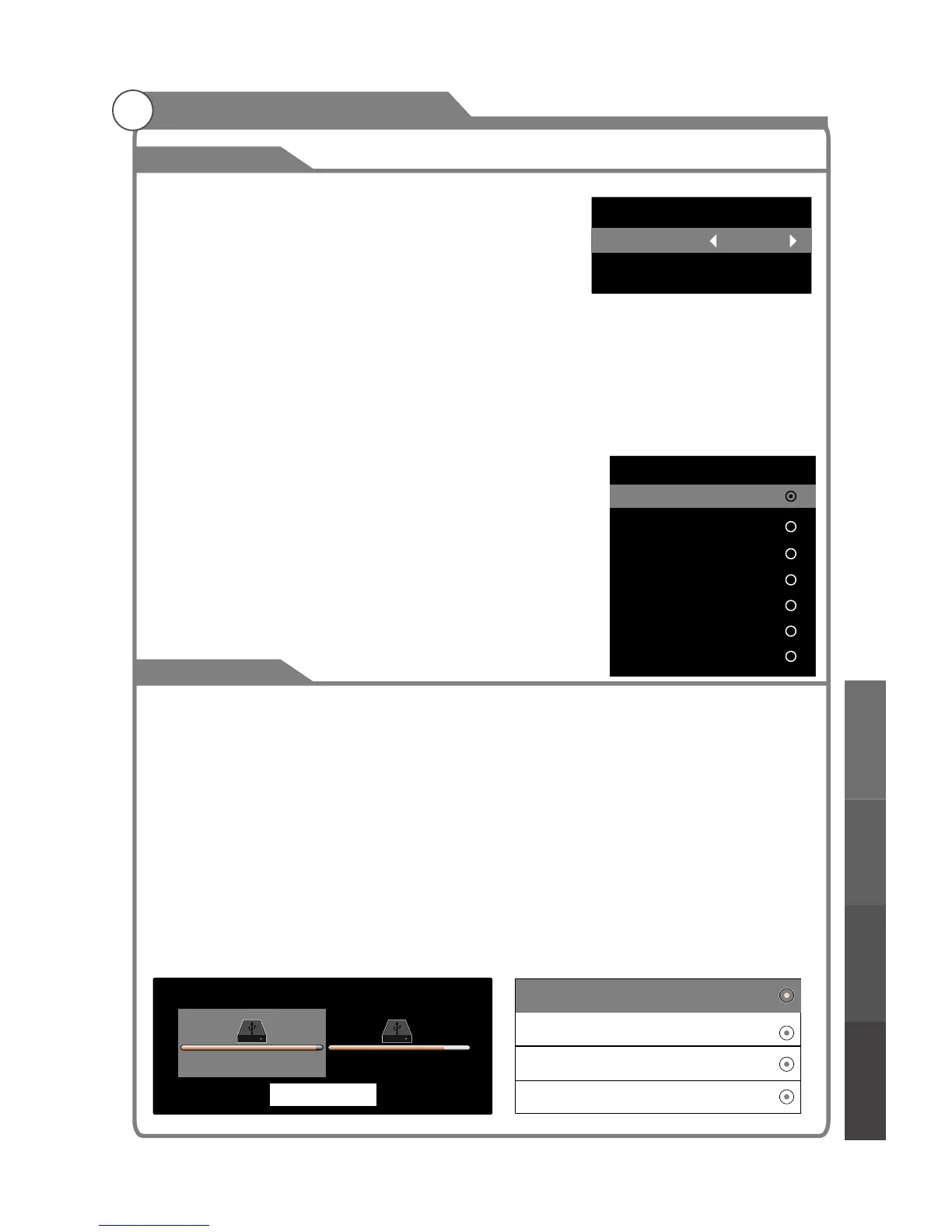
In "Off Time" item, press OK button to enter the submenu, then
set the time to turn off the TV set.
2.When the time is less than 60 seconds, a reminder will be displayed on the screen.
Press any key button to cancel timer function.
Time Zone
You can choose to modify your time zone on the TV set.
WARNING:
1. Before connecting your USB device to the TV, please back up your files to prevent damage
or loss of data.
2. A USB disk must be formatted when first used for PVR. Any existing data on the disk will
be lost during the formatting process. Please back up your disk if you do not want to lose
this data. You are recommended to use a dedicated disk for PVR use only. Do not
disconnect disk or power during formatting.
3. Do not modify PVR files on a PC. Do NOT disconnect the USB device while recording.
Note: Make sure your USB device is compatible with the TV and able to support
PVR recording.
35
Off Time
Switch On
Time 00:00
512M
1G
2G
4G
Select Disk
C: FAT
null
D: FAT
null
Cancel
Menu system instruction
Menu system
instruction
Digital Media Player
Troubleshooting
Picture defects and
the reason
Time Zone
Western Australia GMT+8
Northern Territery GMT+9.5
South Australia GMT+9.5
New South Wale GMT+10
Tasmania GMT+10
Queensland GMT+10
Victoria GMT+10



 To Next Page