PROGRAMMING
A note of CAUTION: Y
ou can overwrite any location (except 00 and 50)
including factory presets. However, you can choose to lock program locations by
changing the protection scheme. See Special Page Function #4 on page 12.
Programs 01-49 are factory presets (refer to list on page 17).
Programs 51-99 are duplicates of factory presets 01-49.
Programs 100-127 are preset with all knobs set neutral at 12 o’clock.
Programs 00 and 50 are permanent bypass locations for the instrument
signal to pass straight through the SansAmp PSA.
NOTE: Being all-analog circuitry, there are no special algorithms within the dif-
ferent amplifier styles. Individual control functions do not change from preset
to preset (custom or factory).
Saving a Custom Program
If you want to create a custom setting from scratch:
1. Choose a program location.
2. Edit controls to taste.
3. Push the Save button twice. The display will “run around” three times and
then show the selected program number (it will stop blinking). That’s it. You’ve
stored a new program.
Moving/Copying a Program to a New Location
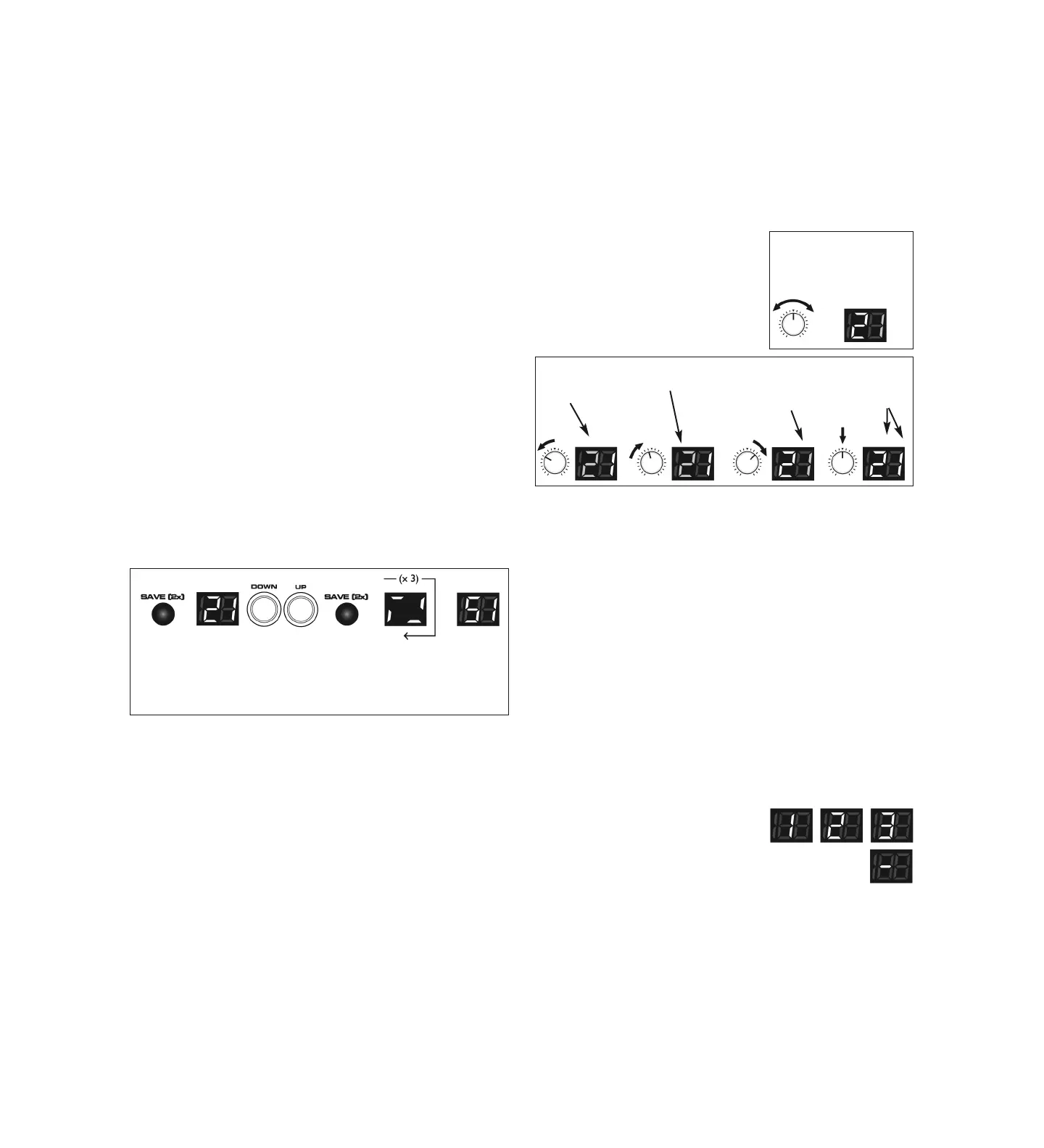
1. Choose the preset number you want to move or copy.
2. Push the Save switch once. The digits of the display blink on and off.
3. Use the Up or Down buttons to a new location where you want to save it.
4. Push the Save switch a second time. The display will “run around” three
times and then show the selected program number (it will stop blinking). That’s
it. You’ve moved/copied a program. Note: The original preset setting doesn’t
change until it is overwritten.
Tweaking an Existing Setting (factory or custom)
If you want to edit a factory or custom setting, first decide if you want to keep
the existing setting intact. If so, copy the setting to a new location, as per the
above instructions.
1. Choose the setting you want to edit.
2. Adjust controls to taste.
3. Push the Save switch twice. The display will “run around” three times and
then display the program number (it will stop blinking). That’s it. You’ve stored
the edited program.
Be careful not to overwrite a custom program you don’t want
to lose. Accidents can happen, so we recommend keeping
track of your programs. Blank diagrams are provided on pages
19-22 and can be photocopied. Write in the knob settings and
give each program a name (song title, description of the tone,
etc.) for easy reference later.
7
8
Locating Individual Control Values Within a Preset
When recalling presets, the positions of the front panel controls do not reflect
the actual stored values of each of their parameters. When you turn any of the
knobs (except for the Trim), the SansAmp PSA will go into edit mode and “un-
l
ock” whichever control you turn. The circuitry will then revert to the actual
value of that control’s position (vs. the stored value), allowing you to edit the
sound to your liking.
When you turn/unlock a control from the set-
ting that’s stored in the memory, one of the dig-
its in the LED numerical display will blink, the
other will dim. Note: When you’re in program
100 or higher, the two left digits blink or dim to-
gether as one number. This tuner-like feature is
useful when you want to know the stored posi-
tion of each knob’s setting in a particular preset.
Let’s say the preset point for a particular knob is 12 o’clock. If the left digit
blinks and the right dims after unlocking it, you will need to turn the knob
clockwise to reach the preset value. As you get closer, the left digit will blink
faster, then stop when you’ve reached the stored value. The right digit then re-
sumes its full brightness. Conversely, if the right digit blinks and the left dims,
you will need to turn the knob counter-clockwise, etc.
Note: If desired, you can alter the display mode to be dashes or numerical val-
ues instead of digits. See Special Page Function #7 on page 14.
PERFORMANCE MODE
Rather than using the Active/Search function, Performance mode allows you to
put your three most often used programs in a row for instant access to each.
Loading Presets for Performance Mode
Use the move/copy utility to place your favorite presets into 01, 02, 03 program
locations. These will then be accessed by Footswitches 1,2,3 in Performance
mode: Footswitch 1 = 01 program location
Footswitch 2 = 02 program location
Footswitch 3 = 03 program location
To enter Performance mode, simply press footswitches 1+3 simultaneously.
The display will indicate Performance mode by showing “1” in the center digit
position. The three presets can then accessed
by each of the three footswitches, which will
display the corresponding digit accordingly.
Pressing the corresponding footswitch again will place the PSA into
bypass and the display will show a dash (-) in the center digit.
To exit Performance mode, press footswitches 1+3 simultaneously.
Note: If you make adjustments to your settings while in Performance mode,
the display will revert back to 01 or 02 or 03 (depending on which channel you
are editing) and return to showing 1,2 or 3 once you save the changes. Just be
aware, saving will overwrite the stored preset.
Push
Save
Switch
Display
Blinks
On and
Off
Select a
Program
Number
Push
Save
Switch
Again
Digits
“Run
Around”
Three Times
Display
Shows
Stored
Preset
Number
O
ne digit
blinks,
the other
dims
Right digit dims
Left digit blinks
Left digit dims
Right digit blinks
Left digit
blinks faster
Digits resume
normal
brightness


 To Next Page