InstructIons
1. OpentheBluetoothkeyboardpowerswitch;press“connect”buttontomakethekeyboardto
enter the Bluetooth pairing mode, the Bluetooth indicator light flashes.
2. TabletPCisturnedon andunlocks,open theSettingAdd Searchtodisplaythename ofthe
BluetoothkeyboardICTB1007andclick,sothatotherpopPairingkey.
3. TabletPC Inputpop-ipontheBluetooth keyboardpairingkeyandEnter.Afterconnecting the
tabletwilldisplayconnected,youcanusethekeyboard.
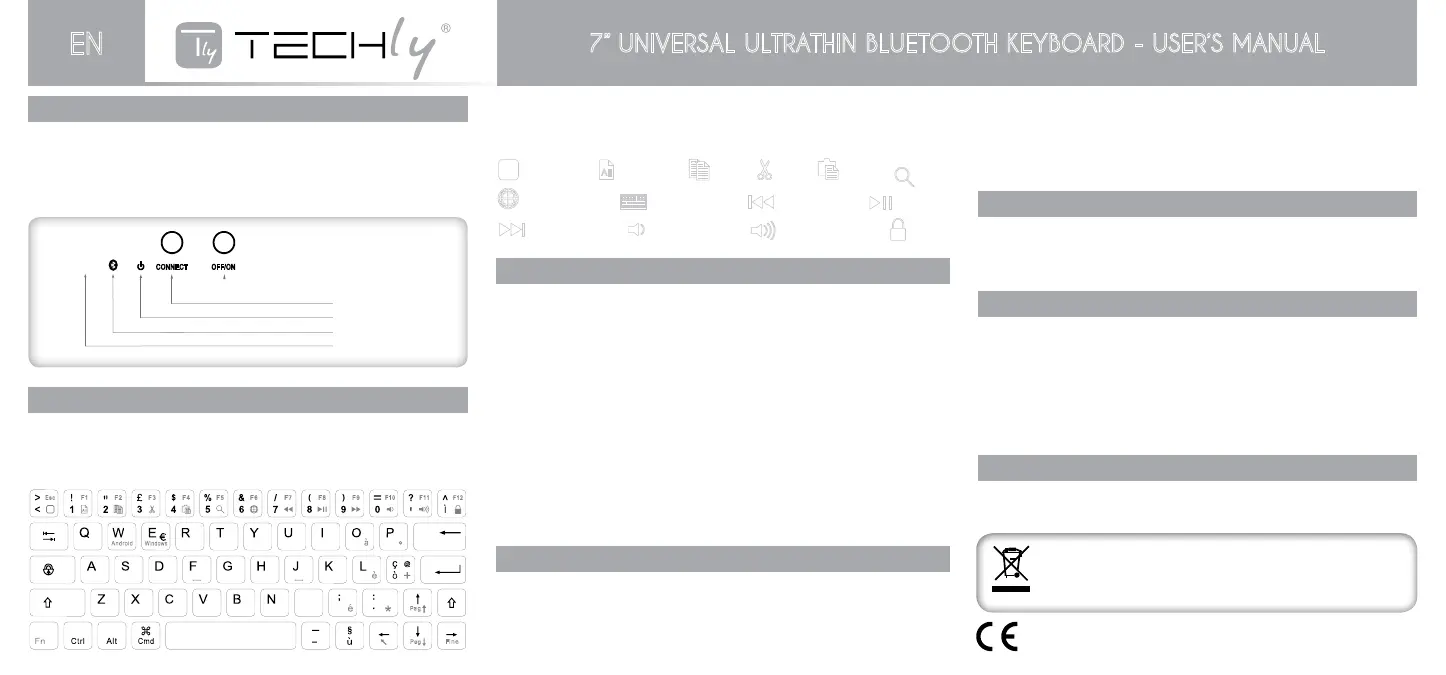
how to use Fn key
Forexample:longpressFnkeyandcombinationwiththeUparrowkey,thePageupfunctioncan
be achieved.
BluecharactersneedtobeusedincombinationwiththeFnkey
Apple System:AfterthekeyboardandtabletPCconnectionissuccessful,thenpress“FN+Q”this
combination
Android: afterthekeyboardandtabletPCconnectionissuccessful,thenpress“FN+W”thiscombination
Windows: after the keyboard and tablet PC connection is successful, then press “FN+E” this
combination
Special keys
product Features
• Lightweight,quietstroke,dustproofandspill-proof
• WorkwithPCandmobilephone
• Built-inlithiumbattery,youdon’tneedtofrequentlychargebattery
• Energysavingkeyboardsleepingmode
• ExecutiveStandard:BluetoothV3.0
• Workingdistance:10m
• Modulationsystem:GFSK
• Transmittingpower:Class2
• Operatingvoltage:3.0-5.0
• Workcurrent:<4.0mA
• Stand-bycurrent:<1mA
• Sleepingcurrent:<200uA
• Chargingcurrent:<200mA
• Stand-bytime:60days
• Uninterruptedworkingtime:50hours
• Chargingtime:2hours
• Li-ionbatterycapacity:200mAH
• Keystrength:80±10g
• Operatingtemperature:-20°Ca+55°C,humidity:20%-50%
• Storagetemperature:-40°ca+70°C
chargIng
IftheBluetoothindicatorlightkeepsflashingwhenyouareusingthekeyboard,meansthebatteryis
lowandthedeviceneedtoberecharged
Step1:connecttheUSBpowercabletothekeyboardcharginginterface
Step2:connecttheUSBcabletothecomputer’sUSBinterfaceorUSBpoweradapter
Step3:The red(charge)indicatorlightwill stayonwhenthekeyboard ischarging.Onceitfinished
charging,thered(Charge)indicatorlightwillturnoff.
Note: Afteryouhavefinishedcharging,carefullyunplugtheUSBcablewithoutdamagingtheUSB
interface.
Remember toturnoff the keyboard’spower to extend battery life after you have finished using
yourkeyboard
Neverstorethekeyboardawayforalongperiodoftimeifthebatteryisnotchargedasthiswill
shortenthe keyboard’sinternallithiumbatterylife.Ratherfullychargethebatterybefore storing
theunitaway.
saFety cautIons
Keepawayfromsharpobject
Donotputheavyobjectonthekeyboard
Donotforceordistortedthekeyboard
Keepawayfromoil,chemicalsoranyotherorganicliquids
Cleanthekeyboardwithwater,alcoholoralcoholbaseddisinfectants
trouble shootIng
(A) If unable to connect the Bluetooth keyboard to the computer, or the keyboard work
unconventionallypleasetrythestepsbelow:
1. Makesurethekeyboardiswithinitseffectiveworkingrange–10m
2. MakesurethattheBluetoothisstillpaired.Ifnot,re-pairtheunits
3. IftheBluetoothisconnectedtoanyotherBluetoothproducts,pleasecancelandturnoffthe
keyboardandre-pair
4. Pleasekindlycheckthebatteries.Iftheyarelowonpower,rechargedtheunit
(B)Unabletochargethekeyboard:
1. MakesuretheUSBpowercableisconnectedproperlytothekeyboardandpowersource
2. Makesurethewallchargerisplugtothepoweroutlet
energy savIng sleepIng mode
The keyboard will get intosleeping mode when it is inactivefor 25 minutes and the keyboard
indicatorlightwillgooff.Toactivatefromsleepmode,justpressanykeyandwaitfor3seconds,
thekeyboardwillcomebackon
Power switch )
Code key )
( Charge Indicator )
( Bluetooth lights )
( caps Lock light )
A
CONNECT
OFF/ON
Powerswitch
Codekey
Charge Indicator
Bluetooth lights
capsLocklight
,
M
IOS
P
a
g
P
a
g
F
i
n
e
ln vio
Ca nc
TheproductiscompliancewithfollowingEUDirective:R&TTE1999/5/ECandRoHS2011/65/EU
This product is markedwiththissymbol. It means that used electrical andelectronic
products should not be mixed with general household waste. There is a separate
collectionssystemfortheseproductsincompliancewithEUDirectiveWEEE.
主界面
(Home page)
全
(Select all)
制
(Copy)
剪切
(Cut)
粘
(Paste)
搜索
(Search)
言切
(Language switch)
屏幕
(Screen Keyboard)
上一曲
(previous tarck)
播放
(Play/Pause)
下一曲
(Next track)
少音量
(Decrease volume)
音量增加
(Increase volume)
屏
(lock)
主界面
(Home page)
全
(Select all)
制
(Copy)
剪切
(Cut)
粘
(Paste)
搜索
(Search)
言切
(Language switch)
屏幕
(Screen Keyboard)
上一曲
(previous tarck)
播放
(Play/Pause)
下一曲
(Next track)
少音量
(Decrease volume)
音量增加
(Increase volume)
屏
(lock)
主界面
(Home page)
全
(Select all)
制
(Copy)
剪切
(Cut)
粘
(Paste)
搜索
(Search)
言切
(Language switch)
屏幕
(Screen Keyboard)
上一曲
(previous tarck)
播放
(Play/Pause)
下一曲
(Next track)
少音量
(Decrease volume)
音量增加
(Increase volume)
屏
(lock)
主界面
(Home page)
全
(Select all)
制
(Copy)
剪切
(Cut)
粘
(Paste)
搜索
(Search)
言切
(Language switch)
屏幕
(Screen Keyboard)
上一曲
(previous tarck)
播放
(Play/Pause)
下一曲
(Next track)
少音量
(Decrease volume)
音量增加
(Increase volume)
屏
(lock)
主界面
(Home page)
全
(Select all)
制
(Copy)
剪切
(Cut)
粘
(Paste)
搜索
(Search)
言切
(Language switch)
屏幕
(Screen Keyboard)
上一曲
(previous tarck)
播放
(Play/Pause)
下一曲
(Next track)
少音量
(Decrease volume)
音量增加
(Increase volume)
屏
(lock)
主界面
(Home page)
全
(Select all)
制
(Copy)
剪切
(Cut)
粘
(Paste)
搜索
(Search)
言切
(Language switch)
屏幕
(Screen Keyboard)
上一曲
(previous tarck)
播放
(Play/Pause)
下一曲
(Next track)
少音量
(Decrease volume)
音量增加
(Increase volume)
屏
(lock)
主界面
(Home page)
全
(Select all)
制
(Copy)
剪切
(Cut)
粘
(Paste)
搜索
(Search)
言切
(Language switch)
屏幕
(Screen Keyboard)
上一曲
(previous tarck)
播放
(Play/Pause)
下一曲
(Next track)
少音量
(Decrease volume)
音量增加
(Increase volume)
屏
(lock)
主界面
(Home page)
全
(Select all)
制
(Copy)
剪切
(Cut)
粘
(Paste)
搜索
(Search)
言切
(Language switch)
屏幕
(Screen Keyboard)
上一曲
(previous tarck)
播放
(Play/Pause)
下一曲
(Next track)
少音量
(Decrease volume)
音量增加
(Increase volume)
屏
(lock)
主界面
(Home page)
全
(Select all)
制
(Copy)
剪切
(Cut)
粘
(Paste)
搜索
(Search)
言切
(Language switch)
屏幕
(Screen Keyboard)
上一曲
(previous tarck)
播放
(Play/Pause)
下一曲
(Next track)
少音量
(Decrease volume)
音量增加
(Increase volume)
屏
(lock)
主界面
(Home page)
全
(Select all)
制
(Copy)
剪切
(Cut)
粘
(Paste)
搜索
(Search)
言切
(Language switch)
屏幕
(Screen Keyboard)
上一曲
(previous tarck)
播放
(Play/Pause)
下一曲
(Next track)
少音量
(Decrease volume)
音量增加
(Increase volume)
屏
(lock)
主界面
(Home page)
全
(Select all)
制
(Copy)
剪切
(Cut)
粘
(Paste)
搜索
(Search)
言切
(Language switch)
屏幕
(Screen Keyboard)
上一曲
(previous tarck)
播放
(Play/Pause)
下一曲
(Next track)
少音量
(Decrease volume)
音量增加
(Increase volume)
屏
(lock)
主界面
(Home page)
全
(Select all)
制
(Copy)
剪切
(Cut)
粘
(Paste)
搜索
(Search)
言切
(Language switch)
屏幕
(Screen Keyboard)
上一曲
(previous tarck)
播放
(Play/Pause)
下一曲
(Next track)
少音量
(Decrease volume)
音量增加
(Increase volume)
屏
(lock)
主界面
(Home page)
全
(Select all)
制
(Copy)
剪切
(Cut)
粘
(Paste)
搜索
(Search)
言切
(Language switch)
屏幕
(Screen Keyboard)
上一曲
(previous tarck)
播放
(Play/Pause)
下一曲
(Next track)
少音量
(Decrease volume)
音量增加
(Increase volume)
屏
(lock)
主界面
(Home page)
全
(Select all)
制
(Copy)
剪切
(Cut)
粘
(Paste)
搜索
(Search)
言切
(Language switch)
屏幕
(Screen Keyboard)
上一曲
(previous tarck)
播放
(Play/Pause)
下一曲
(Next track)
少音量
(Decrease volume)
音量增加
(Increase volume)
屏
(lock)
Homepage Paste
Previous track
Increase volume
Select all Search
Play/Pause
Lock
Copy
Languageswitch
Next track
Cut
ScreenKeyboard
Decreasevolume
7” UNIVERSAL ULTRATHIN BLUETOOTH KEYBOARD - USER’S MANUAL
EN


 To Previous Page
 Loading...