5
ADJUSTING THE VOLUME
SELECTING A DAB STATION
After scanning, the stations are stored in an
alphanumeric station list.
To select another station:
Press the • or button to browse the
station list.
Press the • Enter control to select the
station displayed.
To adjust the volume:
Turn the • Volume control clockwise to
increase or anti-clockwise to decrease the volume.
The volume level will be displayed on a bargraph.
FM RECEPTION
Your radio can also receive FM band radio stations.
To change between the DAB and FM bands:
Press the • Mode button.
The radio will change band and the station name (DAB)
or tuned frequency (FM) will be shown on the display.
DAB/FM BANDS
Select the FM band.•
To scan for FM stations:
Press the • SCAN button to scan up the band
for stations. or
Press and • hold the SCAN button to scan down the
band for stations.
Tuning will stop automatically when the next station is
reached.
To manually tune to FM stations:
Press the • or button to tune up or down
the band in 0.05MHz steps.
DAB & FM PRESETS
Your radio can store up to 10 of your favourite stations
as presets on both the DAB and FM bands.
To store a preset:
Tune to the station you want to store as a preset.•
Press and • hold the PRESET button.
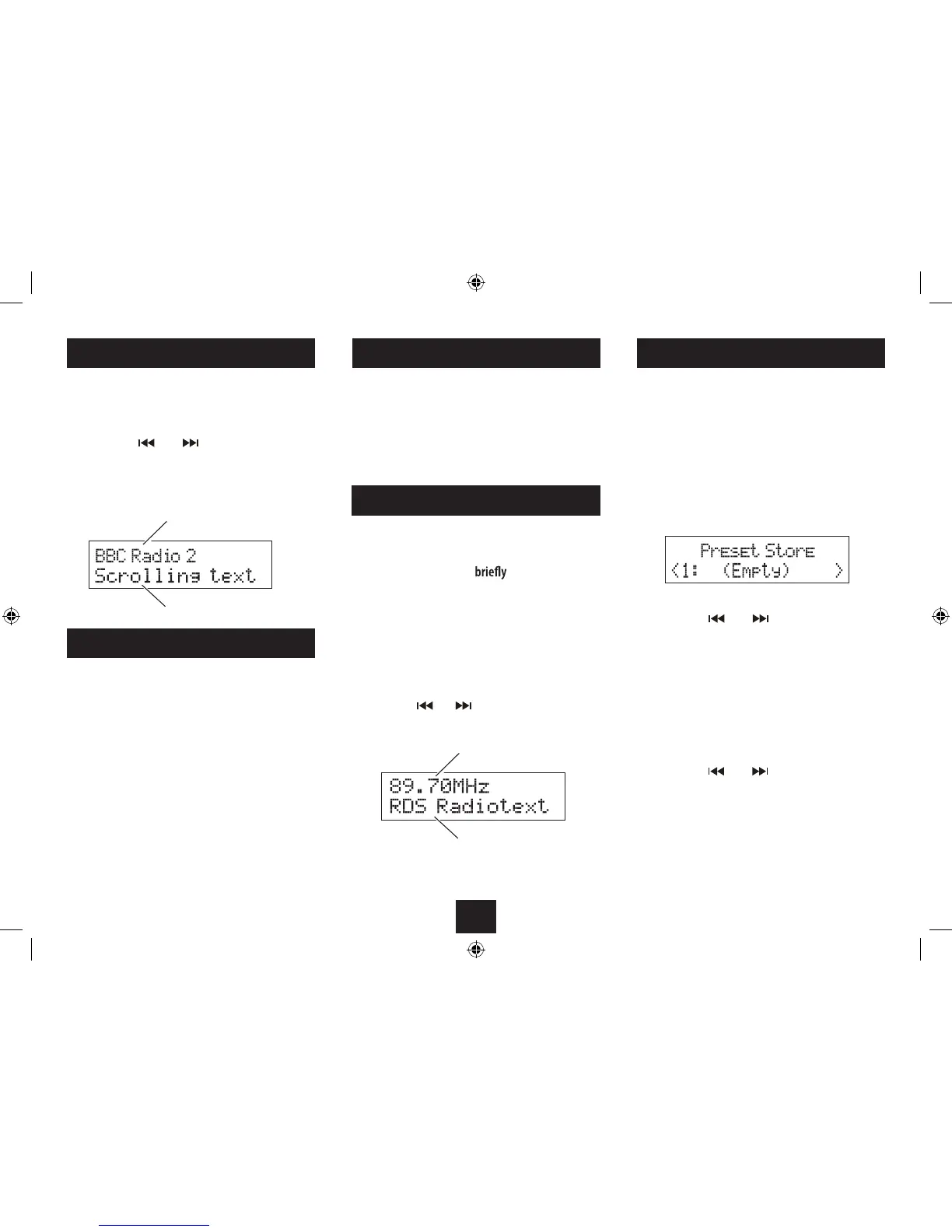
‘Preset Store’ will be displayed with a preset number to
store. If a station is already stored in this preset number,
the station details will be shown.
Station name
DLS scrolling text
Station frequency
RDS text
To choose a preset location to store your station, •
press the or button to change the
preset number displayed.
To store the station playing in the preset number •
displayed, press the Enter button.
button.
When
will be displayed to conrm the number you selected.
When you nd the preset number you want, press
you store a preset, the preset number and ‘Stored’
To recall a preset:
Press the • PRESET button.
Press the • or button to browse the
preset stations you have stored.
•
the Enter
The radio will tune to the selected preset station.


 To Next Page