TECTUS Transponder Technology GmbH, Eurotec-Ring 39, 47445 Moers 7 Germany
MultiPen User Manual V.1.2 ©TECTUS Page 5 / 10
Transponder Reading (LF, HF or UHF)
Turn on the MultiPen by using button 3.
Move the tip of your MultiPen to the transponder (LF or HF) and push button 1 once or keep it
pushed.
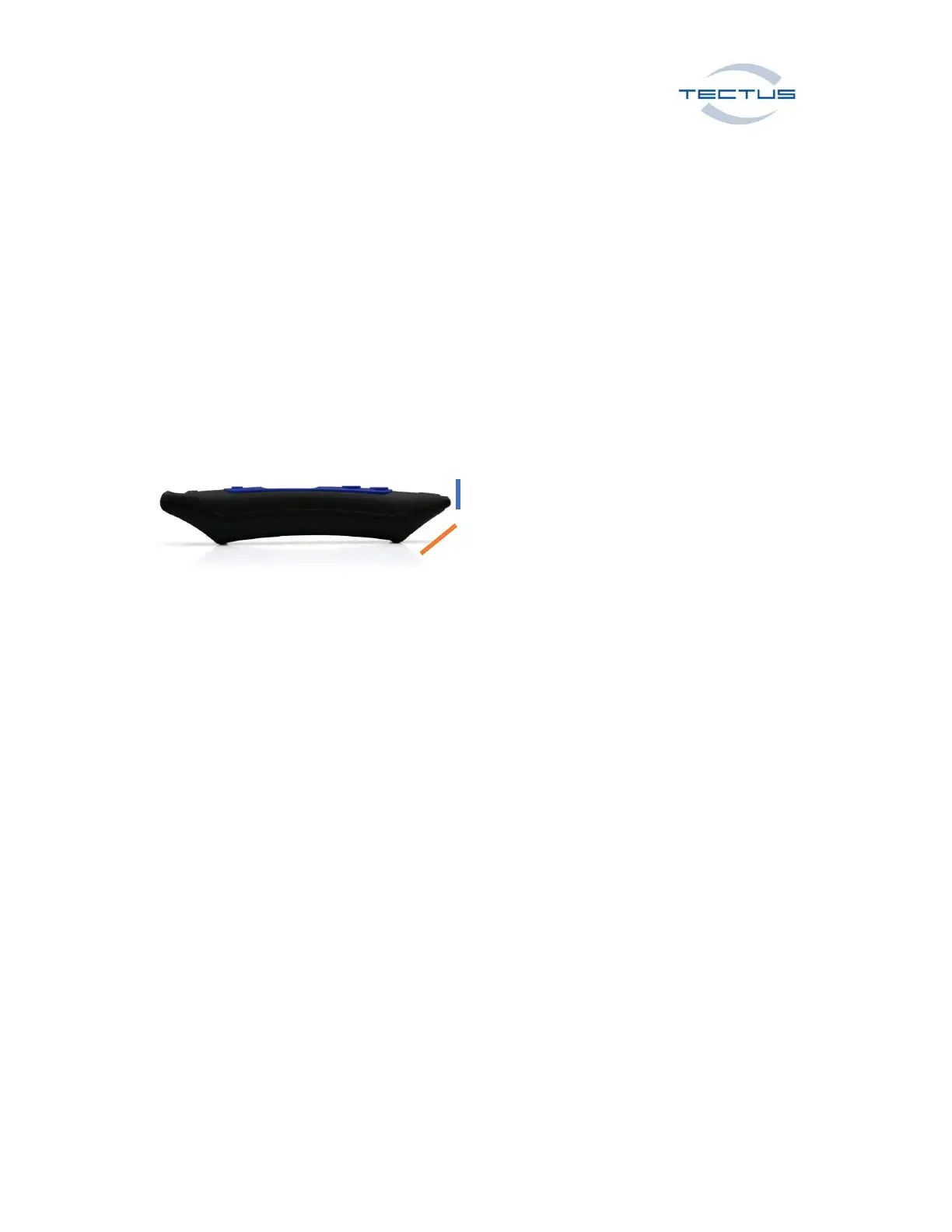
To read an UHF Transponder, please follow the same procedure, but guide the flat surface below the
tip to the Transponder (see picture attached).
A successful read of the Transponder UID will be notified by vibration. Additionally, the UID will be
shown in the display. The picture shows the read positions from LF / HF Transponder (Blue) and UHF
Transponder (Red)
Switching from HID (Human Interface Device) to SPP (Serial Port Profile)
Mode and back to HID
Your MultiPen device is set to Bluetooth™ HID (Human Interface Device) Mode ex works.
To set SPP Mode, keep button 2 pushed and turn on the device with button 3.
The display will show the set mode.
To switch back to HID Mode, please keep button 1 one pushed and turn on the device with button 3.
Use HID (Human Interface Device) Mode with BLUETOOTH™ connection
Your MultiPen device is set to BLUETOOTH™ HID (Human Interface Device) Mode ex works.
Turn on your MultiPen and push button 2 to enable the BLUETOOTH™ function.
To connect your MultiPen via Bluetooth, search on your PC/Laptop/mobile Phone/Tablet for new
BLUETOOTH™ devices. In some cases, the MultiPen will notify the user about a new available
keyboard device.
Pair the MultiPen to your device as soon as it has been identified as BLUETOOTH™ device.
If you now read a Transponder, the MultiPen will send the UID to your focus point (cursor point).



 To Next Page