Do not Apply Enter for suffix Apply Tab for suffix
9
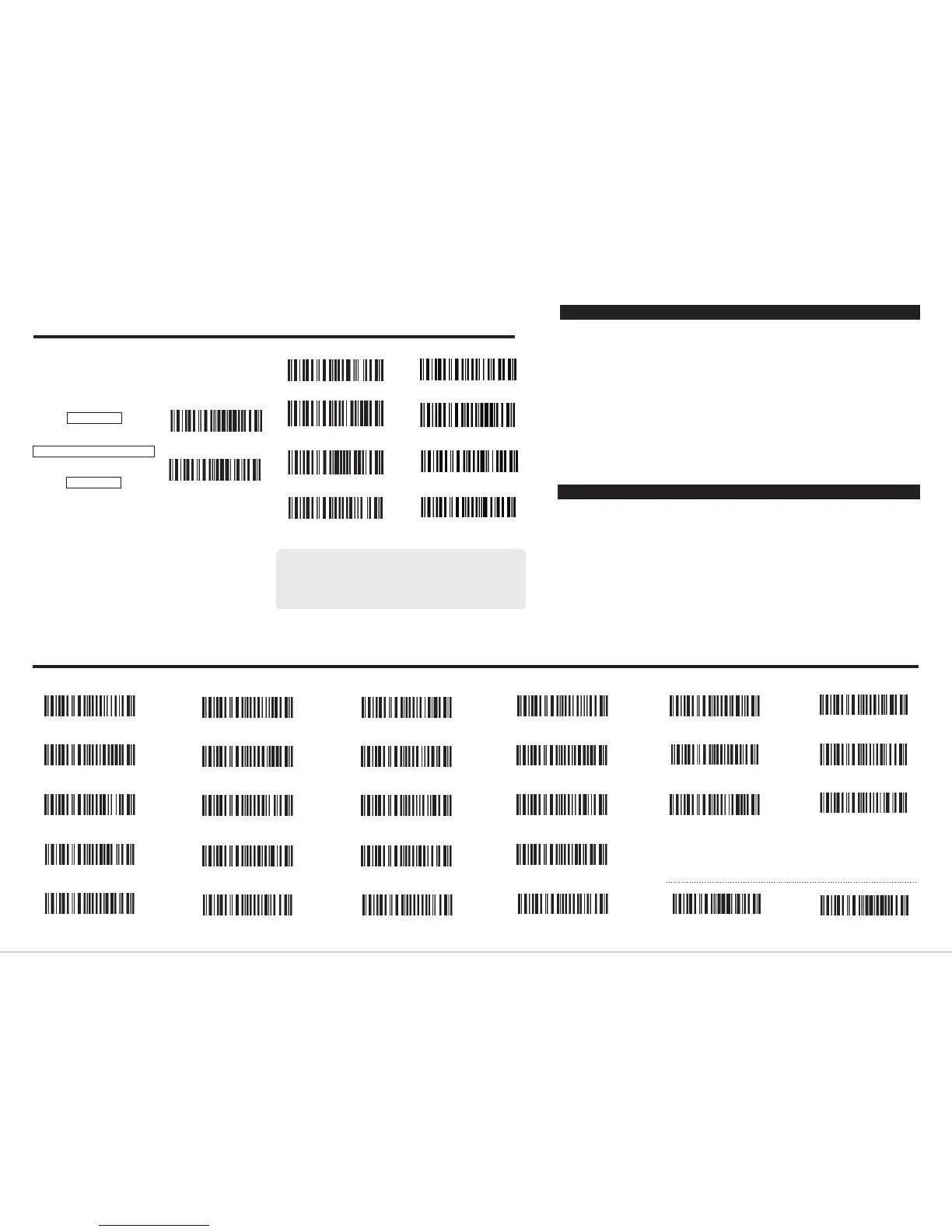
Common Function Barcodes
10
Function Setup Barcodes (the barcodes with * is the default setting of TMCT-10)
Exit Auto Power Off
Disable Auto Upload
Enable Auto-induction Mode
Bluetooth Input Method
Enble SPP
SPP Batch Upload
Enable Code bar
Enable Industral 25
Enable Interleaved 25
Enable Matrix 25
Enable Standard 25
(*) Disable Interleaved 25
(*) Disable Industrial 25
(*) Disable Code bar
(*) Disable Matrix 25
(*) Disable Standard 25
(*) Enable Code 39
Disable Code 39
Enable Code 93
Disable EAN-13
Disable EAN-8
Disable Code 128
(*) Enable Code 128
(*) Enable EAN-8
(*) Disable Code 93
(*) Enable EAN-13
(*) Enable UPC-E
Disable UPC-E
Enable Code 11
Enable MSI (*) Disable MSI
(*) Disable Code 11
Exit with Save
Enter Setup
Warning:
1. Please remove the power and USB cable under thunderstorm weather, to
avoid damage from thunder and lightning.
2. Away heat source, keep ventilating.
3. Pay attention to waterproof during storage, transportation and running.
4. Please use the matched power adapter offered by the supplier.
LED Indicators
Indicator Colour
Meaning
Green LED on(1s) and off quickly
Purple, Flashing (On/Off ratio 1:1)
Blue, Flashing (On/Off ratio 1:1)
Blue, Flashing (On/Off ratio 20ms:3s)
Red, Flashing (On/Off ratio 1:1)
Good Read, with one short beep (high tone)
connection successfully, or it is reconnect with BT.
which connects with before.
Battery Status
LED Indicator
Charging (Bluetooth disconnected)
Charging (Bluetooth connected)
Battery full charge (Bluetooth disconnected)
Battery full charge (Bluetooth connected)
Red and gr
een indicator flashing
Blue and green indicator flashing
Red indicator flashing
Blue indicator flashing
Note: The charging status light only displays when the device is turned on.
Beeper
Beeping
Meaning
One long beep, high tone
One short beep, high tone
One long beep, low tone
Two short beeps, high tone
Two short beeps, low-high tone
Two short beeps, high-low tone
Three short beeps, tone descending
from high to low
Three short beeps, tone ascending
from low to high
Power on.
Read barcode, with green LED on (1s) and off quickly
Configuration error, with purple flashing;
Or transmit buffer full, with green LED on and off quickly
Power off.
BT connection established, with blue LED flashing
(On/Off ratio 20ms:3s).
BT connection out of range or suspen
ded, with blue LED
flashing (On/Off ratio 1:1).
Enter or Exit Setting mode, with purple LED flashing.
Configuration correct, with purple LED flashing;
Indicates the TMCT-10 scanner in Setting mode
Indicates the BT is waiting for connection or TMCT-10 is
out of transmission range
Indicates the TMCT-10 Scanner establish a BT
Indicates the TMCT-10 Scanner has no address of BT
If you like to configure and modify one or a couple of the TMCT-10
scanner’s properties, you may do so by following the scanning
steps shown below:
“Enter setup mode” -> [configuration barcode(s)] -> “Exit with
save”.
Enter Setup
Details (eg: Enable/Disable a Barcode)
Exit with Save
↓
↓
For example: Enable Codabar.
1. Read the "Enter Setup" barcode;
2. Read the "Enable Codabar" barcode;
3. Read the "Exit with Save" barcode.
If you cannot find the configuration barcodes on the manual,
please kindly contact us at support@teemistore.com.
Enter Setup
Exit with Save


 To Next Page
 Loading...