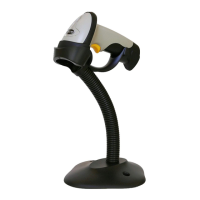
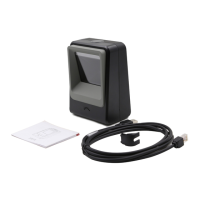
► USB wired + Bluetooth wireless communication
► Built-in FLASH memory, supports breakpoint resume
► Can store 2600 pieces Code-128 codes under offline state
► Supports Windows XP, Win7/8, Wince, mobile OS PC and android, iOS devices
TMCT-10 Barcode Scanner
Quick Start Guide
Packing list:
-TMCT-10*1unit
-USB cable*1pc
-Bluetooth adapter*1pc
-Power charger*1pc
-Quick Start Guide
PIN Code:10010
TMCT-10Barcode Collect device
PIN Code:10010
Data Terminal
PIN Code:10010
10Barcode Collect device
PIN Code:10010
Data Terminal
PIN Code:10010
10Barcode Collect device
BT Adapter
PIN Code:10010
Data Terminal
Bluetooth Application:
TMCT
-
TMCT-
Email: support@teemistore.com Website: www.teemistore.com
1. What app does this scanner run with in the app store?
No need to install any app. It connects with your PC or mobile devices via Bluetooth.
2. What operating systems is the scanner compatible with?
The scanner is compatible with Microsoft Windows XP/7/8, Mobile6/Wince, Google Android 4.0 Above, and Apple iOS 7, Mac OS X; it works
well with iPhone, iPad, iPod, Kindle Fire HDX, Samsung Galaxy Tablet, Microsoft Surface Tablet.
3. Why isn’t my Bluetooth barcode scanner working with my Android-equipped device?
1). The barcode scanner can be connected directly with Android 4.0 and above version.
2). For Android 2.2 or 2.3, it can only be connected via the Bluetooth input method provided by the manufacturer, which makes the Bluetooth
scanner act as a keyboard.
4. Why can the scanner not read the barcodes?
The possible reason is that the setting is off by default, for some barcode types are not commonly used. You need to activate a specific
barcode type to get it to work. Please feel free to contact our Customer Service Team for further assistance if you know the exact type of
barcode that you are referring to.
5. The barcode scanner was successfully paired with my device, but the data can't be scanned and sent to my computer or cellphone.
The possible solutions include:
1). Please check out if the barcode scanner has been successfully paired with your device. If so, the LED indicator should stay in solid blue.
2). Please make sure if you have turned on the offline mode, because it will store your scans internally instead of instantly transmitting them
to the connected device without saving them in its memory. You need to scan the "Manual data upload" barcode to send the scanned
codes to your connected device.
3). Sometimes you might need to check out if you have disabled the auto sync.
6. My computer/cellphone can’t find the Bluetooth barcode scanner. Why is this?
Please make sure that you have turned on the Bluetooth barcode scanner.
Please check that the LED indicator is constantly flashing red, and then try pairing again.
For PC users, please restart the Bluetooth service or unplug-and-plug the Bluetooth adapter into another USB port. If you’re pairing it with a
cellphone, please restart the Bluetooth service.
7. I successfully got it to connect and scan, but then the ipad regular keyboard doesn't come up. Is there a way to still have the regular
keyboard work?
You can switch to the virtual keyboard of IOS devices easily by double-clicking the trigger of the scanner.
8. How to restart the bar code scanner?
Press the button for 2-3 seconds once you hear two short beeps with high tone, it means the scanner is power off; then press it again until
you hear one lone beep with high tone, it means it is power on.
9. Can I pair the Bluetooth barcode scanner with multiple devices at one time?
No, it can only work with one device at a time. If you need to switch to another device, please reconfigure the scanner and remove the
Bluetooth pairing on your device. You can check out the instruction manual for further assistance.
10. Why doesn’t my desktop/laptop reconnect with the Bluetooth barcode scanner automatically after a reboot?
Please make sure that you have turned on the Bluetooth barcode scanner.
Please check whether the LED indicator is constantly flashing blue or not. Please note that the Bluetooth barcode scanner will be
reconfigured if you press and hold the power button for 7 seconds. Then you need to reconnect it with your desktop/laptop.
11. The Bluetooth barcode scanner keeps beeping and the LED indicator is constantly flashing red, but no laser is shining.
There should be some issue with the Bluetooth welding. Please do not hesitate to contact our Customer Service Team, we provide
hassle-free warranty replacement for defective units.
11
Customer FAQ


 To Previous Page
 Loading...