Need help?
Do you have a question about the teenage engineering OP-1 and is the answer not in the manual?
Precautions for device connection, charging, and environmental placement.
Details the product's warranty terms, conditions, and limitations.
Outlines compliance with FCC and Industry Canada regulations.
Explains the manual's structure and its relation to the OP-1's interface.
Lists the items provided with the OP-1 unit.
Points to a transparent overlay for keyboard layout assistance.
Steps for device startup and initial volume control.
Instructions for selecting and playing sounds.
Guide to initiating and performing tape recordings.
How to access the mixer and adjust track levels.
Details on powering the device on/off and the startup sequence.
Instructions for charging the internal battery via USB port.
Description of audio input/output and USB ports.
Explanation of the OP-1's side panel layout and status indicators.
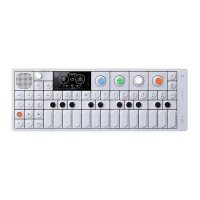
Overview of the device's button layout and encoder functions.
Description of LED indicators and the integrated microphone.
How to press keys to generate sound and check note information.
Using arrow keys to transpose octaves for different pitch ranges.
Introduction to Synthesizer, Drum, Tape, and Mixer modes.
Explains special functions accessed by combining SHIFT with main mode keys.
Visual representations of the interface in each main mode.
Overview of the mode and how sounds are structured.
Details on sound engines and how to select or change them.
Adjusting attack, decay, sustain, and release parameters.
Configuring polyphony, legato, unison, and portamento.
Adding, toggling, and selecting effects for sounds.
Using Low-Frequency Oscillators for parameter modulation.
Steps to alter sound components like engines or effects.
Methods for saving user-created sounds to tape or presets.
Explains the directory structure for sounds, albums, and tape files.
Overview of the mode for percussion sounds and drum engines.
Information on the sampler's recording time and layout functions.
Specific envelope settings tailored for drum sounds.
Steps to load external .aif drum sound files.
Details on the DBOX dual oscillator synthesizer for drum creation.
Explains the four distinct sequencers and their uses.
How to navigate and choose between different sequencer modes.
Basic usage and note insertion for the Endless Sequencer.
Detailed functions like inserting long notes, spaces, and deleting.
Controlling playback direction, note length, and swing timing.
Introduction to the 16-step grid sequencer for patterns.
How to insert, erase, and manipulate notes within patterns.
Operations for Live Mode, Live Edit, and sequence length.
Using the Tombola for random sequences with physics-based controls.
Adjusting note dropping, bounciness, and heaviness.
Controlling note release and Tombola rotation speed.
Using the Finger Sequencer for combining two sequences.
Inserting notes, cursor movement, and swing settings.
Overview of the tape feature, track structure, and recording capacity.
Step-by-step guide for recording sounds onto the tape.
Instructions for overdubbing, fast-forwarding, and rewinding.
How to play recorded tape material in reverse.
Performing edits like scrubbing, sliding, lifting, and splitting takes.
Using tape for sound layering and saving sounds via tape.
Adjusting playback speed during recording or playback.
Utilizing manual speed control and bounce recording.
Functions like loop toggle, break, reverse, chop, and memos.
Procedure for permanently deleting all recorded tape data.
Instructions for transferring tape tracks to a computer.
How bar markers function in relation to beats and sequencers.
Explains the mixer's role as the final sound stage and sound routing.
Controlling volume and stereo panning for each tape track.
Adjusting low, mid, and high frequencies for the final mix.
Adding and selecting master effects for the stereo output.
Controlling master balance, drive, and release settings.
Setting master tempo, choosing modes, and using the metronome.
How to set tempo using the blue encoder or tap tempo.
Synchronizing OP-1 tempo with tape speed for aligned playback.
Connecting the OP-1 to external tempo sources via USB.
Accessing mode info, key names, and note details via the Help button.
Setting time, date, and accessing other utility functions.
Viewing the current battery level using the VU/Battery meter.
General use of the Mic/Input key for recording external audio sources.
Steps for sampling using built-in microphone or FM radio.
Mixing down tape tracks to stereo files and recording to Side A/B.
Utilizing the OP-1 as a controller or storage device.
Operating the OP-1 as a self-contained unit.
Setting up the OP-1 to act as a MIDI controller keyboard.
Using the OP-1 as an external USB storage device.
Disabling USB charging without physical disconnection.
Using OP-1 sequencers to control external MIDI devices.
Configuring the OP-1 as a control surface for Ableton Live.
Instructions for installing the OP-1 script for Ableton Live.
Mapping OP-1 keys to specific functions within Ableton Live.
Setting up the OP-1 for MIDI control of Reason software.
How SHIFT modifies primary key functions and module access.
Using SHIFT with T1-T4 to swap individual sound components.
Recalling sounds, clearing tape, and viewing signal paths.
How SHIFT alters arrow key behavior for tape and synth operations.
Exploring alternate encoder functions when SHIFT is pressed.
Introduction to Low-Frequency Oscillators for sound modulation.
Using external elements like G-Force or microphone input for modulation.
Modulating all parameters with a random LFO.
Creating pitch and volume modulation for tremolo effects.
Modulating a single parameter with speed and amount controls.
Using external MIDI CC messages to control LFOs.
Direct manual control over LFO speed using the Crank accessory.
Physical control of LFO oscillation via the Bend accessory.
Interpretation of symbols for tempo-locked and free-running clocks.
Understanding LFOs that do not retrigger on every note.
Learning sound design by mimicking sounds from life.
Preparing the OP-1 by resetting settings and disabling sequencers.
Step-by-step guide to synthesizing a helicopter sound effect.
Detailed instructions for creating the sound using FM engine and Tombola.
Detailed descriptions and parameters for these synth engines.
Descriptions and parameters for additional synth engines.
Explanation of the drum sampler and its layout functions.
Descriptions and parameters for various audio effects.
Details on the Punch filter and Spring reverb effects.
Technical details on processor, RAM, and battery capacity.
Description of ports, microphone, speaker, and display characteristics.
Information on keyboard, encoders, and overall construction.
Details on the device's size, weight, and color finish.
How the G-force sensor can be assigned to parameters.
 General
| Type | Portable synthesizer |
|---|---|
| Sound Engine | Digital |
| Battery Life | Up to 16 hours |
| Synthesis Types | FM |
| Oscillators | Multiple oscillator types |
| Sampling | Yes, built-in microphone and line-in |
| Sequencer | 16 track sequencer |
| Effects | Delay, chorus, reverb, and more |
| LFO | Yes, with multiple LFO types |
| Display | OLED |
| Storage | Built-in storage |
| Connectivity | USB, 3.5mm audio in/out, MIDI |
| Power | USB power |
| Dimensions | 282 mm x 102 mm x 13.5 mm / 11.1" x 4.0" x 0.53" |

 To Next Page