Need help?
Do you have a question about the Telstra Smart Wi-Fi Booster and is the answer not in the manual?
Download the Telstra Home Dashboard App on a compatible iPhone or Android smartphone for network management.
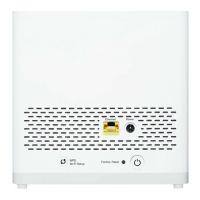
Scan the QR code on the Wi-Fi Booster to connect your devices to the network.
Follow the step-by-step instructions within the App to successfully get your Wi-Fi Booster online.
Connect your first Telstra Smart Wi-Fi Booster from its yellow Ethernet port to your modem’s yellow LAN ports.
Connect additional Wi-Fi Boosters in areas with poor Wi-Fi, ensuring access to a free power point.
Reconnect your devices to the new Telstra Smart Wi-Fi network using the network name and password provided.
Use the Telstra Home Dashboard App to manage your network, diagnose issues, and find troubleshooting solutions.
Check the light colour on the Telstra Smart Wi-Fi Booster. If red or amber, try moving them closer to the first Booster.
Restart your Wi-Fi Boosters by turning them off, waiting 30 seconds, and then turning them on again.
 General
| Security | WPA2-PSK |
|---|---|
| Brand | Telstra |
| Model | Smart Wi-Fi Booster |
| WPS Button | Yes |
| Reset Button | Yes |
| Device Type | Wi-Fi Extender |
| Wi-Fi Standard | 802.11ac |
| Frequency Bands | 2.4GHz and 5GHz |
| LED Indicators | Power, Wi-Fi |
| Ethernet Ports | 1 |

 To Next Page