Select a location for the
BaseStation and/or Remote
Transceiver
1
2
3
System range and performance may be greatly reduced if antennas are
blocked or obstructed.
•
Always operate the system with both antennas attached, locate as high as
possible and away from all obstructions (especially metal).
•
Never use antennas on the back of the Base when the Base is in a rack
•
When using the Whip (omni-directional) antennas, always locate
antennas as close as possible to the center of the area you want to cover.
•
When using directional antennas, always aim both directional antennas in
the same general direction.
•
When remotely locating antennas, use only high quality 50 ohm,
low loss, RF cable (30 ft max).
•
Remote antenna location of up to 1500 ft using standard CAT-5 wiring may
be achieved using the optional Tempest Remote Transceiver.
----- This must be a point to point connection
•
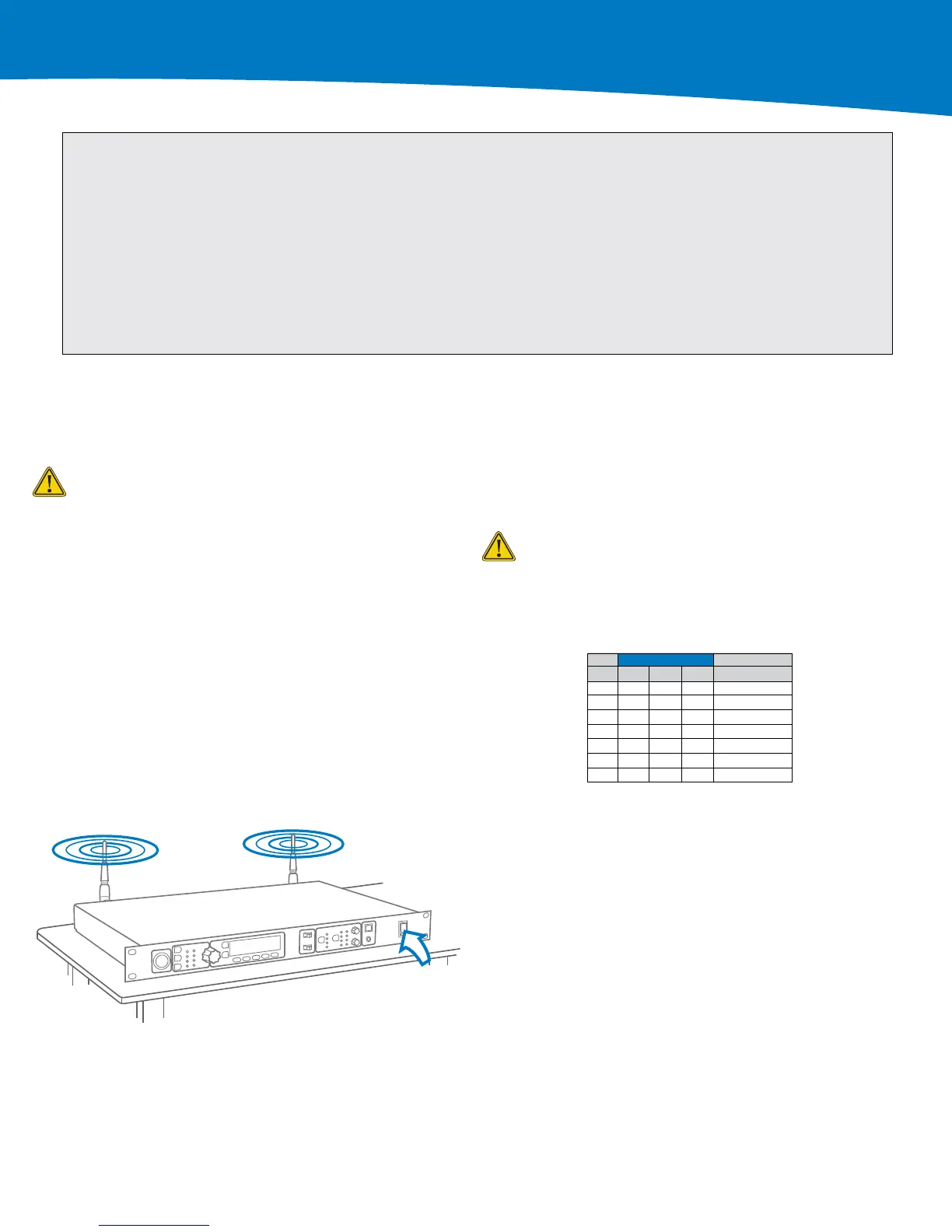
Connect the AC power cord to the Base and to the AC wall outlet
•
Turn the Base on via the front panel ON/OFF switch
•
The first time you power up the Base, you will be prompted to “select an
authorized band for your location”.
•
There are seven RF bands that use different parts of the 2.4GHz spectrum.
Please note:
* Band 1 is appropriate for most, but not all, locations worldwide (US is band 1)
* Some countries require that you use a limited portion of the 2.4GHz band
* It is the user’s responsibility to ensure that you select a band that is permitted
for use in your location
------ Scroll to an appropriate band for your location and press Enter to select.
------ Press MENU to return to the operational screen
Power ON the BaseStation
Selecting the RF band
MHz
Band Start End Wide Avoid 802.11b/g
1 2400 2480 80 None
2 2400 2450 50 11
3 2423 2473 50 1
4 2431 2480 49 1,2
5 2400 2428 28 7,8,9,10,11
6 2423 2450 27 1,11
7 2453 2480 27 1,2,3,4,5,6,7
4
1. From the front of the Base, follow the steps below :
2. Press MENU (Main Menu)
3. Press 1 (BaseStation Settings) and scroll down to 7. Press ENTER
4. You will receive a Tech Menu Warning. Press ENTER to proceed.
5. Press ENTER 1 (Radio Configuration).
6. Press 1 (Network Number) and select a network other than zero & press
ENTER to save.
7. Press MENU
-------- If you have multiple Bases, ensure that you select a different Network
Number for each Base.
-------- Collocated Bases should have different network numbers separated
by at least four (e.g. 1, 5, 9, 13… or 2, 6, 10, 14…)
8. Press 2 (Lockout Key) and select a lockout key other than 255 & press
ENTER to save.
9. Press MENU repeatedly until you get back to the Operational screen.
Power the Base OFF
10. Wait 10 seconds and power the Base ON again
Changing the Default RF
Configuration
Tempest
®
BaseStations and BeltStations are shipped with a
default RF configuration. It is highly recommended that you
change your system from the default to ensure proper RF perfor-
mance especially in the presence of other Tempest systems.
A BeltStation must be paired with a BaseStation for any com-
munication to take place. Pairing should be done AFTER the
default RF configuration is changed on the BaseStation.
P
P
P
P
Important things you need to know
All BeltStations must be paired with each BaseStation with
which it will be operated.
Charge the BeltStation batteries prior to starting set-up.


 To Next Page
 Loading...