• tempmate.com
V1.0
Notes
˦ When tempmate.®-S1 logger is stopped and connected to the computer the first time, both LEDs are
flashing to indicate the PDF report is in process of generation. At this time, please do not unplug the
logger until both LEDs are on, which indicates the finished PDF generation.
˦ A stopped tempmate.®-S1 logger cannot be started again.
˦ Do not place tempmate.®-S1 logger into corrosive liquid.
˦ The battery of tempmate.®-S1 loggers is a non-exchangeable CR2450 lithium battery. Please do not
expose to direct heat. Do not place in microwave.
˦ Store tempmate.®-S1 loggers under room temperature conditions and do not use it after the expiry
date printed on the logger..
˦ Please recycle or dispose tempmate.®-S1 loggers in accordance with local laws and regulations.
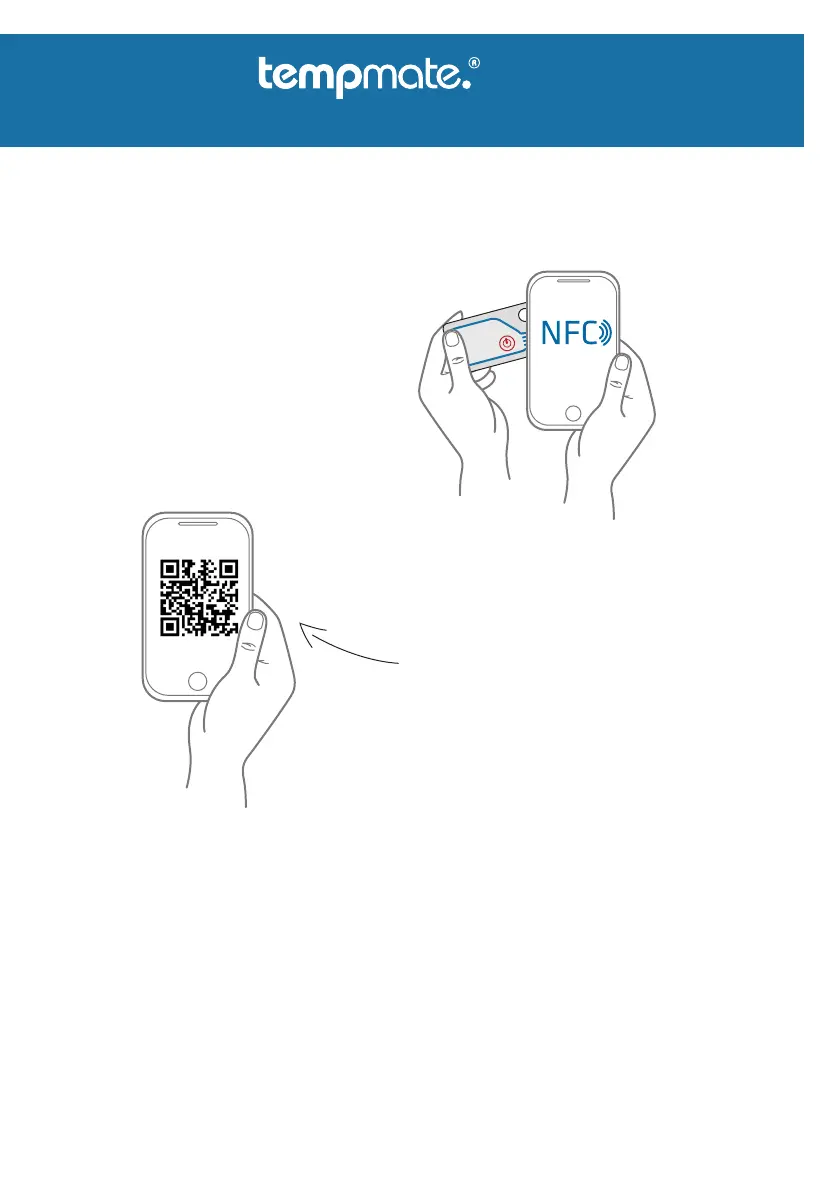
˦ Hold the logger against the back of your phone to access the validation certificate of your
tempmate.®-S1 and all associated documents via the NFC function.
Single-Use USB Data Logger
-S1
Manual –
Certificate of Validation
˦ Hold the tempmate.®-S1 logger to the back of
your phone
˦ The NFC function opens the tempmate.®
certificate database
˦ You automatically get access to the
validation certificate of your tempmate.®-S1
logger and all related documents
˦ Open your browser and go to the following
page:
˦ https://www.tempmate.com/database/
˦ Alternatively you can scan this QR-Code to get
to the mentioned page.
˦ Enter the serial number of your tempmate.®-S1
in the search bar and press the ENTER button
˦ You automatically get access to the validation
certificate of your tempmate.® logger
The certificate of validation is available online for each logger. Follow the steps below to access your
logger‘s certificate and retrieve all related documents.


 To Previous Page
 Loading...