6
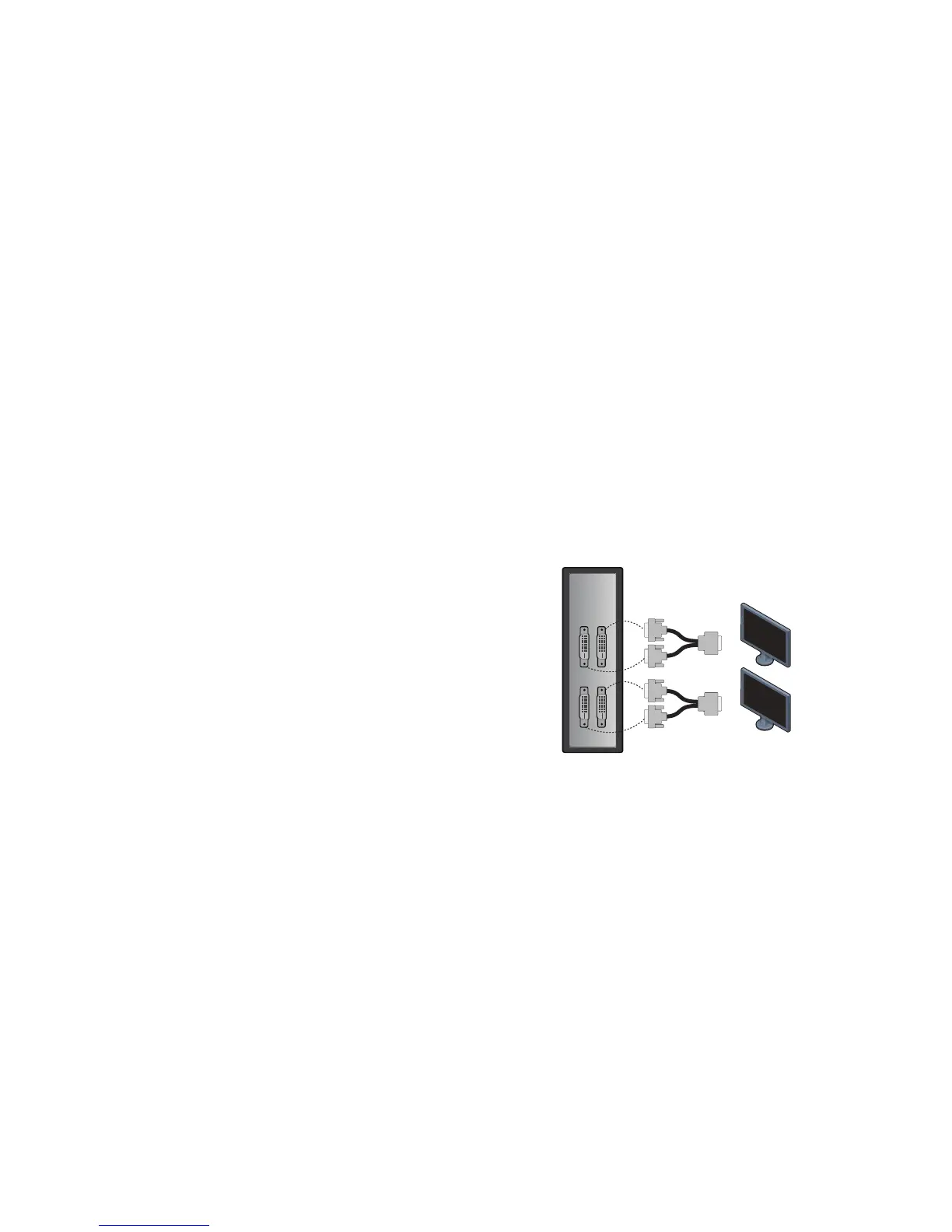
The example below illustrates the correct way to connect the DVI
Y-cables for 2560x1600 resolution on both monitors.
PCoIP Zero Clients with DVI ports:
NOTE: The two single-link male DVI connectors on the DVI-Y cable are
labeled as 1 and 2. It is important to connect them in the order explained
below; otherwise, a black screen will result.
1. Connect the primary monitor:
a. Connect the #1 single-link male DVI connector on a DVI Y-cable to
port 1 on the zero client.
b. Connect the #2 single-link male DVI connector to port 3 on the zero
client.
c. Connect the other end of the DVI Y-cable to the primary monitor.
2. Connect the secondary monitor:
a. Connect the #1 single-link male DVI connector on a DVI Y-cable to
port 2 on the zero client.
b. Connect the #2 single-link male DVI connector to port 4 on the zero
client.
c. Connect the other end of the DVI Y-cable to the secondary monitor.
You can now connect the key
board and mouse to the Zero Client’s USB
ports. Use the rear ports if they are available. NOTE: PCoIP Software
Client is also available for connection on-the-go from your Mac or PC.
Please see more details at www.teradici.com/remote-workstation



 To Next Page