After Sales Support TEL: 1300 663 907 After Sales Support TEL: 1300 663 907
25 2
Welcome
Congratulations on choosing to buy a TEVION® product.
This TEVION® product is manufactured to the highest
standards of performance and safety. As part of our
philosophy of customer service and satisfaction this product
is backed by a comprehensive 1 year warranty.
We hope you will enjoy using your product for many years to
come.
Contents
i. General information and safety instructions..................... 3
Pack Contents
Warnings
Product use
Product Features
ii. Getting Started……………………………….......................5
Remote Control Keys
Inserting the batteries
iii. Programming the Remote Control....................................8
Programming Device Codes
Programming the Device Code by Manufacturer Name
Entering Device Codes directly
Searching for Device Codes automatically
iv. Learning Function .......................................................... 13
Learning a Key Code Signal
Erasing a Key Code
Erasing All Key Codes for a Device
Erasing All Learned Key Codes
v. Macros ........................................................................... 16
Programming a Macro
Executing a Macro
Erasing a Macro
vi. Special Features ............................................................. 18
Controlling a PC
Consistent Volume Control / VPT
Favourites
Backlight
Setting the Time
Calculator
Teletext Mode
Child lock
Powering All Devices On/Off
Deleting All Settings
vii. Troubleshooting…………………..……….........................26
viii. Warranty…………………………………………................. 27
ix. Further technical support………………………………......27
Powering All Devices On/Off
You can power on or off all devices simultaneously. Proceed
as follows:
1. Double press the On/Standby button (1).
2. The remote control will send an On/Off signal to each
device. This may take up to 10 seconds.
If you have enabled the backlight, it will blink during
this process.
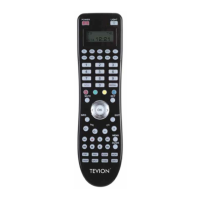
Deleting All Settings
You can reset all device parameters to their factory-defaults.
This will delete any codes, macros, favourites and custom
settings.
To reset the remote control, proceed as follows:
1. Press and hold the SET button (21) for at least 3 seconds.
The display shows [CODE SETUP]. Then release the SET
button (21).
2. Press
(8). The display shows [CONFIGURE].
3. Press the OK button (22). The display shows [TIME
SETUP].
4. Press
(8). The display shows [RESET].
5. Press the OK button (22). The backlight will power off for
a few seconds and the remote control will restart with its
default configuration.


 To Next Page