**** ****
**** ****
- Installer Manual -
37
This error can have several causes:
o 1: TextAlert not powered properly
o 2: TextAlert not connected via USB
o 3: TextAlert USB drivers not installed.
It is a good idea to disconnect all cables from the TextAlert, switching off at the power switch
and then reconnecting the power and USB cable and turning the unit back on. If the problem
persists, please follow the following procedure to verify that the drivers are correctly installed:
o Step 1: Connect USB Cable to TextAlert (ONLY USB, and not the Power – keep
the power switch OFF). On your computer keyboard, press “Windows key” and
“Pause” simultaneously. Alternatively, you can right-click on “my computer” and
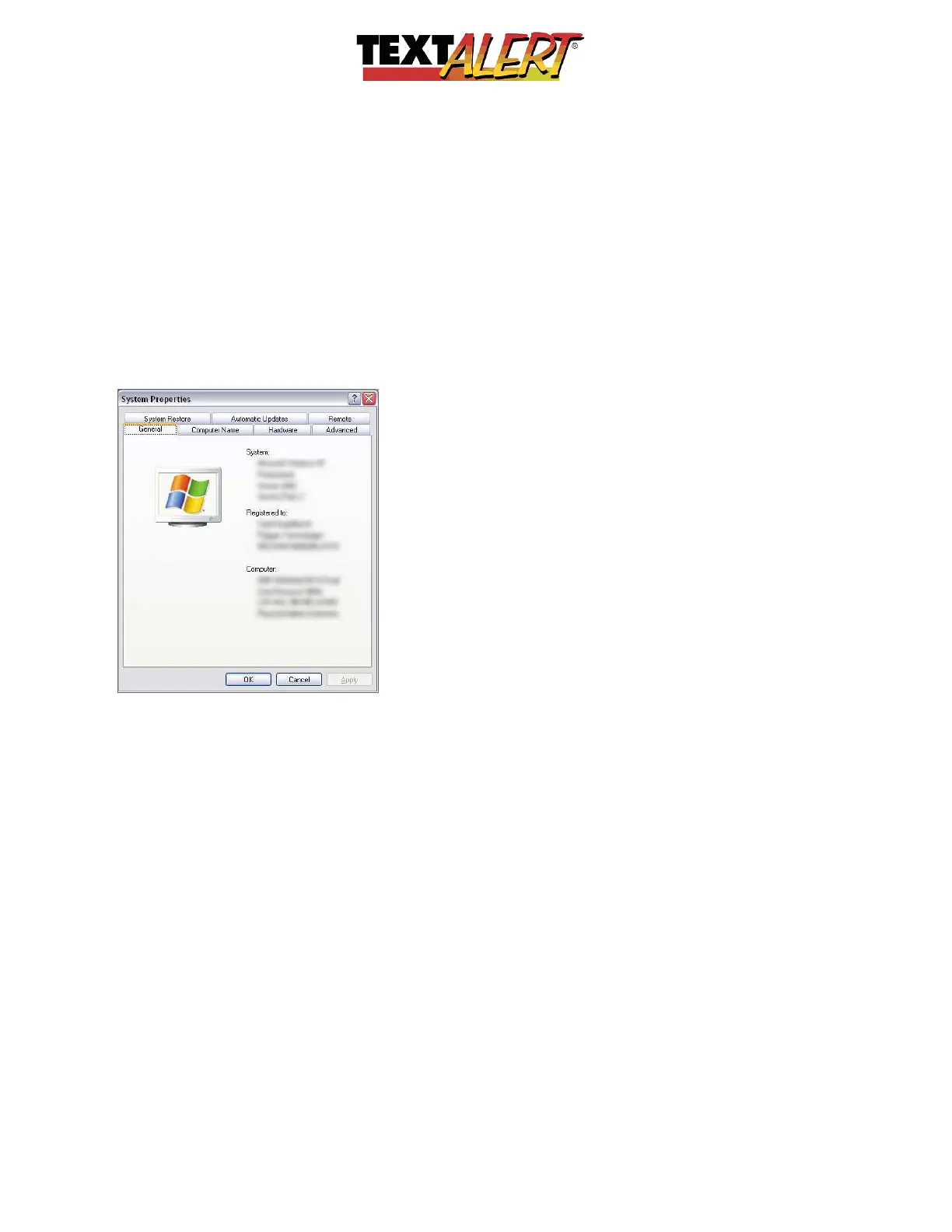
select “properties”. This will bring up the “System properties” window as below:



 To Next Page