
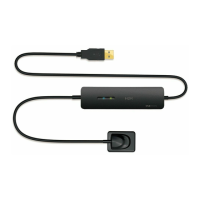
What to do if The Handy All in One Printer computer can’t recognize the sensor?
- RryanriceAug 7, 2025
If your computer doesn't recognize the sensor of The Handy All in One Printer, try using a different USB port and reinstalling the driver program.
What to do if The Handy All in One Printer computer can’t recognize the sensor?
If your computer doesn't recognize the sensor of The Handy All in One Printer, try using a different USB port and reinstalling the driver program.
What to do if there is no response after x-ray emission on The Handy HDR 500?
If The Handy All in One Printer shows no response after x-ray emission, reset the required x-ray parameters. Also, try plugging the printer into the back USB port of your computer and reinstall the driver program.
What to do if ‘HDR USB Series’ option disappear on The Handy All in One Printer?
If the ‘HDR USB Series’ option disappears or there is no response when you double-click a null frame to bring up the shooting window on The Handy All in One Printer, close all anti-virus programs and reinstall the software and driver.
System intended for dental x-ray imaging by professionals in clinics.
Manual covers safety, introduction, usage, warranty; details manufacturer info.
Lists package items and explains labeling symbols used in the manual.
Inspect sensor and controller for physical damage and defects before each use.
Advice on preventing electrostatic discharge damage to the sensor.
Avoid touching exposed connectors simultaneously; ensure proper grounding.
Guidelines for safe installation and operation of system and PC workstation.
Specifies environmental conditions for operation, transportation, and storage.
Explains WEEE directive, WEEE marking, and disposal obligations for electronic equipment.
Critical safety instructions and hygiene for device operation and handling.
Describes the components of the dental x-ray imaging system.
Lists technical specifications for HDR-500 and HDR-600 models.
Instructions for sharing the sensor and positioning it in the mouth.
Lists the software used with the HDR system (HandyDentist, HandyServer).
Minimum hardware and software specifications for the computer.
Information on data exchange security via LAN.
Diagram and explanation of the system's operational flow.
Steps for installing the necessary device drivers.
Detailed steps for installing the HandyDentist software.
Instructions for installing the optional HandyServer software.
Process for registering and activating HandyDentist and HandyServer software.
Procedures for automatic and manual calibration file installation.
Overview of the HandyDentist software interface, login, and example screen.
Description of toolbar icons, menu bar options, and language selection.
Includes searching, editing patient info, and tiling images.
Operations like play, edit, import, export, copy, paste, refresh, delete, print.
Tools for adjusting color, brightness, and contrast of images.
Tools for sharpening images and inverting color, colorizing, embossment.
Tools for noise reduction, normalization, softening, and diagnostic imaging.
Functions for image reload, undo/redo, partition, rotation, zoom, draw, scale, save.
Steps to prepare the HDR sensor before use.
Steps to prepare the software and system for image capture.
Guidelines and precautions for emitting X-rays.
Settings for enhancing image quality like contrast, sensitometry, etc.
Warnings and instructions for cleaning and maintaining the sensor.
Visual checks, periodic maintenance, cable care, and product warranty.
Guidance on exposure dose adjustment and troubleshooting common issues.
EMC emission compliance information for HDR.
EMC immunity compliance and guidance.
Guidance on separation distances for RF equipment.
| Printer Type | All-in-One |
|---|---|
| Scanner Type | Flatbed |
| Connectivity | USB 2.0 |
| Functions | Print, Scan, Copy |
| Print Technology | Inkjet |
| Maximum Print Resolution | 4800 x 1200 dpi |
| Paper Handling | 60-sheet input tray |
| Supported Operating Systems | Windows |