82
ºF
If you have more than one window
A/C unit and modlet, set up each ad-
ditional modlet one at a time as you
move away from your computer, so
that the last modlet plugged in is the
one farthest from your computer. To
set up additional modlets, click the
Add Modlets button on the installer
and install each modlet using the
same procedure as the first modlet.
9
8
3. Monitor & Control
4. Optional – Add More Modlets
Finish setting up your account and
then start viewing your energy con-
sumption through the Energy Usage
tab. Keep in mind that it may take
a few minutes after setting up your
modlet to begin seeing data. To set a
schedule, visit the Savings Plan tab
More modlets can be added at any
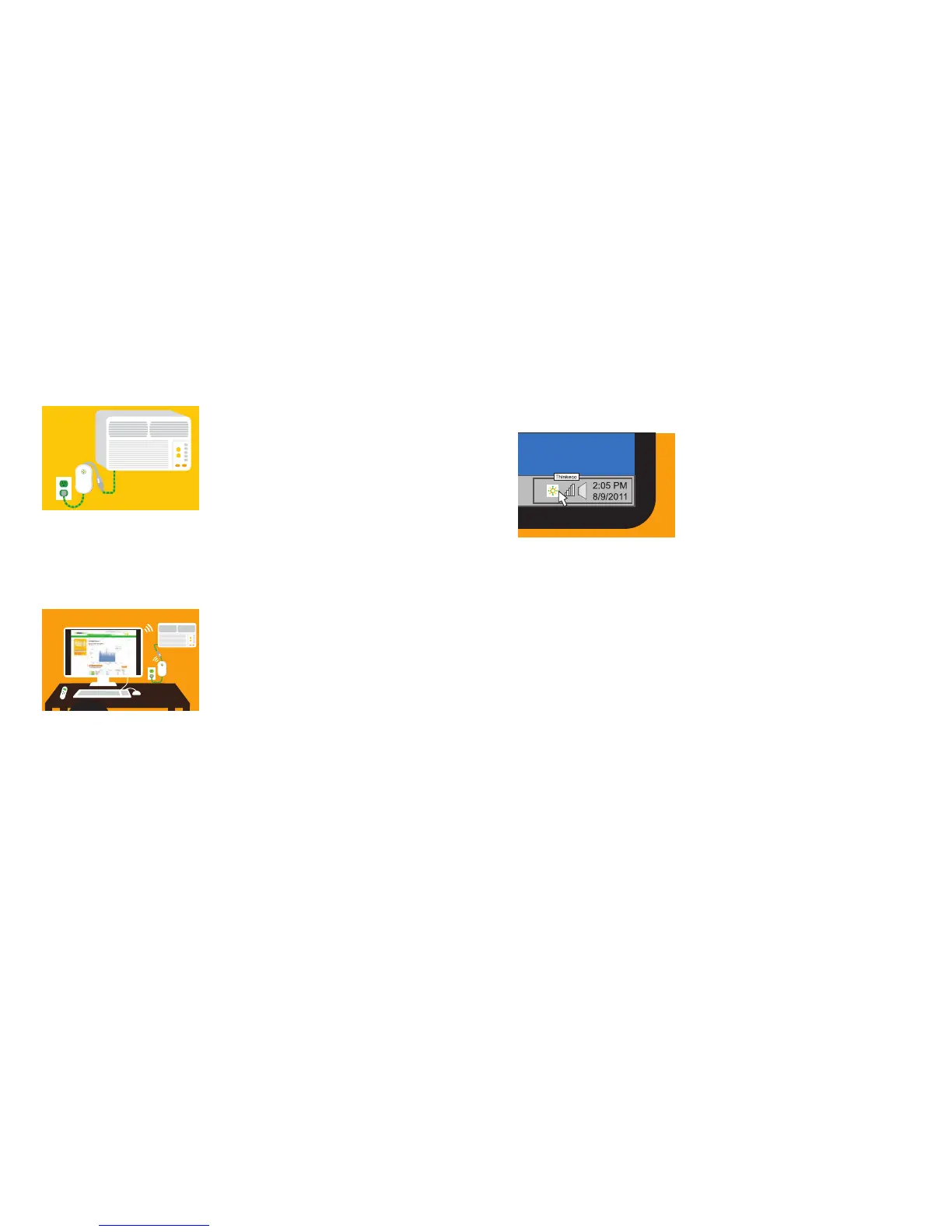
time. For Windows, right click on the
ThinkEco Icon in your computer tray
and select Open Modlet Manager.
For Mac, go to Applications,
ThinkEco and then Modlet Manager.
to control when your devices are on
and off. Please note, during the initial baseline period scheduling
is not available. Track your savings with the Summary tab and see
updates from the coolNYC team on the Con Edison page. To view
your account from any computer simply visit www.mymodlet.com
or download the ThinkEco App for Android or iPhone.
For more information go to: www.coolNYCprogram.com/howto or
call our support team 1.800.682.0152
For both systems, next click the Add Another Modlet button, and
then plug in your next modlet. Then set up your thermostat by clicking
the Add Thermostat and selecting the modlet you wish to pair with
the thermostat. To build robust wireless networks, it’s best to work
your way outward from your computer.
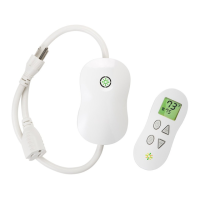
Please note that a smartAC thermostat is needed for each modlet and
can only control the modlet that it was initially paired with.


 To Next Page
 Loading...