education.ti.com
TI-84 Plus Silver Edition Keyboard
åkey accesses the Handheld
Software Applications (Apps) loaded
on your TI-84 Plus Silver Edition
É accesses the alpha function
printed in green above each key
y accesses the second function
printed in blue above each key
Operations keys
}~Ü| keys let you move
the cursor in four directions
ë erases (clears) the entry line
or deletes an entry and answer on
the home screen
Õ evaluates an expression,
executes an instruction, or selects
a menu item
Special Features of the TI-84 Plus Silver Edition,
TI-84 Plus, and TI-83 Plus
Flash
™
— Electronic Upgradability
The TI-84 Plus Silver Edition, TI-84 Plus, and TI-83 Plus use Flash
technology, which lets you update your operating system and
add Handheld Software Apps, such as Topics in Algebra 1, Inequality
Graphing, NoteFolio
™
, TImeSpan
™
, CellSheet
™
, and many more!
Comparing the TI-84 Plus Silver Edition and the TI-83 Plus
TI-84 Plus Silver Edition TI-83 Plus
Flash ROM 1.54 Mb 160 Kb
Holds up to 94 Apps 10 Apps
Preloaded Apps 18 4
Connectivity USB cable included TI Connectivity USB
cable sold separately
Case Color SILVER & Customizable Classic dark gray
Z80 Processor Speed 15 MHz 6 MHz
RAM 24 Kb 24 Kb
TI Connectivity Kit
With the TI Connect
™
software and TI Connectivity USB cable, you
can link your TI-84 Plus to a personal computer. As future software
updates become available on the TI website, you can download
the software to your computer and use the TI Connect software
and TI Connectivity USB cable to update your TI-84 Plus.
Getting to Know Your TI-84 Plus Silver Edition
Turning Your TI-84 Plus Silver Edition On and Off
To turn on your TI-84 Plus Silver Edition, press ….
■
If you had previously turned off your TI-84 Plus Silver Edition by pressing
yM, it will display the home screen as it was when you last used it.
To turn off your TI-84 Plus Silver Edition manually, press yM.
■
All settings and memory contents are retained by Constant Memory
™.
To prolong the life of the batteries, Automatic Power Down
™
(APD
™
) turns
off your TI-84 Plus Silver Edition automatically after about five minutes
without any activity.
Using the y and É Keys
The secondary function of each key is printed in blue above the key.
When you press the blue y key, the character, abbreviation, or word
printed in blue above the other keys becomes active for the next
keystroke. For example, when you press y and then ç, the TEST
menu is displayed.
The alpha function of each key is printed in green above the key. When
you press the green É key, the alpha character printed in green
above the other keys becomes active for the next keystroke. For
example, when you press É and then ç, the letter A is entered.
Adjusting the Display Contrast
To adjust the contrast, follow these steps:
1 Press and release the y key.
2 Press and hold } or Ü (which are above
and below the contrast symbol).
} Darkens the screen
Ü Lightens the screen
Home Screen
The home screen is the primary screen of the
TI-84 Plus Silver Edition. On this screen, you can enter
instructions to execute and expressions to evaluate.
The answers are displayed on the same screen.
To return to the Home Screen from any other screen,
press y5.
Darker
© Texas Instruments, 2007
Lighter

 Need help?
 General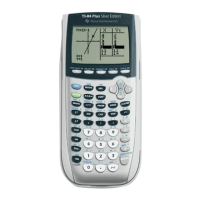

 To Next Page