366 ViA User Manual v1.2
© Tieline Pty. Ltd. 2016
There are no wireless connections being used.
31.4 Testing IP Network Connections
There are a few very simple tools that you can use to test whether a codec can be reached over an
IP network.
· Visit http://www.speedtest.net/ to test the upload and download speed of your IP connections and
identify your public IP address.
· Visit www.portforward.com and download the port checking application to verify your router's ports
are open. Note: Using a port scanner to test a codec will be unsuccessful if you try to scan and
the port is already in use, i.e. the codec is connected.
· Visit www.subnetonline.com and use an online port scanner to check for open and closed TCP
ports. This site also has numerous other software tools, including an online ping webtool for IPv4,
plus TraceRoute and TracePath software tools.
Ping the Codec
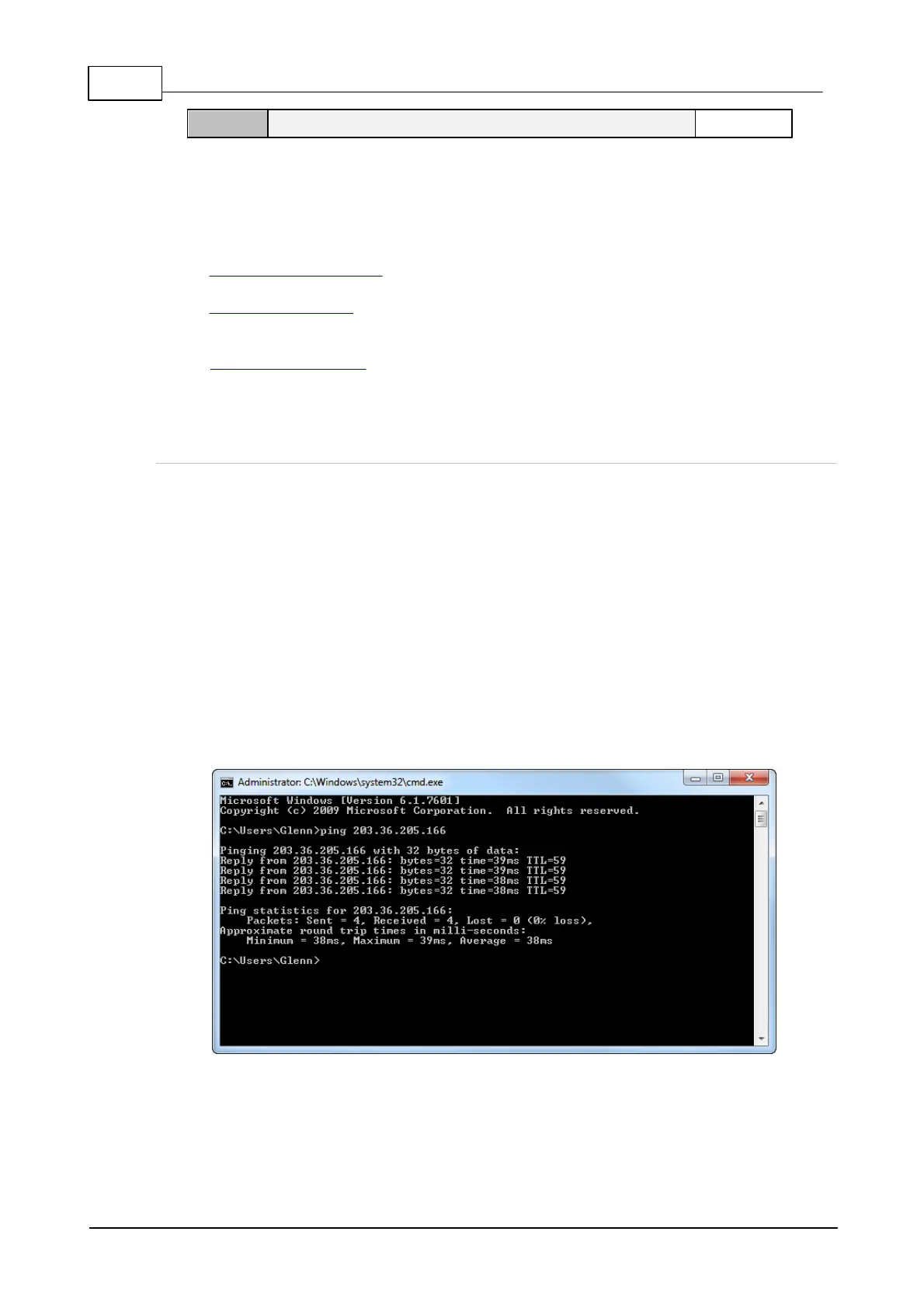
A ping test can be used to test whether it is possible to reach a codec or any device over an IP
network. A ping test measures:
· The round-trip time of packets.
· Any packet loss.
There are two types of ping tests:
1. Short test: sends 4 packets and delivers statistics.
i. Point to the start menu on your PC and click once.
ii. In the search text box type Run and press Enter.
iii. Type CMD in the Run dialog text box and click OK.
iv. Type ping and the IP address of the codec you are pinging (i.e. ping 192.168.0.159) and
press the Enter key on your keyboard.
v. The round trip time of the packets is displayed, as well as any packet loss.
2. Long test: sends packets continuously until stopped.
i. Point to the start menu on your PC and click once.
ii. In the search text box type Run and press Enter.
iii. Type CMD in the Run dialog text box and click OK.


 To Next Page