38 39
Configuration mode (Setup) Wi-Fi Mode Activation
SETUP
Wi-Fi
To access the list of the different possible configuration options, press multiple times
until the settings page appears.
Enable the Wi-Fi :
1 - Put your camera in Video mode
.
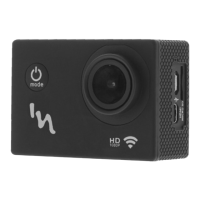
2 - Press the Wi-Fi button , on the side of your camera
3 - The display will show : «waiting for Wi-Fi connecting»
the device is waiting for a Wi-Fi signal.
The LED status indicator light blinks blue.
.. Then, to connect your smartphone :
4 - Enable the Wi-Fi function of your smartphone or tablet
5 - Download application «T’nB Cam» for Android or
iPhone.
6 - Open the Wi-Fi preferences of your smartphone,
select the signal with name : «T’nB Cam».
7 - Type the password «1234567890» to connect. When
the connection is established the blue LED status indica-
tor light stays on without blinking and the screen of the
camera turns off.
Bravo, you are connected to Wi-Fi at your camera.
From the application, you can now remotely control your
camera and watch live videos and photos !
Scroll through the options, select, and activate the
ones that you want.
If you want to exit the configuration menu, press on
the
button.
Select / Confirm
Scroll up
Direct activation of
Wi-Fi mode
WIFI
T’nb Cam
1234567890
Network :
Password :
Note : It is possible to connect to the camera, only one device at a time.
Caution : the Wi-Fi function consumes more battery.
T’nB Cam
Application
EN
Scroll down
SETUP
1/8
Date stamp
Resolution
Exposure
Video size
Video loop
HDR
Audio recording


 To Next Page
 Loading...