Your device plans the quickest route to your destination. The new route may include traffic delays
and may remain the same as the original route.
You can re-plan the route to avoid all delays, but this route is unlikely to be the quickest possible
route.
7. Tap Done.
Making commuting to work easier
The Home to work or Work to home buttons in the Traffic menu let you check your route to and from
work with one tap of a button.
When you use either of these buttons, your device plans a route between your home and work
locations and checks the route for possible delays.
The first time you use Home to work, you must set your traffic home and work locations by doing the
following:
1. Tap the traffic sidebar to open the Traffic menu.
Note: If you already have a route planned, a summary of traffic incidents on your route is shown.
Tap Options to open the Traffic menu.
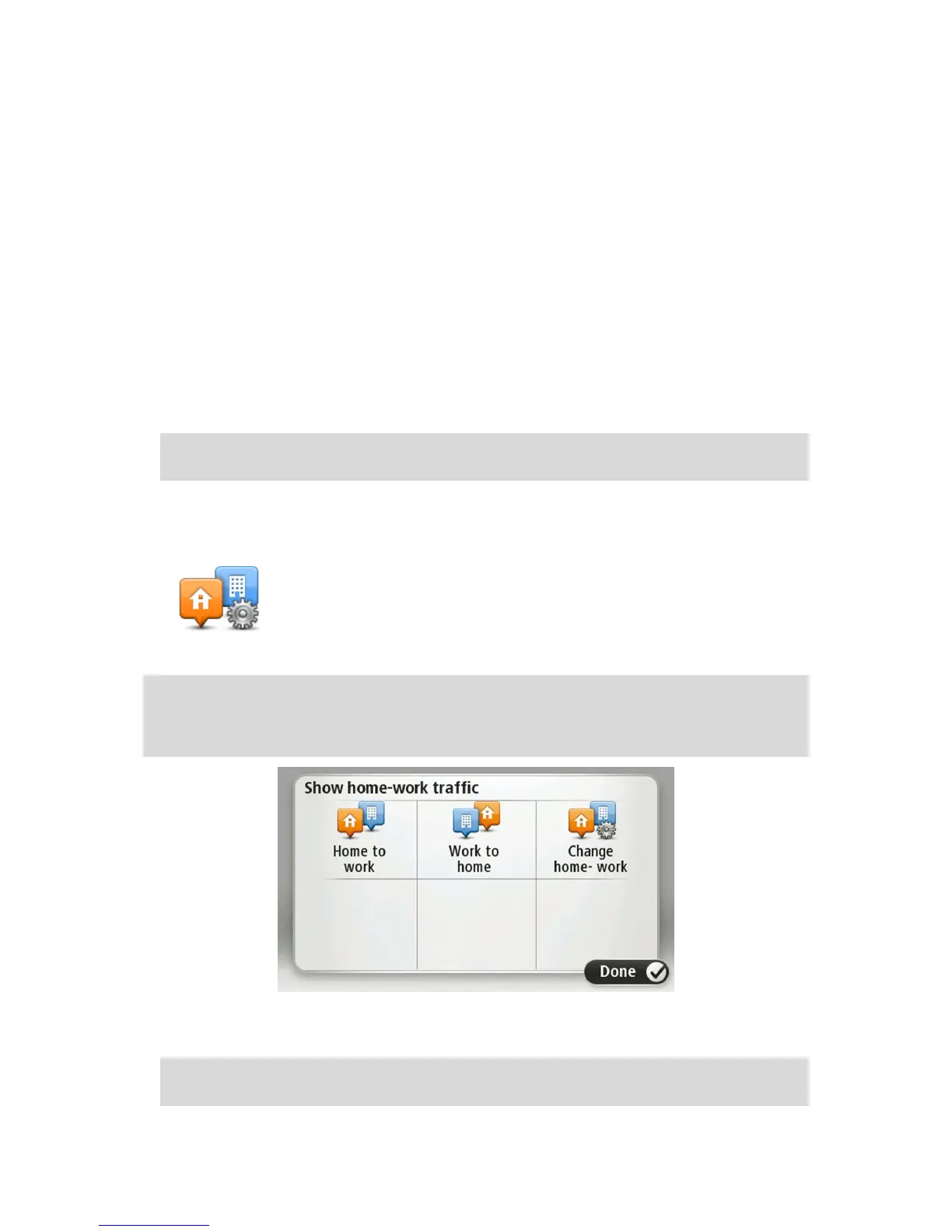
2. Tap Show home-work traffic.
3. Set your home location and your work location.
If you have already set the locations and want to change them, tap Change home-work.
You can now use the Home to work and Work to home buttons.
Note: The home location you set here is not the same as the home location you can set in the
Settings Menu. In addition, the locations you use here do not have to be your actual home and
work locations. If there is another route that you often travel, you can set Work/Home to use these
locations instead.
For example, to check for delays on your route home before you leave the office, do the following:
1. Tap the traffic sidebar to open the Traffic menu.
Note: If you already have a route planned, a summary of traffic incidents on your route is shown.
Tap Options to open the Traffic menu.



 To Next Page