2. Tap Show home-work traffic.
3. Tap Work to home.
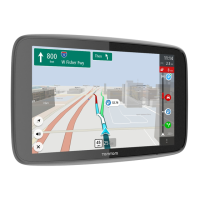
The Driving View is shown and a message is displayed telling you about traffic incidents on this route.
The Traffic sidebar also shows any delays.
Getting more information about an incident
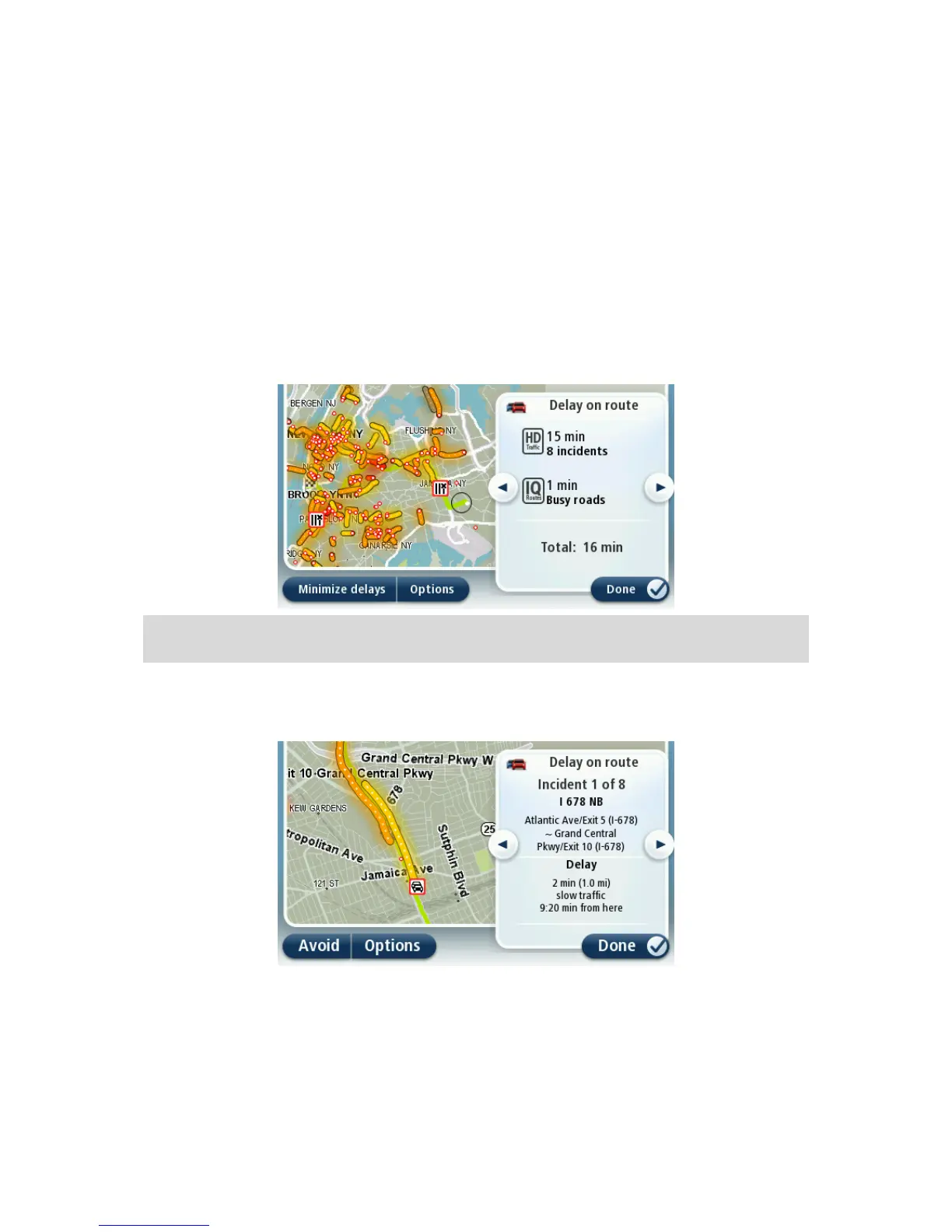
To check for delays on your route, tap the traffic sidebar. Your navigation device shows a summary of
the traffic delays on your route.
The total includes any delays due to traffic incidents and those due to busy roads, with information
provided by IQ Routes.
Tap Minimize delays to check if you can reduce the delay. Tap Options to open the Traffic menu.
Note: You can also access the Show traffic on route screen by tapping the traffic area of the LIVE
Route summary tab.
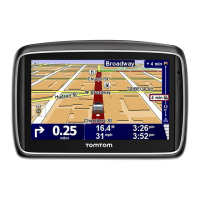
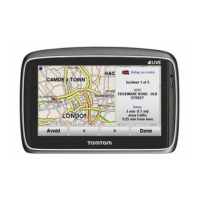
Tap the left and right arrow buttons to move through each incident in turn, viewing the details of each
one. This includes the type of incident, for example road works, and the length of delay caused by this
incident.
You can also access the details about individual incidents by tapping View map in the Main Menu and
then tapping on the traffic incident symbol.
When shown on the map, a traffic incident starts with an icon. In the case of a traffic jam, the direction
of the incident is from the icon towards the other end.



 To Next Page