EasyManua.ls Logo

Topens TC196 - User Manual

Topens TC196
12 pages
Print Icon
To Next Page IconTo Next Page
Loading...
C030710 23a
Tuya WiFi Remote Control
(Item No. TC196)
User Manual
NOTE: Please read this manual thoroughly before installation and programming.
Question and Answer IconNeed help?

Do you have a question about the Topens TC196 and is the answer not in the manual?

Summary

Tuya WiFi Remote Control Setup and Operation

Power Supply and App Installation

Details on the device's power input requirements and how to install the TUYA Smart app.

Adding and Programming the WiFi Remote

Comprehensive guide on registering, connecting, and programming the WiFi remote control to gate openers.

Registering the App Account

Steps to create a user account within the TUYA Smart application, including verification and password setup.

Connecting to WiFi Network

Procedure to connect the WiFi remote control to a local WiFi network via the TUYA Smart app.

Main Operation Interface and Controls

Overview of the app's main control interface, detailing the four buttons and their functions.

Programming the Remote Control

Instructions for pairing the WiFi remote control with the gate/door opener using the programming button.

Erasing Remote Control Codes

Steps to remove previously paired remote control codes from the gate opener.

Settings of the App & Device

Setting Schedules

How to configure automatic operation schedules for the remote control via the app.

Device Settings and Sharing

Managing device settings, renaming, checking status, and sharing control with others.

Renaming and Device Information

Options to rename the device, view its information, and check tap-to-run/automation features.

Sharing the Remote Control

Methods for sharing device control with other users via account or third-party software.

Creating Device Groups

Guidance on creating groups to control multiple devices simultaneously within the app.

FAQs and Feedback

Accessing frequently asked questions and submitting feedback or unresolved issues.

Adding Home Screen Shortcut

Instructions for adding a shortcut of the WiFi remote control to the phone's home screen.

Checking Network and Update Status

How to check the device's network connectivity and software update status.

Feedback and Contact Information

Feedback & Review

Information on providing comments and suggestions for service improvement.

Contact Us

Details for contacting customer support via email or phone, including required information.

Summary

Tuya WiFi Remote Control Setup and Operation

Power Supply and App Installation

Details on the device's power input requirements and how to install the TUYA Smart app.

Adding and Programming the WiFi Remote

Comprehensive guide on registering, connecting, and programming the WiFi remote control to gate openers.

Registering the App Account

Steps to create a user account within the TUYA Smart application, including verification and password setup.

Connecting to WiFi Network

Procedure to connect the WiFi remote control to a local WiFi network via the TUYA Smart app.

Main Operation Interface and Controls

Overview of the app's main control interface, detailing the four buttons and their functions.

Programming the Remote Control

Instructions for pairing the WiFi remote control with the gate/door opener using the programming button.

Erasing Remote Control Codes

Steps to remove previously paired remote control codes from the gate opener.

Settings of the App & Device

Setting Schedules

How to configure automatic operation schedules for the remote control via the app.

Device Settings and Sharing

Managing device settings, renaming, checking status, and sharing control with others.

Renaming and Device Information

Options to rename the device, view its information, and check tap-to-run/automation features.

Sharing the Remote Control

Methods for sharing device control with other users via account or third-party software.

Creating Device Groups

Guidance on creating groups to control multiple devices simultaneously within the app.

FAQs and Feedback

Accessing frequently asked questions and submitting feedback or unresolved issues.

Adding Home Screen Shortcut

Instructions for adding a shortcut of the WiFi remote control to the phone's home screen.

Checking Network and Update Status

How to check the device's network connectivity and software update status.

Feedback and Contact Information

Feedback & Review

Information on providing comments and suggestions for service improvement.

Contact Us

Details for contacting customer support via email or phone, including required information.

Overview

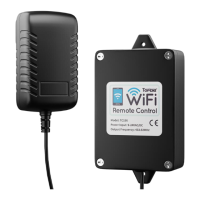
The Tuya WiFi Remote Control (Item No. TC196) is a versatile device designed to enable remote operation of automatic gate openers and other compatible systems via a smartphone. This remote control offers the convenience of managing your gate from anywhere, at any time, as long as you have 3G/4G/WiFi connectivity. Beyond gate openers, it can also be utilized for various other applications, such as controlling garden/lawn maintenance equipment, granting access to delivery personnel, or facilitating emergency access. Its design emphasizes ease of installation and use, coupled with reliable performance.

Function Description

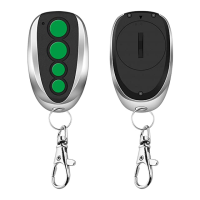
The primary function of the TC196 is to bridge the gap between your physical gate opener and your smartphone, allowing for remote control through a dedicated mobile application. Once connected to your home WiFi network, the device translates commands from the app into radio frequency signals that your gate opener understands. The remote control effectively mimics the functionality of a traditional gate opener remote, offering four distinct buttons (A, B, C, D) on its main operation interface. These buttons correspond to the four buttons typically found on a standard gate/door opener remote control.

The TC196 can be programmed to control up to four swing gate openers or a combination of one sliding gate opener and two swing gate openers. When programmed to a sliding gate opener, button B can activate a midway mode, provided the gate is in the fully closed position. It's important to note that swing gate openers do not support a midway mode. The device operates by receiving power from a 9-24VAC/DC source, and it comes equipped with an adapter for easy plug-in power. The output frequency of the remote control is 433.92MHz, ensuring compatibility with a wide range of gate openers.

Usage Features

The TC196 is designed for intuitive use through the "TUYA Smart" application, available on both iOS and Android platforms.

  1. App Installation and Registration: Users begin by downloading the "TUYA Smart" app from their respective app stores. The registration process involves creating an account, selecting a location, providing an email address, agreeing to privacy policies, and setting a password after verifying the email.
  2. Device Pairing: After registration, the WiFi remote control needs to be added to the app. Upon powering on the TC196, a red light will illuminate, indicating it's ready for configuration. Users can click "+" or "Add device" in the app. The app will automatically search for nearby devices, especially if Bluetooth is enabled and "Nearby devices" permission is granted. If automatic discovery fails, pressing and holding the button on the TC196 will initiate pairing mode. Once discovered, users input their WiFi network name and password to connect the device. A blue light on the TC196 indicates successful pairing.
  3. Remote Operation: Once successfully added, the TC196 appears in the app. Tapping on it leads to the main control interface, which displays the four virtual buttons (A, B, C, D). These buttons are used to operate the programmed gate opener(s). The WiFi remote control can be installed up to 230 meters away from the gate/door opener, allowing for significant operational range.
  4. Programming to Gate Opener: To enable the TC196 to control a gate opener, it must be programmed to the opener's control board. This involves pressing and releasing the "remote control programming button" (e.g., CODE SW, LNSW, Learn button) on the gate opener's control board. The gate opener's CODE LED (or equivalent indicator) will illuminate. Subsequently, pressing a desired button on the TC196's app interface twice will program that button to the gate opener. The red light on the TC196 will flash for 3 seconds after each press, and the gate opener's CODE LED will flash for 3 seconds before turning off or returning to standby, indicating successful programming.
  5. Scheduling: The app allows users to set schedules for automatic operation of the gate opener. This feature enables the gate to open or close at specific times, offering enhanced convenience. Schedules can be added and customized within the app's "Schedule" section. This functionality is dependent on a continuous WiFi connection.
  6. Device Sharing: The TC196 can be shared with other users. The owner can access the "Share Device" option in the app settings, choose a sharing method (e.g., TUYA Smart or third-party software), and enter the recipient's account details. The recipient must have the "TUYA Smart" app installed, registered, and logged in to gain control over the shared device.
  7. Device Grouping: For users with multiple devices, the app offers the ability to create groups, allowing for simultaneous control of several devices within the same group.
  8. Shortcut to Home Screen: Users can add a shortcut to the TC196's control interface directly to their smartphone's home screen for quick access, provided system permissions are granted.

Maintenance Features

The TC196 and its accompanying app offer several features that contribute to its maintenance and user support:

  1. Erase Remote Control Code: If needed, all programmed remote control codes, including those from the TC196, can be erased from the gate opener. This is achieved by pressing and holding the gate opener's programming button until the CODE LED (or equivalent) turns off or displays "dL," and then releasing the button. This action clears all stored remote codes.
  2. Device Information and Status: The app provides access to device information, allowing users to rename the WiFi remote control, check its network status, and view other relevant details.
  3. Offline Alerts: Users can configure the app to receive alerts if the device goes offline, ensuring they are aware of any connectivity issues.
  4. Firmware Updates: The app includes a "Device Update" section, which indicates if any firmware updates are available for the TC196, helping to keep the device's software current and optimized.
  5. FAQ & Feedback: A comprehensive "FAQ & Feedback" section within the app allows users to find answers to common questions. If an issue is not listed, users can submit feedback directly to customer support, and track the progress of their inquiries. This feature provides a direct channel for problem-solving and support.
  6. Customer Support: The manual provides contact information, including an email address and a toll-free telephone number, for direct customer support. Users are encouraged to include product model, purchasing date, order number, and contact information for efficient assistance.

Topens TC196 Specifications

General IconGeneral
TypeRemote Control
ModelTC196
Frequency433.92 MHz
Channels4
Operating Temperature-20°C to 60°C
Operating Voltage3V
Remote Control Distance30m

Related product manuals