
 Need help?
Do you have a question about the Topfield TF 7100 HD PVRt and is the answer not in the manual?
Lists the key capabilities of the digital receiver, such as service storage and recording capacity.
Explains how to operate the receiver using its front panel buttons and remote control.
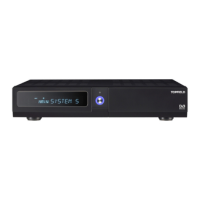
Details the buttons, lamps, and display on the receiver's front panel.
Provides a guide to the functions of each button on the remote control unit.
Lists the essential items included in the product packaging upon purchase.
Essential safety instructions and warnings for the proper and safe operation of the device.
Describes the various input and output ports located on the back of the digital receiver.
Guides on connecting the digital receiver to power, antenna, and display devices.
Instructions for connecting the terrestrial broadcasting signal input to the receiver.
Explains methods for connecting the receiver to a television using various video and audio cables.
Step-by-step instructions for correctly installing batteries into the remote control.
Initial setup steps for powering on the receiver and verifying the picture output.
Procedures for scanning and tuning into available digital television and radio services.
How to restore the receiver to its original factory default configuration and settings.
Configuration options for display resolution, aspect ratio, and sound output modes.
Adjusts the screen display format for wide-screen or standard televisions.
Settings related to high-definition video output and resolution optimization.
Options for selecting stereo, mono, or Dolby Digital audio output formats.
Procedures for setting the correct local time for accurate timer and scheduling functions.
Enables restriction of content based on age ratings and programme classifications.
Customizes the appearance and duration of on-screen display elements like menus and info boxes.
Configures settings for recording, playback behaviour, and time-shifting functionalities.
Sets the default behaviour for resuming playback of recorded content.
Controls the display properties and behaviour of the playback progress indicator.
Selects the destination for recorded programmes, internal or external storage.
Enables and configures the time-shifting feature for pausing live TV.
Sets the playback mode for MP3 files, including random or sequential playback.
Allows creation and management of personalized lists of preferred TV and radio channels.
Instructions for operating the virtual keyboard for text input and navigation.
Adjusts the audio output level and provides options for muting the sound.
Covers basic operations for viewing channels and interacting with programme content.
Displays a comprehensive list of all available television and radio services.
Accesses and selects channels from user-defined favourite channel groups.
Displays detailed information about the current and upcoming programmes.
Allows selection of different audio streams or sound modes for a programme.
Enables and selects available subtitle languages for viewing.
Accesses and navigates teletext pages for additional broadcast information.
Navigates and displays scheduled programming information for available services.
Enables viewing of two different television services simultaneously on the same screen.
Manages live TV playback by pausing, rewinding, and replaying content.
Instructions for initiating, managing, and monitoring programme recordings.
Starts an immediate recording of the currently viewed programme.
Schedules recordings for future programmes based on specific dates and times.
Sets up recordings directly from the electronic programme guide interface.
Manages all recorded programmes, including playback, deletion, and organization.
Procedures for removing recorded files from the storage device.
Organizes recorded files by name, time, or size for easier management.
Protects recordings from accidental deletion or unauthorized playback.
Allows modification of the file name for a recorded programme.
Creates new folders to help organize and categorize recorded files.
Transfers recorded files to different folders or storage locations.
Guides on how to access and play back recorded video and audio content.
Controls playback position, bookmarks, and jump functions using the progress bar.
Adjusts playback speed to slow motion for detailed viewing of content.
Adjusts playback speed to fast motion for quicker review of content.
Marks specific scenes within a recording for quick and easy access.
Configures recordings to play back continuously or in selected segments.
Plays multiple selected recorded files one after another in a specified order.
Allows cutting or saving specific parts of a recording, such as commercials.
Guides on playing MP3 audio files from a connected USB memory stick.
Procedures for preparing internal and external hard disk drives for use with the receiver.
Instructions for formatting the receiver's built-in hard disk drive.
Steps for formatting an external hard disk drive connected via the USB port.
Steps to configure your network router to enable access to the digital receiver.
Sets up network profiles and IP configurations for wired or wireless connections.
Creates network profiles for establishing a connection to your home network.
Configures the FTP server parameters, including user ID and password for file transfer.
Connects to the digital receiver's FTP server to download or manage files remotely.
Enables remote access to the receiver via the internet using port forwarding and DDNS services.
Verifies the current firmware version and system identification before an update.
Updates the receiver's firmware using a firmware file stored on a USB memory stick.
Updates the receiver's firmware by uploading the file to the FTP server.
 General
| HDTV Compatible | Yes |
|---|---|
| Video Resolution | 1080p |
| Video Decoding | MPEG-2, MPEG-4 |
| HDMI Output | 1 |
| Ethernet | Yes |
| CI Slot | 1 |
| PVR Functionality | Yes |
| Timeshift | Yes |
| EPG | Yes |
| Resolution | 1920 x 1080 |
| Recording Format | TS |
| Common Interface | Yes |
| Functionality | PVR |
| Audio Decoding | MPEG, AAC |
| USB Ports | 1 |
| Connectivity | HDMI, USB, Ethernet |


 To Next Page