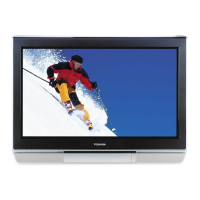
 Need help?
Do you have a question about the Toshiba 32A32 and is the answer not in the manual?
Overview of TV operation, front/back panel features, and connection options for different models.
Guidance on proper placement for ventilation, viewing angle, and avoiding direct light.
Guidelines for achieving optimal picture quality using different cable types (coaxial, A/V, S-Video, component).
Instructions for connecting a VCR to the television for viewing and recording channels.
Steps to connect a cable converter box to receive basic and premium cable channels.
Combined connection setup for watching and recording cable channels via a VCR.
Steps for connecting a satellite receiver and VCR to the TV for viewing and recording.
Connecting a DVD player for enhanced picture quality via component video and a VCR.
Guide for connecting two VCRs for dubbing, editing, and watching videotapes.
Instructions on how to prepare the remote control for operation, including battery installation.
Procedure for inserting AA batteries into the remote control, with safety precautions.
Diagrams and references for TV front panel and remote control buttons with page numbers.
How to switch the remote control to operate external devices like VCRs or cable boxes.
Steps to program the TV remote for third-party VCRs and cable converters using codes.
General guidance on navigating the TV's menu system for configuration and settings.
How to select the display language for menus and messages from English, French, or Spanish.
Procedure to choose the active input source (TV, Video 1, Video 2, Video 3) connected to the TV.
Automatic channel scanning and storage into TV memory for active channels in the area.
Method for manually adding or removing specific channels from the TV's memory.
Instructions for navigating between programmed or unprogrammed channels.
Settings related to channel selection, including favorite channels and channel return.
How to quickly toggle between the two most recently viewed channels using the CH RTN button.
Setting up a list of preferred channels for faster access using the FAV CH buttons.
Enabling parental controls to block specific programs or channels based on ratings.
How to set a personal identification number (PIN) for accessing and managing V-Chip settings.
Procedure to modify the existing V-Chip PIN code for security.
Steps to reset the V-Chip PIN code if it is lost, allowing access to settings.
Using V-Chip to block programs based on MPAA and TV rating systems.
Explanation of MPAA and TV rating classifications for content, aiding V-Chip setup.
Method to temporarily bypass V-Chip blocks for specific programs using the MUTE button.
How to block programs that do not have an assigned rating using the V-Chip feature.
Setting up blocks for specific TV and cable channels to prevent viewing.
Customizing picture settings like contrast, brightness, sharpness, color, and tint.
Choosing from preset color temperatures (Cool, Medium, Warm) for picture display.
Selecting predefined picture modes (Sports, Standard, Movie, Memory) for optimal viewing.
How to use the RECALL button to show audio status, program rating, or channel information.
Configuring the TV to turn off automatically after a set duration.
Information on the automatic power-off feature for vacant channels or inactivity.
Enabling and configuring on-screen captions (dialogue) or text (weather, stock data).
General section covering sound adjustments including muting and stereo/SAP.
How to temporarily turn off the TV's audio output using the MUTE button.
Choosing between stereo sound (STR) and secondary audio programs (SAP) for broadcasts.
Fine-tuning bass, treble, and balance for optimal audio output.
Activating the surround sound effect for enhanced audio listening experience.
How to activate the TV's feature demonstration mode to showcase capabilities.
Explanation of the TV's ability to recall and automatically turn on the last used mode.
Technical details including system, coverage, power, dimensions, and accessories.
Guidance on identifying and resolving common TV operational problems and adjustments.
Details of the warranty coverage, terms, conditions, and service for US customers.
Details of the warranty coverage, terms, conditions, and service for Canadian customers.
 General
| Screen Size | 32 inches |
|---|---|
| HDMI Ports | 2 |
| USB Ports | 1 |
| Built-in Wi-Fi | No |
| Smart TV | No |
| Resolution | 1366 x 768 pixels |


 To Next Page