- 7 -
Playing a DVD video disc
For disc compatibility of this recorder, refer to the “INSTALLATION GUIDE”.
1
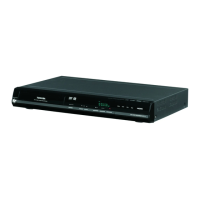
Press OPEN/CLOSE.
The disc tray opens.
Insert with the playback side down.
Disc size varies depending on the disc. Place a
disc to fit the guide. If a disc is out of the guide, it
may result in damage to the disc or malfunction.
2
Press DVD.
The DVD indicator on the front panel
illuminates.
This status indicates that the recorder is
ready to play a disc in the disc tray
(DVD mode).
3
Press PLAY.
Playback starts.
• Depending on the disc, playback
starts automatically by selecting the
DVD mode.
• The recorder may take a short time to
start playback. This occurs because
the recorder is reading the data of a
disc.
Locating a title using the top menu
Some DVD video discs may include a top menu, on which
you can view the structure of contents or select a scene.
Most of the top menus automatically appear in certain
scenes, and also are displayed on demand. Actual
operation of the top menu depends on the disc. This section
explains a general example of how to operate a top menu.
Also refer to the instructions of the disc itself.
1) Press TOP MENU.
The top menu appears on the TV screen.
2) Press
/ / / to select the title you want to
play.
If the titles in the top menu are assigned a number, you
can directly locate a specific title by pressing its
designated number with the number buttons.
3) Press ENTER.
Playback starts from chapter 1 of the selected title.
To stop playback
Press STOP.
To pause playback (still playback)
Press PAUSE.
To resume normal playback, press PLAY or PAUSE.
To play in fast-reverse or fast-forward
During normal playback, press PICTURE SEARCH.
: Fast forward playback
: Fast reverse playback
Each time you press the button, the playback speed
changes.
PICTURE SEARCH
PAUSE
STOP
TOP MENU
/ / / / ENTER
1
2
3
Place a disc in
the inside hollow.
DVD



 To Next Page
 Loading...