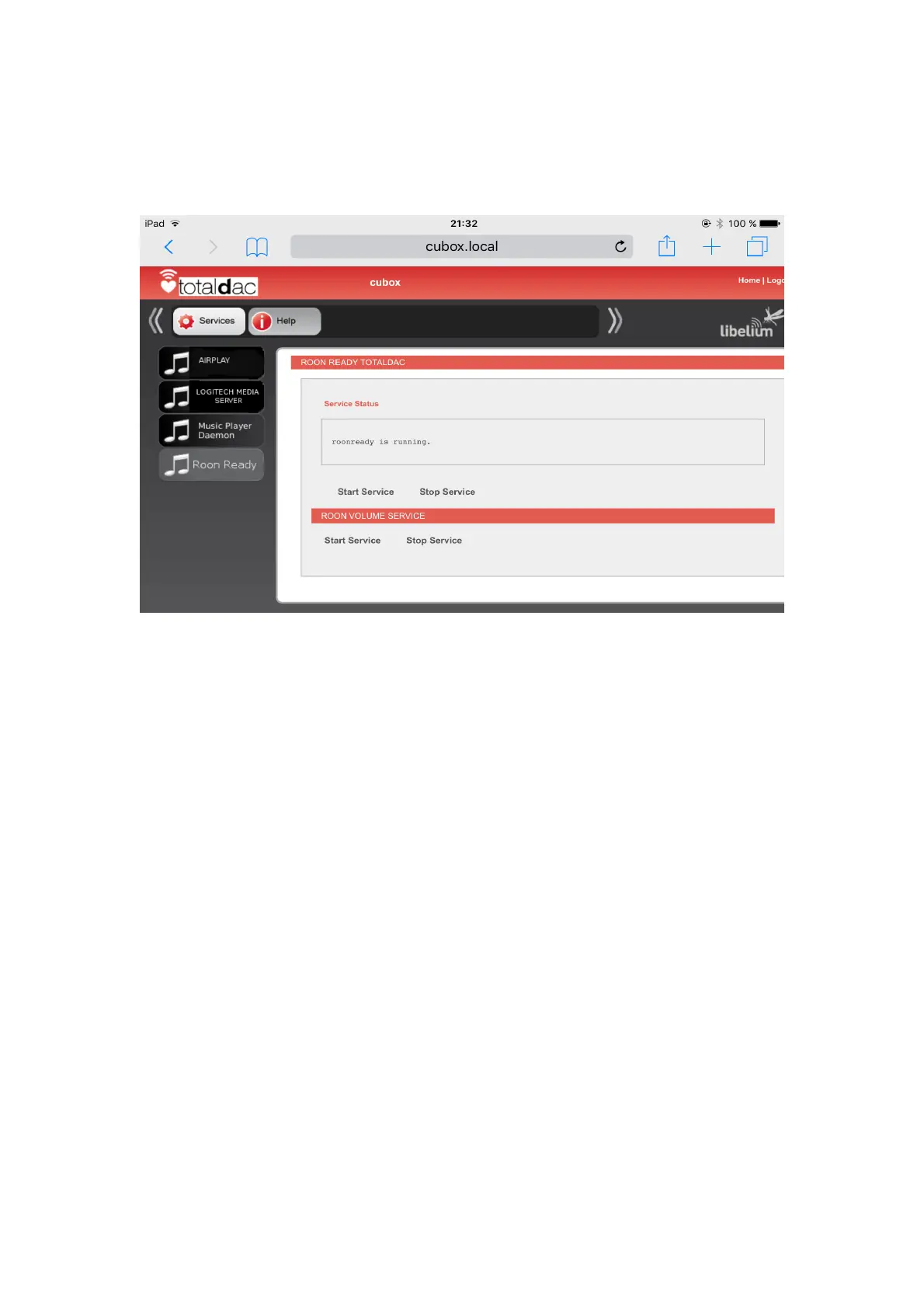
RoonReady
To be usable, RoonReady must be activated in the web interface.
See also the red line ROON VOLUME SERVICE
Clic Start Service to enable the volume control in Roon interface.
It allows to enable the digital volume control in Roon, to be able to control the volume from Roon
graphic interface, for example on the Ipad. In this case DSD files are converted to pcm 176Khz/24.
By default the volume control in Roon graphic interface is disabled, so you must use the Totaldac infra
red remote control or the volume button of your amp or preamp. DSD files are read as native DSD in
this case.
When using Roon on the computer, just enable the auto-detected RoonReady device called 'd1-
server'. Leave the setting corresponding to the RoonReady device by default (resync delay '0ms', max
sample rate 'disabled', max bits per sample 'disabled').
When after using RoonReady you want to use another functionality such as MPD, LMS, upnp or
Airplay stop the music in Roon to free the audio port.
5


 To Next Page