
EasyManua.ls Logo

Totnz TZESD6B - User Manual

Totnz TZESD6B
15 pages
Print Icon
To Next Page IconTo Next Page
Loading...
Model:
TZESD6B / TZESD6V / TZESD6N
TZESD7B / TZESD7V / TZESD7N
TZESD8B / TZESD8V / TZESD8N
Electric Standing Desk Instruction Manual
Rev00(A)
Thank you for choosing this Totnz product! At Totnz, we strive to provide
you with the best quality products and services in the industry. Should
you have any issues, please don't hesitate to contact us.
support@totnz.com

Questions and Answers

Overview

This document is an instruction manual for a Totnz Electric Standing Desk.

Function Description

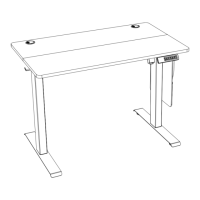
The Totnz Electric Standing Desk is designed to provide users with a versatile workspace that can be adjusted in height. It allows users to switch between sitting and standing positions, promoting better posture and comfort throughout the workday. The desk features a controller with preset height options, collision detection, and the ability to lock/unlock the controls. The frame is assembled with desk legs, a crossbar, and side plates, supporting a desktop panel. A transmission rod system ensures smooth and synchronized height adjustment of the legs. The desk also includes a side pocket for storage and cable management features to maintain a tidy workspace.

Important Technical Specifications

  • Height Adjustment Range: 27.5" - 46.7" (70cm - 118cm)
  • Power Input: 100V - 240V
  • Max. Speed: 25mm/s
  • Operating Noise: <50dB
  • Load Capacity: 176 lbs / 80 kg
  • Desktop Panel Sizes: Available for 40"/48" desks (uses 5 wood dowel pins) and 55" desks (uses 6 wood dowel pins).
  • Models: TZESD6B, TZESD6V, TZESD6N, TZESD7B, TZESD7V, TZESD7N, TZESD8B, TZESD8V, TZESD8N

Usage Features

The desk offers several user-friendly features for operation and customization:

  • Height Adjustment:
    • Raise the Desk: Press the "Up" button to continuously raise the desk to its highest position (46.7" / 118cm) or release to stop at the desired height.
    • Lower the Desk: Press the "Down" button to continuously lower the desk to its lowest position (27.5" / 70cm) or release to stop at the desired height.
  • Save Height Setting:
    • Four height presets (1, 2, 3, 4) can be stored.
    • To save a height, move the desktop to the desired position, then long-press the corresponding preset button (1, 2, 3, or 4) for 3 seconds until the digital number flashes. The number will flash 3 times and then stop, indicating the height is saved.
  • Select Height Setting:
    • Press any of the preset buttons (1, 2, 3, or 4) to automatically move the desk to the previously saved height for that button.
    • Press any key to stop the desk during an automatic adjustment.
  • Reset Function:
    • To reset the desk, press and hold the "Down" button until the desk reaches its lowest level (27.6" / 70cm), then release.
    • Long-press the "Down" button again for 5 seconds; the screen will display "RST".
    • Release the "Down" button; the screen will flash "RST".
    • Continue holding the "Down" button until the desk goes down to its lowest level and then comes back up slightly. Release the button, and the screen will restore the digital display, indicating the reset is complete.
  • Lock / Unlock Function:
    • To lock the controller, press and hold buttons "1" and "2" together for 3 seconds. The screen will display "LOC", and all buttons will be disabled.
    • To unlock the controller, press and hold buttons "1" and "2" together for 3 seconds again. The screen will restore to the digital display, and the buttons will be available.
  • Change Display Height Units:
    • The factory default unit is metric.
    • To switch between metric and imperial units, press and hold buttons "1" and "3" together for 3 seconds.
  • Change Collision Detection Sensitivity:
    • Press and hold buttons "1" and "4" together for 3 seconds. The screen will flash "SOX" (where X is the current sensitivity level, ranging from 0 to 3; 0 is off, 1-3 is highest to lowest).
    • Use the "Up" or "Down" buttons to select a different sensitivity level.
    • Press and hold buttons "1" and "4" together for 3 seconds again to confirm. The "SOX" display will stop flashing, and the desktop will return to the current height.
  • Set / Clear Lowest Limit:
    • Setting: Press and hold the "Down" button and button "1" together for 3 seconds. The screen will display "-dO", indicating the lowest limit is set. When the desk reaches this limit, the screen will display "-LO".
    • Clearing: When the screen displays "-LO", press and hold the "Down" button and button "1" together for 3 seconds. The screen will flash "-dO", and the lowest limit will be cleared.
  • Set / Clear Highest Limit:
    • Setting: Press and hold the "Up" button and button "1" together for 3 seconds. The screen will display "-UP", indicating the highest limit is set. When the desk reaches this limit, the screen will display "-HI".
    • Clearing: When the screen displays "-HI", press and hold the "Up" button and button "1" together for 3 seconds. The screen will flash "-UP", and the highest limit will be cleared.
  • Uneven Desk Legs Adjustment: If the desk legs are not level, insert the wrench into the transmission rod hole in the left leg. Turn the rod clockwise to raise the left leg or anti-clockwise to lower it until it is level with the right leg.

Maintenance Features

  • Rubber Pads Check: Before attaching the frame to the desktop, ensure that the rubber pads are fixed on the frame. If any have fallen off, re-install them or use spare pads.
  • Troubleshooting:
    • Abnormal Operation / RET Display / E07, E08 Error: If the desk experiences abnormal operation, displays "RET" (reset), or shows error messages E07 or E08 (and the motor drive cable is connected normally), perform a reset as described in the "Reset Function" above.
    • HOT Display: If the controller screen displays "HOT", disconnect the power supply and allow the desk to cool down for 20 minutes before resuming operation.
  • General Usage Notes:
    • Ensure there are no obstacles when using the desk.
    • The desktop should not be next to a wall.
    • All cables must be long enough to allow the desk to move up and down freely.
    • If the screen is dark, press any key to wake it up before operation.

Totnz TZESD6B Specifications

General IconGeneral
BrandTotnz
ModelTZESD6B
CategoryIndoor Furnishing
LanguageEnglish