EasyManua.ls Logo

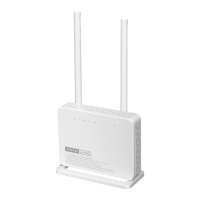
Toto Link A3002RU-V2 - User Manual

Toto Link A3002RU-V2
7 pages
Print Icon
To Next Page IconTo Next Page
Loading...
FIBRE ROUTER SETUP GUIDE
http://totolink.net/
TOTOLINK
A3002RU-V2
Question and Answer IconNeed help?

Do you have a question about the Toto Link A3002RU-V2 and is the answer not in the manual?

Summary

Connect Router to Computer

Connect LAN Cable to Router

Insert one end of the LAN cable into a LAN port on the back of the router.

Connect LAN Cable to Computer

Insert the other end of the LAN cable into the LAN port on your computer.

Access Router IP Address

Open Web Browser and Enter IP

Open your web browser and type the router IP address (192.168.0.1) into the URL bar.

Enter Default Login Credentials

Skip New Login Password Setup

When prompted for a new login password, click 'Skip' to use default credentials.

Login with Admin Credentials

Enter 'admin' for both username and password in the User Login window.

Enable Remote Management

Navigate to Advanced Setup

Access the 'Advanced Setup' option from the top right corner of the EASY SETUP window.

Enable Web Server Access on WAN

In the WAN Settings, check the box for 'Enable Web Server Access on WAN'.

Apply Changes for Remote Access

Click 'APPLY' after enabling Web Server Access on WAN to save the changes.

Configure PPPoE Connection

Select PPPoE WAN Connection Type

In the Internet Setting, change the WAN Connection Type to 'PPPoE'.

Enter PPPoE Username and Password

Fill in the required username and password for the PPPoE connection.

Customize Wi-Fi Settings

Change Wi-Fi Network Name (SSID)

Modify the SSID for both 5GHz and 2.4GHz Wi-Fi networks to your preference.

Set Wi-Fi Password

Set a new password for your 5GHz and 2.4GHz Wi-Fi networks.

Save Wi-Fi Configuration Changes

Click 'APPLY' to save the new Wi-Fi network name and password settings.

Summary

Connect Router to Computer

Connect LAN Cable to Router

Insert one end of the LAN cable into a LAN port on the back of the router.

Connect LAN Cable to Computer

Insert the other end of the LAN cable into the LAN port on your computer.

Access Router IP Address

Open Web Browser and Enter IP

Open your web browser and type the router IP address (192.168.0.1) into the URL bar.

Enter Default Login Credentials

Skip New Login Password Setup

When prompted for a new login password, click 'Skip' to use default credentials.

Login with Admin Credentials

Enter 'admin' for both username and password in the User Login window.

Enable Remote Management

Navigate to Advanced Setup

Access the 'Advanced Setup' option from the top right corner of the EASY SETUP window.

Enable Web Server Access on WAN

In the WAN Settings, check the box for 'Enable Web Server Access on WAN'.

Apply Changes for Remote Access

Click 'APPLY' after enabling Web Server Access on WAN to save the changes.

Configure PPPoE Connection

Select PPPoE WAN Connection Type

In the Internet Setting, change the WAN Connection Type to 'PPPoE'.

Enter PPPoE Username and Password

Fill in the required username and password for the PPPoE connection.

Customize Wi-Fi Settings

Change Wi-Fi Network Name (SSID)

Modify the SSID for both 5GHz and 2.4GHz Wi-Fi networks to your preference.

Set Wi-Fi Password

Set a new password for your 5GHz and 2.4GHz Wi-Fi networks.

Save Wi-Fi Configuration Changes

Click 'APPLY' to save the new Wi-Fi network name and password settings.

Toto Link A3002RU-V2 Specifications

General IconGeneral
BrandToto Link
ModelA3002RU-V2
CategoryWireless Router
LanguageEnglish

Related product manuals