Need help?
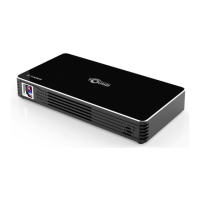
Do you have a question about the TouMei C900 and is the answer not in the manual?
Delete downloaded apps by pressing and holding the OK button for two seconds.
Free up device memory by holding the home button for two seconds.
Toggle between mouse and remote control modes by long-pressing the menu key.
Connect power and Wi-Fi before updating to prevent failures or system crashes.
Re-attempt update from settings if no reaction; system restarts automatically.
Verify if the system is up-to-date by checking the current software version.
Set the boot signal source to Close or HDMI.
View details on equipment performance and software.
Choose between Online Upgrade or U-disk Upgrade methods.
Restore device to factory settings, deleting all installed apps.
Select between Automatic or Manual fan operation modes.
Choose whether the projector boots into Remote Control or Power On mode.
Enable or disable the audible feedback for button presses.
Select preferred sound effect: Standard, Vivid, Sports, Movie, or Music.
Turn the startup sound on or off.
Choose between Standard, Highlight, or Energy Saving brightness modes.
Learn how to adjust keystone manually for trapezoid correction.
Select projection orientation: Front, Rear, Ceiling front, or Ceiling rear.
Adjust image zoom using stepless zoom and image ratio settings.
Select video display modes: Colour, Warm, Cool, or Custom.
Ensure projector and PC are on the same LAN for wireless screen mirroring.
Download and install the EShare client software from the provided URL.
Initiate screen mirroring by selecting the projector and starting transmission.
Connect iPhone and projector to the same Wi-Fi network, preferably 5G.
Visit the provided URL or scan QR code to download the necessary EShare application.
Launch EShare app and connect to the projector (e.g., EShare-3624).
Open Airplay, then access Control Center to activate Mirroring.
Choose the projector from the list of available devices to cast your screen.
Activate iPhone's Personal Hotspot and allow other devices to join.
Connect the projector to the iPhone's Wi-Fi hotspot for wireless mirroring.
Scan QR code on projector to download and install the Eshare mobile app.
Open Eshare app; it automatically searches for devices on the same network.
Select the projector and choose 'Reverse Screen Transmission'.
Connect Android phone and projector to the same Wi-Fi network.
Navigate to settings and select 'Miracast' for screen mirroring.
Open 'Screen Projection' or similar option on the Android device.
The phone and projector will search for and connect to each other.
Connect external multimedia devices via HDMI cord.
Configure audio settings for Fire TV Stick, disabling Dolby Digital Plus if needed.
Learn the purpose of each button on the remote control.
Understand how to use an external mouse for navigation.
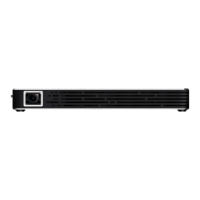
Locate essential ports: USB, Power, HDMI IN, and Audio Hole.
Switch the projector to Bluetooth speaker mode for audio playback.

 To Next Page
 General