TL-WR720N 150Mbps Wireless N Router
1.4.2 The Rear Panel
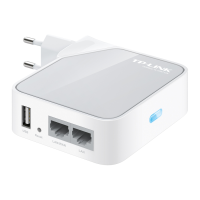
Figure 1-2 Rear Panel sketch
The following parts are located on the rear panel (View from left to right).
¾ WPS/RESET: This button is used for both WPS and Reset function. To use the WPS function,
press it for less than five seconds; to use the RESET function, press it for more than five
seconds.
z Used as RESET button:
There are two ways to reset to the Router's factory defaults:
1) Use the Factory Defaults function on System Tools -> Factory Defaults page in the
Router's Web-based Utility.
2) Use the Factory Default Reset button: With the Router powered on, press and hold the
RESET button (at least 5 seconds) until the SYS LED becomes quick-flash from
slow-flash. Then release the button and wait the Router to reboot to its factory default
settings.
z Used as WPS button:
WPS: If you have client devices, such as wireless adapters, that support Wi-Fi Protected
Setup, then you can press this button to quickly establish a connection between the Router
and client devices and automatically configure wireless security for your wireless network.
¾ POWER: The Power socket is where you will connect the power adapter. Please use the
power adapter provided with this TL-WR720N 150Mbps Wireless N Router.
¾ WAN: The WAN port is where you will connect the DSL/cable Modem, or Ethernet.
¾ LAN (1-2): These ports connect the Router to the local PC(s).
-5-





 To Next Page

