Instructions for OPERATION
10
ENEN
1. INSTALLATION
INCLUDED/ INBEGREPEN
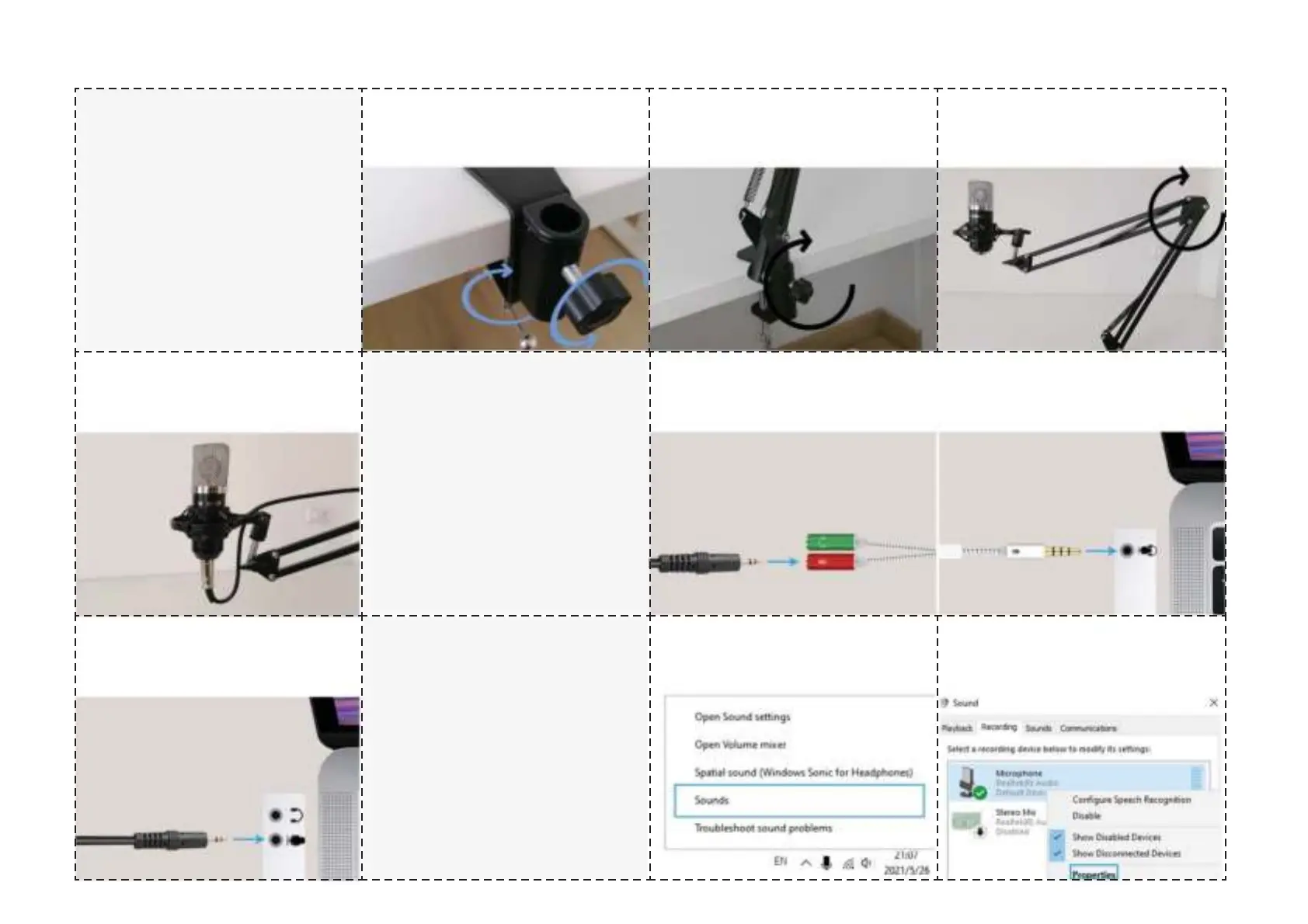
1-2. Place the frame on the holder, 1-2. Place the frame on the holder,
and tighten the knob.and tighten the knob.
1-3. Place the microphone. And tight-1-3. Place the microphone. And tight-
en the knob hard.en the knob hard.
1-1. Place the frame holder on the 1-1. Place the frame holder on the
edage of the table.edage of the table.
2. CONNECT TO
DESKTOP/LAPTOP
for MACBOOK:
please look at next page
2-1. If you only have one 3.5mm jack on your laptop. Please use a 3.5mm 2-1. If you only have one 3.5mm jack on your laptop. Please use a 3.5mm
splitter.splitter.
1-4. Adjust the microphone until it 1-4. Adjust the microphone until it
faces you to get best recording faces you to get best recording
quality.quality.
2-2. Otherwise plug it into the micro-2-2. Otherwise plug it into the micro-
phone 3.5mm socket.phone 3.5mm socket.
3. ! FOR BETTER
QUALITY:
Check your WINDOWS
MICROPHONE SETTINGS
3-2. Select the recording tab->choose 3-2. Select the recording tab->choose
Microphone as default input-> Microphone as default input->
open microphone properties.open microphone properties.
3-1. Click sounds on your Windows 3-1. Click sounds on your Windows
start menu.start menu.
TRANSNECT



 To Next Page