2.2 Playing a DVD
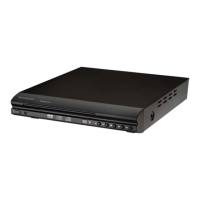
Turn on the TV & DVD player. Switch the TV to the AV channel. You should see the Transonic
start-up logo.
1. Press the OPEN/CLOSE button on the DVD Remote (or on the unit itself)
2. Insert a disc label side up
3. Press the OPEN/CLOSE button once more
The DVD player will start loading the disc.
Once at the main menu, follow the on screen instructions to start playing the movie.
Use the directional keys to select the appropriate items and press the Enter key to confirm
highlighted items on the menu screen.
2.3 Frequently Used Remote Buttons
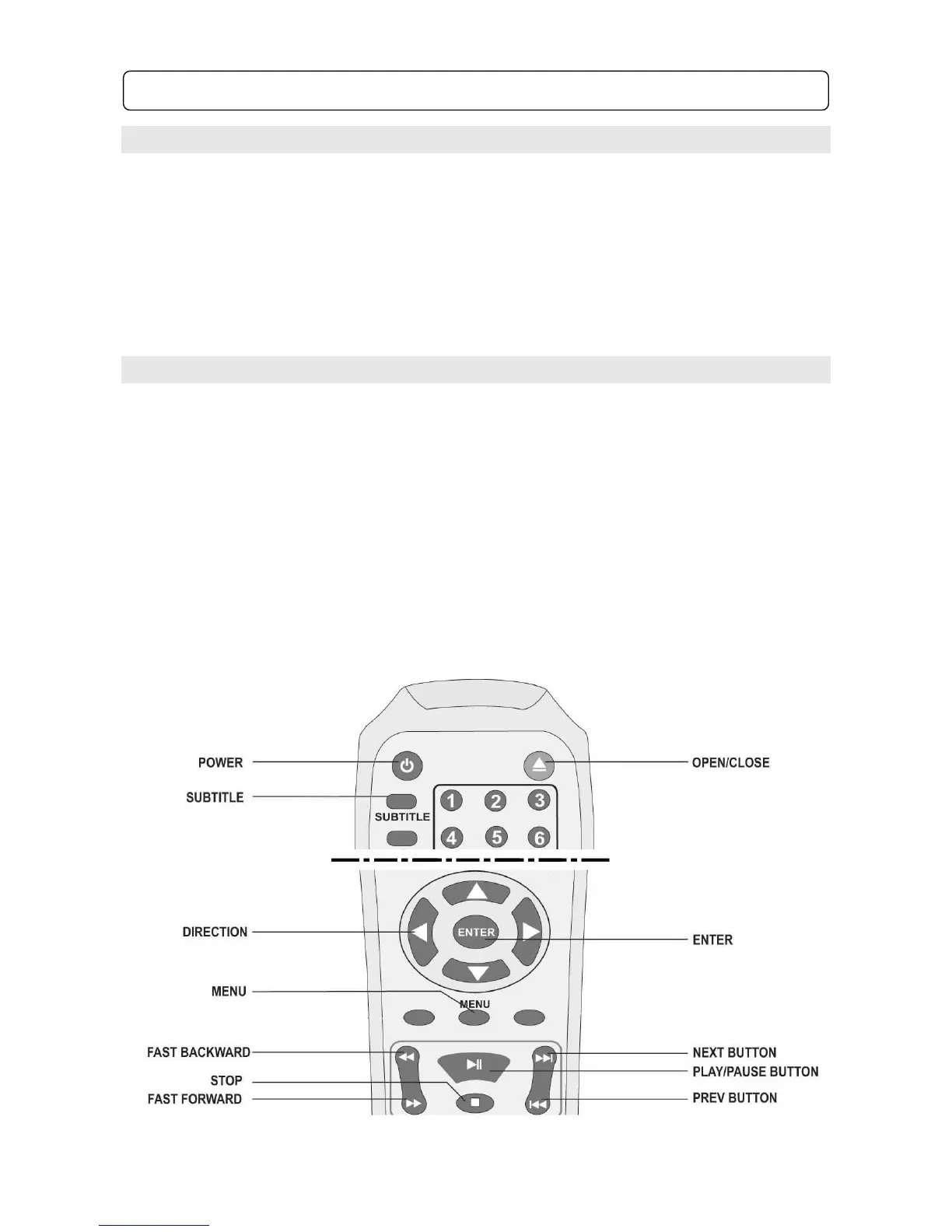
POWER: Press to turn ON and press again to turn the DVD player to standby mode
OPEN/CLOSE: Press to open / close the disc tray
SUBTITLE: Press to turn ON / OFF subtitles and change subtitle language (if available)
MENU: Press to return to the DVD main menu
DIRECTIONAL BUTTONS: Press to navigate through menus on screen when in menu screens
ENTER: Press to select highlighted items in on screen menus, i.e. to play movie
PLAY / PAUSE: Press once to play a track or DVD, press again to pause, press once more to
resume normal play
FAST BACKWARD: Press to rewind the track or movie
STOP: Press to stop play
FAST FORWARD: Press to fast-forward a track or movie
PREVIOUS: Press to skip to the previous track or the previous chapter on a DVD
NEXT: Press to skip to the next track or the next chapter on a DVD (note: some DVD discs will not
allow you to skip chapters forwards or backwards)



 To Next Page