EN
9
i
In order to safely secure the SurfTab, hold the two upper corners of the tablet and place it on the keyboard. The four
spacers on the keyboard securely protect the display from mechanical stresses. When you want to start using your SurfTab
again, position it in the same way.
c) Switch on your SurfTab. You can now use the keyboard.
7) Special features of the Keyboard
Caps lock key
If the Caps lock key on your keyboard is activated, then letters are written as capitals and special characters are enabled.
Function keys for controlling your tablet
The keyboard is equipped with special keys that allow you to control various functions on your tablet.
The
key on the left of the Alt-key opens your tablet’s start menu. You can issue control commands in combination
with other keys, for example, WinD (show desktop) or WinE (show workspace).
The
key on the right of the AltGr-key deactivates and activates the touchpad on the keyboard. This function is
particularly helpful when you want to use an app to compose a longer text and avoid calling up functions via the
touchpad.
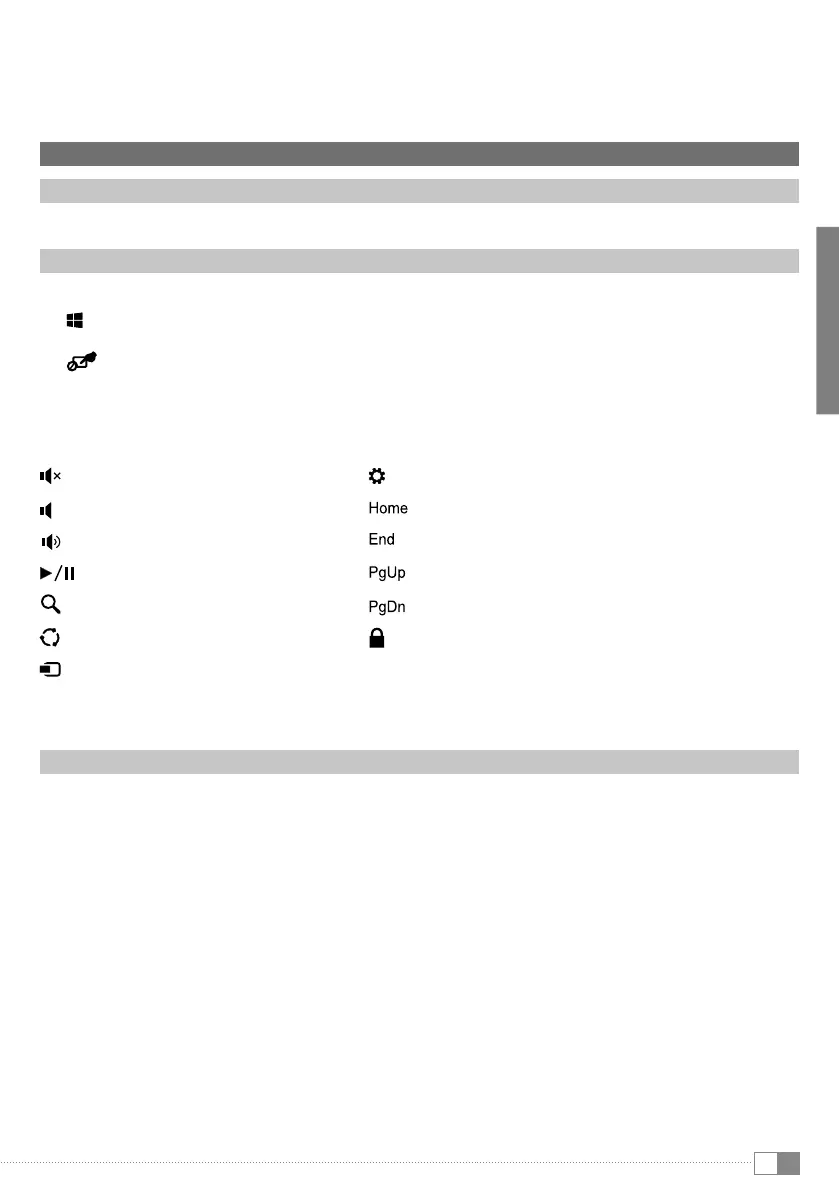
You activate the functions in the upper key bar by pressing the desired function key:
To activate the additional functions (blue F-keys), press and hold the blue "Fn"-key and then press the desired function key.
Touchpad
The touchpad performs the mouse functions. Move the cursor on the touch surface by swiping your finger across the
surface in the desired direction. Swipe upwards or downwards or to the left or right using 2 fingers to scroll the screen
in the corresponding direction.
The keys perform the same functions as mouse keys. Use the left key to select programs and files, position objects and
confirm commands. Use the right mouse key to call up the context menu.
Muting
Volume -
Volume +
Play/Pause
Search
Share
Devices (
Offers output devices)
Settings
Jumps to the top of the page
Jumps to the bottom of the page
Scrolls to the top of the page
Scrolls to the bottom of the page
Screen lock


 To Next Page
 Loading...