6
6
7
7
8
8
9
9
TREND MICRO
TM
InterScan
™
Gateway Security Appliance
Quick Start Card
You must register your Trend Micro InterScan Gateway SecurityAppliance to activate
the product.
Note: Trend Micro will send your Registration Key in the email.
After the registration is complete, Trend Micro sends an Activation Code via
email, which you can then use to activate IGSA.
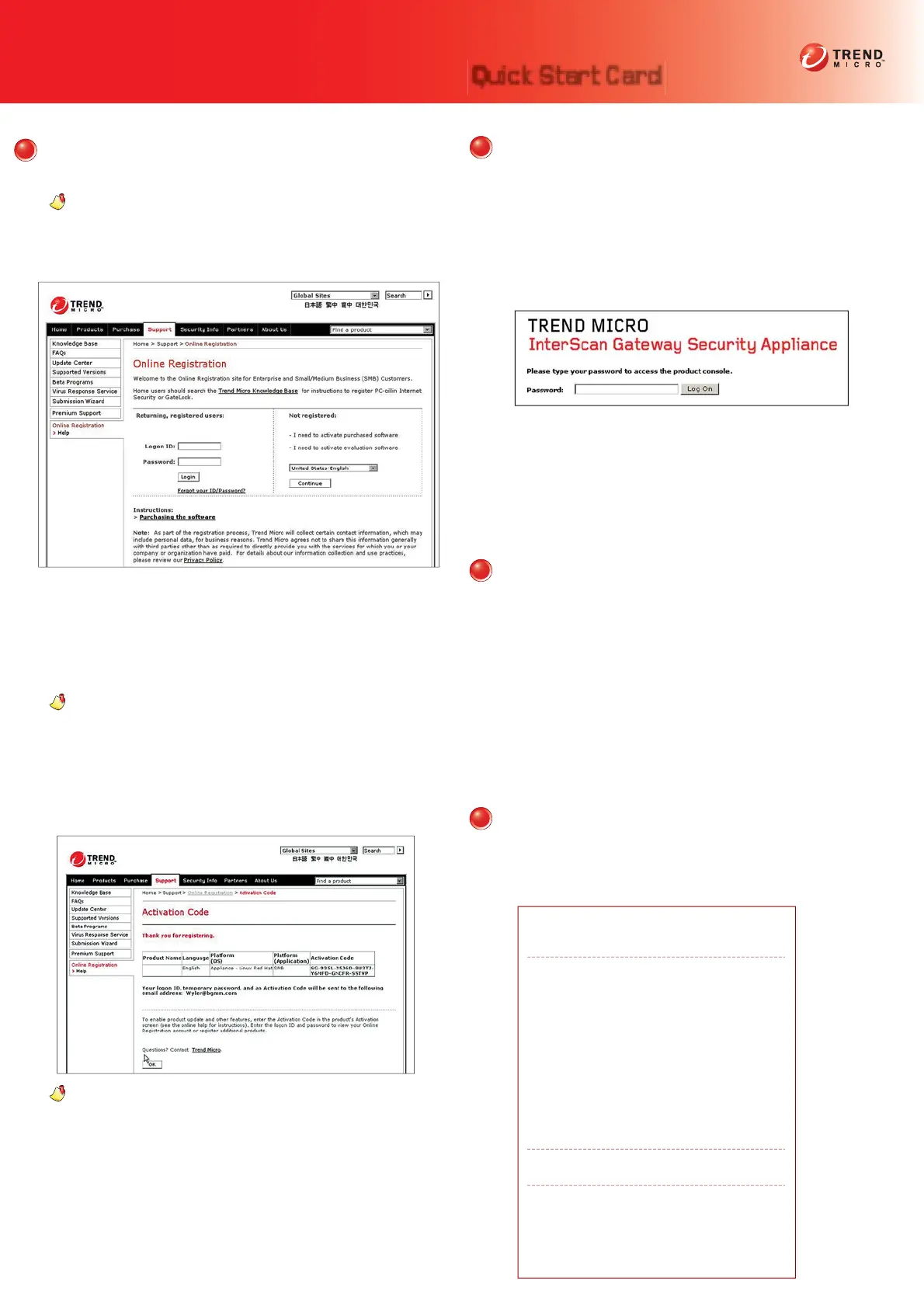
1. Go to the Trend Micro Online Registration Web site
(https://olr.trendmicro.com/registration). You will see the page below.
2. Perform one of the following:
• If you are an existing Trend Micro customer, log on using your logon ID and
password
• Otherwise, if you are a new customer, click Register Your Product under New
customer registration
3. On the Enter Registration Key page, type or copy the IGSA Registration Key, and
then click Continue.
Note: IGSA has a Registraiton Key and a Serial Number. Please use the
Registration Key and NOT the Serial Number to register the product.
4. On the Confirm License Terms page, read the license agreement, and then click
“I Accept”.
5. On the Confirm Product Information page, click Continue Registration.
6. Fill out the online registration form, then click Submit.
7. Shown below is the ‘Thank You for Registering” screen from the online registration
process.
Note: You may want to save your Activation Code (shown on this screen)
to a text file.
Registering Your IGSA
Try the following to test that the appliance is functioning.
Web access - Can you access http://www.trendmicro.com?
FTP - Can you access ftp.trendmicro.com?
C:\>ftp ftp.trendmicro.com
Connected to ftp.trendmicro.com.
220 webexftp9 Microsoft FTP Service (Version 5.0).
User (ftp.trendmicro.com:(none)): ^C ---- CTRL C to cancel
If your browser doesn’t display Trend Micro’s home page or FTP site, then:
• Ping the IP address provided above
• Ping a device on the other side of the appliance?
• Check that the Inbound and Outbound connections are correct
Please refer to the Getting Started Guide for additional help.
Thank you for choosing Trend Micro InterScan Gateway Security Appliance!
Your network is now secure at the gateway from viruses, malware, spyware, spam
and inappropriate content.
Congratulations!
Your InterScan Gateway Security Appliance is working!
Confirming Your IGSA is Passing Traffic
Accessing IGSA’s Web Console to Configure Your IGSA
After preconfiguring InterScan Gateway Security Appliance (IGSA), you are ready
to configure the device and commence network protection.
Log on to the Web management console.
Example, https://< IP address >
(IP address from Step 5)
After you have accessed the web console, you should see a login screen
(see example below).
The default administrator password is: admin
Trend Micro recommends performing the following tasks after preconfiguring IGSA:
• Update the scan engines and pattern files (Update > Manual)
• Change the Web console password (Administration > Password)
• Set administrator’s email address (Administration > Notification Settings)
• Set regional time zone (Administration > System Time)
Refer to the following documentation for related instructions:
• InterScan Gateway Security Appliance Online Help– provides instructions on how
to configure IGSA.
Support Contact Information for US
Email for Support: support@support.trendmicro.com
US Phone number: 1 (888) 608-1009
Item code: SAEQ13232/70525
Support Contact Information for APAC
CN: +86 800 820 8839
service@trendmicro.com.cn
TW: +886 2 2377 2323
http:/www.trendmicro.com.tw/corpmail/
HK: +852 2836 0986
hksupportcenter@trendmicro.com.hk
KR: +82 2 2188 8232
support@trendmicro.co.kr
AU/NZ: +1 800 201 122
support@trendmicro.com.au
Asia South: Please contact local partner
asia@support.trendmicro.com
Support Contact Information for Latin America
http://www.trendmicro.com/support/IGSA
Support Contact Information for Europe
English: + 353 21 7307 433
http://www.trendmicro.com/support/IGSA
French: + 353 21 7307 424
German: + 353 21 7307 423
Italian: + 353 21 7307 444


 To Previous Page
 Loading...