2. Input And Output Settings
1. Connect the headset to the computer via Bluetooth or dongle.
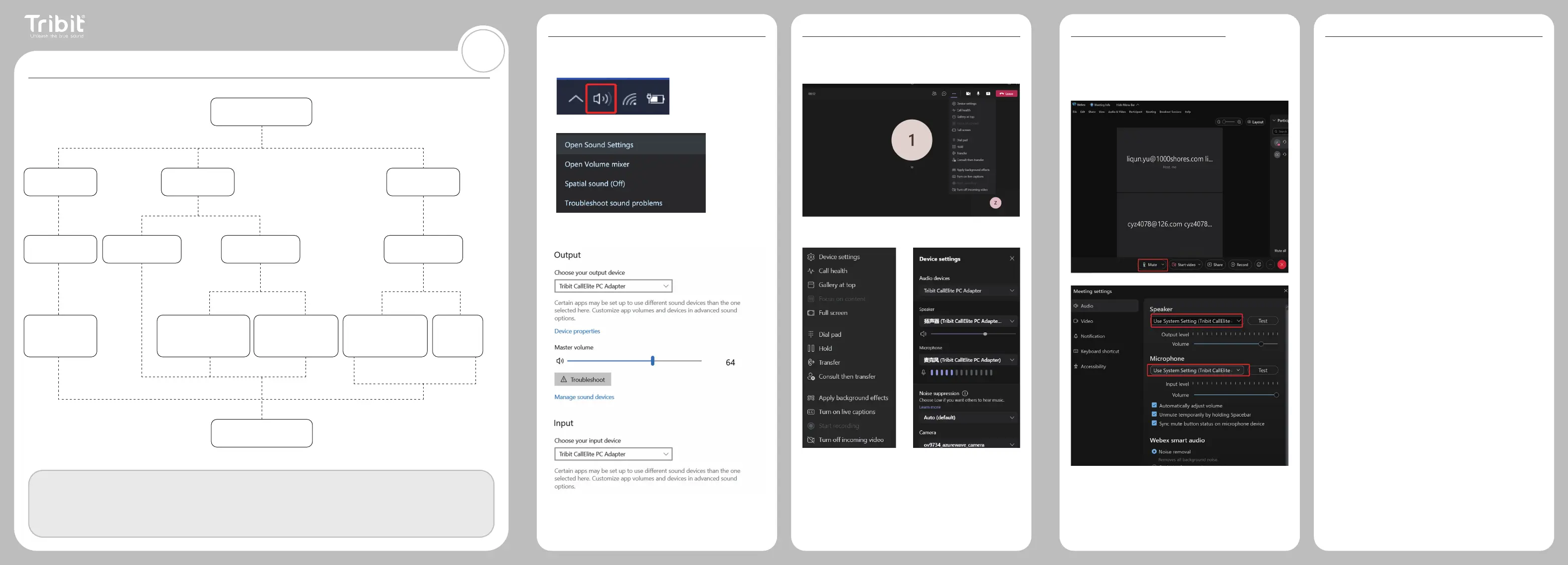
2. Right click on the sound icon, as shown below:
3. Open the sound settings, as shown below:
4. In the sound setting interface, set the “Output” and “Input” to the
headset driver. (The default is the system's own output and input),
as shown below:
5. Open the conference software, and the “Input” and “Output” are
also set to the input and output of the headset driver.
Note: The driver at the speaker icon in the lower right corner of some
computers has stereo for music audio output and headfree-ag for call
audio output.
3. Teams Meeting Tool Setting
1. Open the meeting tool.
2. Select the “...” property settings, as shown below:
3. 3. Select the “Device settings”, as shown below (A):
A B
4. Select the “Microphone” input and the “Speaker” output as the
headset driver, as shown below (B).
EN
1. 配对流程图
4. Webex Meeting Tool Setting
1. Open the meeting tool.
2. Select the “Audio” setting in the “Mute” menu bar. Then select
the default “Speaker” and “Microphone” as the headset driver, as
shown below:
5. FAQs
Q: What devices does the headset work for?
A: The headset is suitable for those Bluetooth-enabled Android, iOS, and
PC devices.
Q: Does the dongle support plug-n-play or do I need to download a
driver before use?
A: It supports plug-n-play. No need to download any drivers.
Q: The headset beeps after using for a while.
A: Please charge the headset for a certain time to make sure it isn’t in
low battery condition, or the mute function is activated.
Q: Does it have mute function?
A: Yes but the mute function is only valid during conversation. For any
third-party software, you may probably set the mute function on the
device it connects to.
Q: What are the charging ways for this headset?
A: The headset can be charged by connecting to the charging base or to
a power outlet directly through the provided USB-C cable.
Q: How to mute a conversation?
A: Click the mute button during conversation, and you will hear the voice
of “Mute on” and then the conversation will be muted. Click the mute
button again to restore conversation, and you will hear the voice of
“Mute off”.
Q: How to clear off the pairing list (reset the headset)?
A: Press and hold the MFB button and volume + button for 5 seconds,
then the LED indicator will light off for 1 second and then flash in red/
green alternately. You will hear the voice of “ disconnected ”, which
indicates the headset has entered pairing state.
Q: Will the headset enter auto-off state when it is being charged by
the charging base?
A: Considering the using habits of most users, the headset will
automatically turn off when you charge it with the charging base. The
indicator light will glow in red during charging and change to blue after
the headset is fully charged.
Q: Why can’t I answer or hang up the call through the MFB button?
A: Due to the wide differences between the headset system and the
underlying codes of diverse conference systems, the headset may
possibly be incompatible with some of them. If the headset is
incompatible with a specific conference system, you can’t use the
MFB button to answer or hang up phone calls.
Q: Why does the headset sometimes hang up automatically during a
call?
A: In the case of a long-term call, the user may touch it by mistake and
activate the call transfer function, thus the headset may turn off its
own microphone. It can restore to normal working state after being
restarted.
Tribit CallElite 81
Warm Tip:
1. The headset is in the pairing state only when the red and green light flash alternately. If the connection fails, you can restore the headset
to factory settings (long press the “MFB” button and “Volume+” button for 4s) to clear the headset pairing list in the device. After the list
is cleared, it will automatically enter the pairing state.
2. Due to different conditions, the effective connecting range of this headset is within 10-30 mm. If your device is out of this range, the
headset will give a sound “disconnected”.
Tribit CallElite 81
Successfully connected
Turn on for the rst time
(never be connected
before)
Press and hold the MFB
button for 2s to turn on
the headset.
Use your device to
search for other Blue-
tooth-enabled device
and nd “Tribit CallElite
81” for connection.
Press and hold the MFB
button for 2s to turn on
the headset.
Press and hold the MFB
button for 2s to turn on
the headset.
①
Press and hold the MFB
button for 4s to forcibly
enter pairing mode.
②
When the computer or mobile
phone is within the effective
connecting range, the "Tribit
CallElite 81" will automatically
reconnect to the last device.
③
If the computer or mobile
phone is not within the
effective range, the headset
will automatically enter the
pairing state after 10S.
Once you place the power-on
headset as close to the
dongle as possible, the
headset will auto play audio
30s later.
Auto connect to
the last device
The dongle indicator glows in green. (The
dongle indicator will glow in red when the
headset is in mute state during conversation).
be connected
before
never be
connected before
You’ll hear “power on”
and the LED indicator
will light up in green
for 2s.
You’ll hear “power on” and
the LED indicator will light
up in green for 2s.
You’ll hear “power on” and
the LED indicator will light
up in green for 2s.
Turn on as usual
(be connected before)
Insert the dongle into
your computer.


 To Next Page
 Loading...