Select the appropriate correction method and then press . The GPS Source screen reappears. The
correction appears as the Source.
2.
Press to select Next Screen and then press .3.
Configuring WAAS/EGNOS
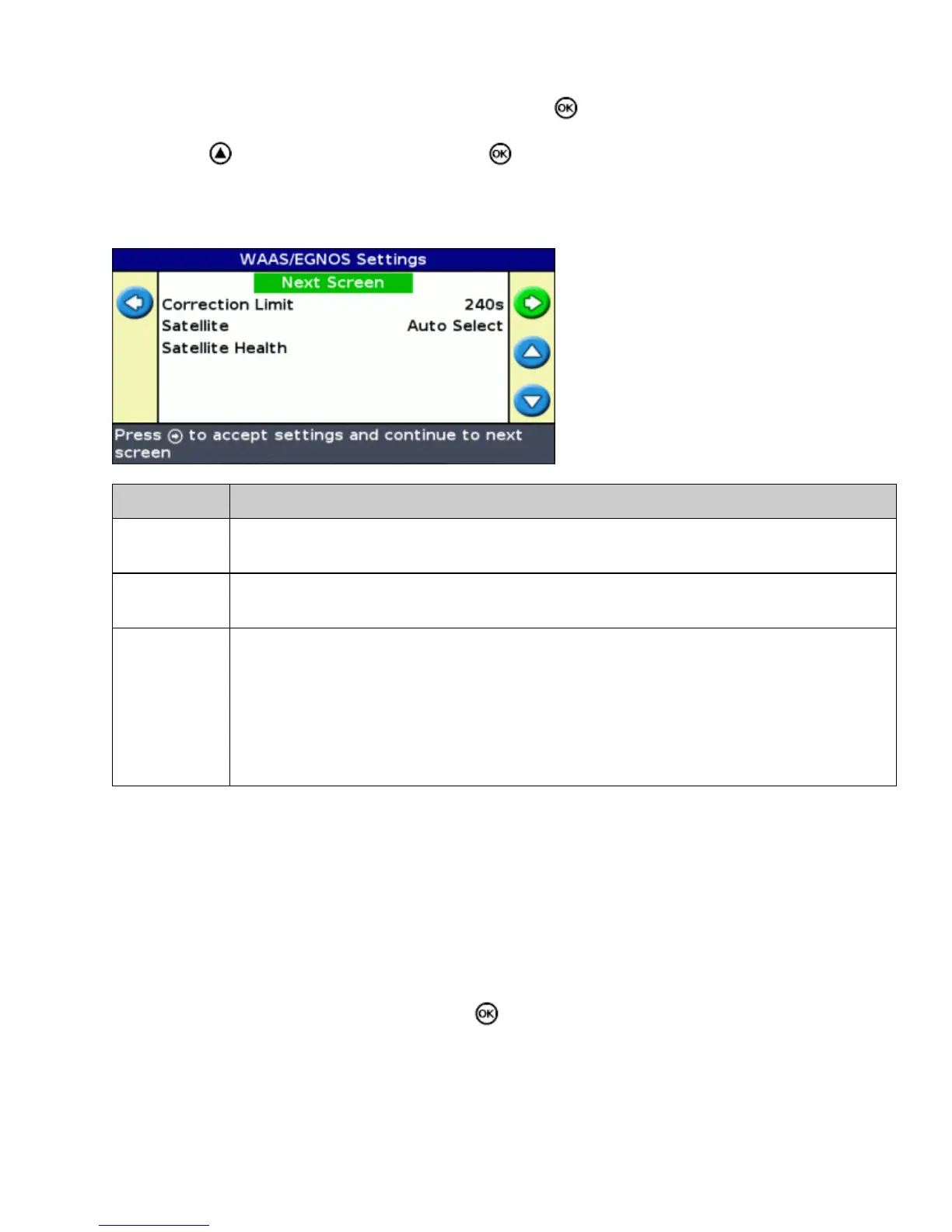
To configure WAAS or EGNOS corrections, set each of the fields on the WAAS/EGNOS Settings screen:
ITEM DESCRIPTION
Correction
Limit
The time that the lightbar can run without receiving an updated GPS position, before it drops
guidance.
Satellite
The correction satellite that the lightbar will use. To automatically select the satellite, select
Auto Select. Otherwise, you can select a specific satellite.
Satellite
Health
How the lightbar searches for the satellite:
On − The system searches for the satellite, regardless of the region or the satellite health.
Off − The system does not search for the satellite.
Heed Health − The system searches for the satellite if the satellite is within the appropriate
region and is healthy.
Ignore Health − The system searches for the satellite if the satellite is within the appropriate
region, regardless of satellite health.
Configuring the GPS Limits
The GPS Limits screen enables you to adjust several of the GPS signal strength tolerances. If you are having
trouble getting GPS reception, you may be able to receive a signal by lowering the tolerances, but at the cost of
lowering signal quality and therefore lowering GPS accuracy.
To adjust the settings, select Configuration / System / GPS / GPS Limits.
Select the appropriate setting and then press . The limit adjustment screen appears.1.
57



 To Next Page