4 Connecting to an Office Computer
58 GeoExplorer 6000 Series User Guide
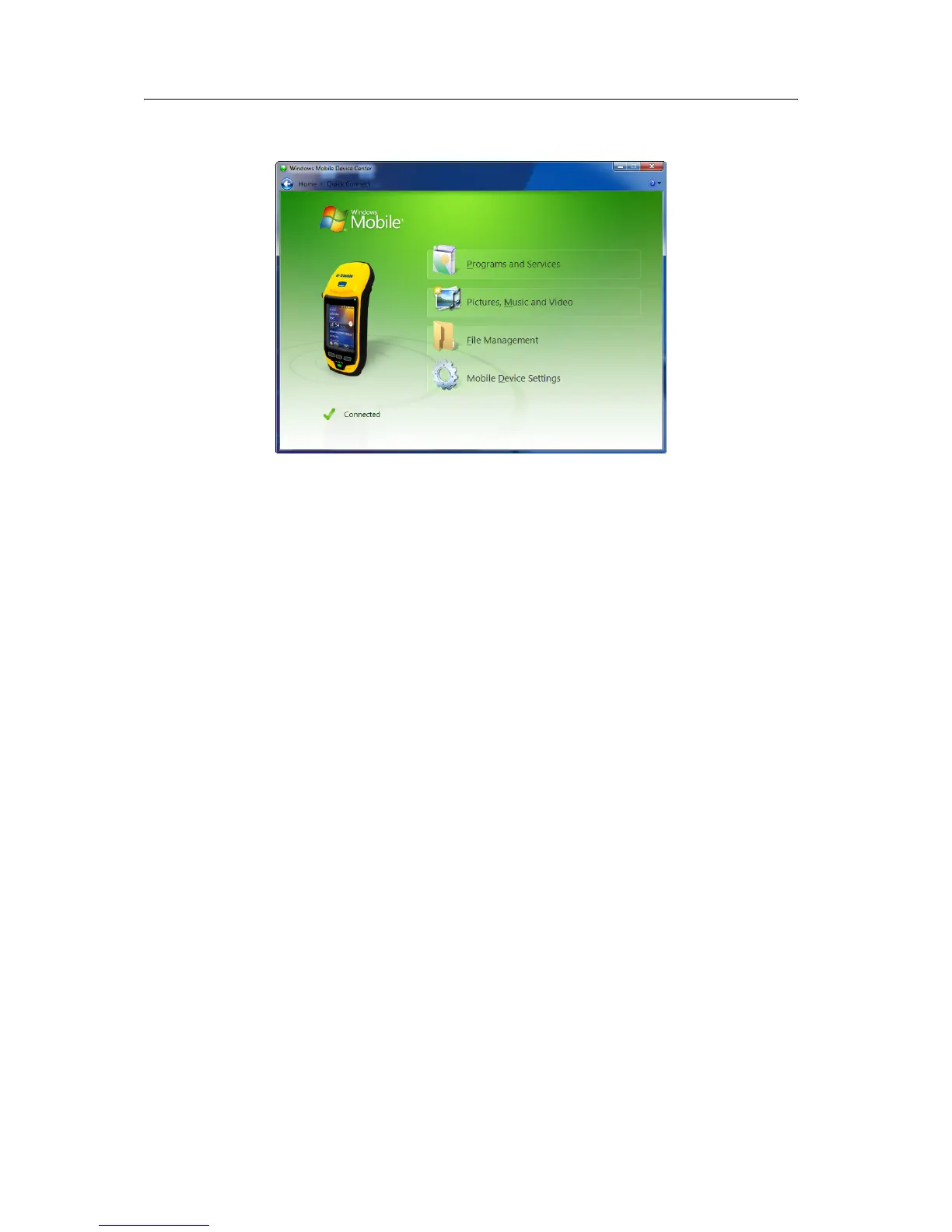
3. The Windows Mobile Device Center window displays the message Connected:
Note – If the connection is not made automatically, check that the connection is enabled in
the Windows Mobile Device Center software and on the handheld. For more information,
see Troubleshooting, page 117.
4. Do one of the following:
– To synchronize files and data between the handheld and a computer, click
Set up your device and then follow the instructions on screen.
– To transfer data between the handheld and the computer without
synchronizing the devices, click Connect without setting up your device.
5. To transfer files between the computer and the handheld, click File
Management. A Windows Explorer-type window appears, displaying files stored
on the handheld. Copy and paste files to other locations on the computer, or
from the computer to the handheld.
6. To install software onto the handheld, see Installing software onto the handheld,
page 60.
7. To uninstall software from the handheld, click Programs and Services and then
click Add/Remove Programs.
B
Tip – If the Add/Remove Programs option does not appear below Programs and Services,
click More. The Add/Remove Programs option appears.
For more information, refer to the Windows Mobile Device Center Help.
B
Tip – If the GPS Pathfinder
®
Office software is installed on the office computer, you can
configure the Connection Manager utility in the GPS Pathfinder Office software to
automatically detect when you connect a GeoExplorer 6000 series handheld to the
computer. This enables you to automatically transfer data from the TerraSync software,
differentially correct the data, and then export it to a GIS. For more information, refer to
the GPS Pathfinder Office Software Help.



 To Next Page