SOUTH DAKOTA TECHNICAL GUIDE NOTICE SD-325
SECTION I – REFERENCE LIST - TECHNICAL NOTES – TECHNOLOGY – PAGE 7 OF 12 OCTOBER 2011
Backlight
The backlight makes the screen easier to read in low light, but uses extra power. Use the
Backlight control to configure power-saving settings for the backlight. To open the
Backlight control:
• Tap Windows icon/Settings / System / Backlight.
To set the backlight to automatically turn off:
1. To automatically turn off the backlight when the handheld is idle and is using
battery power, tap the Battery Power tab. Select the Turn off backlight check
box and then select a time from the drop-down list.
2. To automatically turn off the backlight when the handheld is idle and is
using external power, tap the External Power tab. Select the Turn off
backlight check box and then select a time from the drop-down list.
3. Tap OK.
To change the brightness:
1. Tap the Brightness tab.
2. Tap and drag the slider control to the left to make the backlight darker, or to
the right to make the backlight brighter.
3. Tap OK.
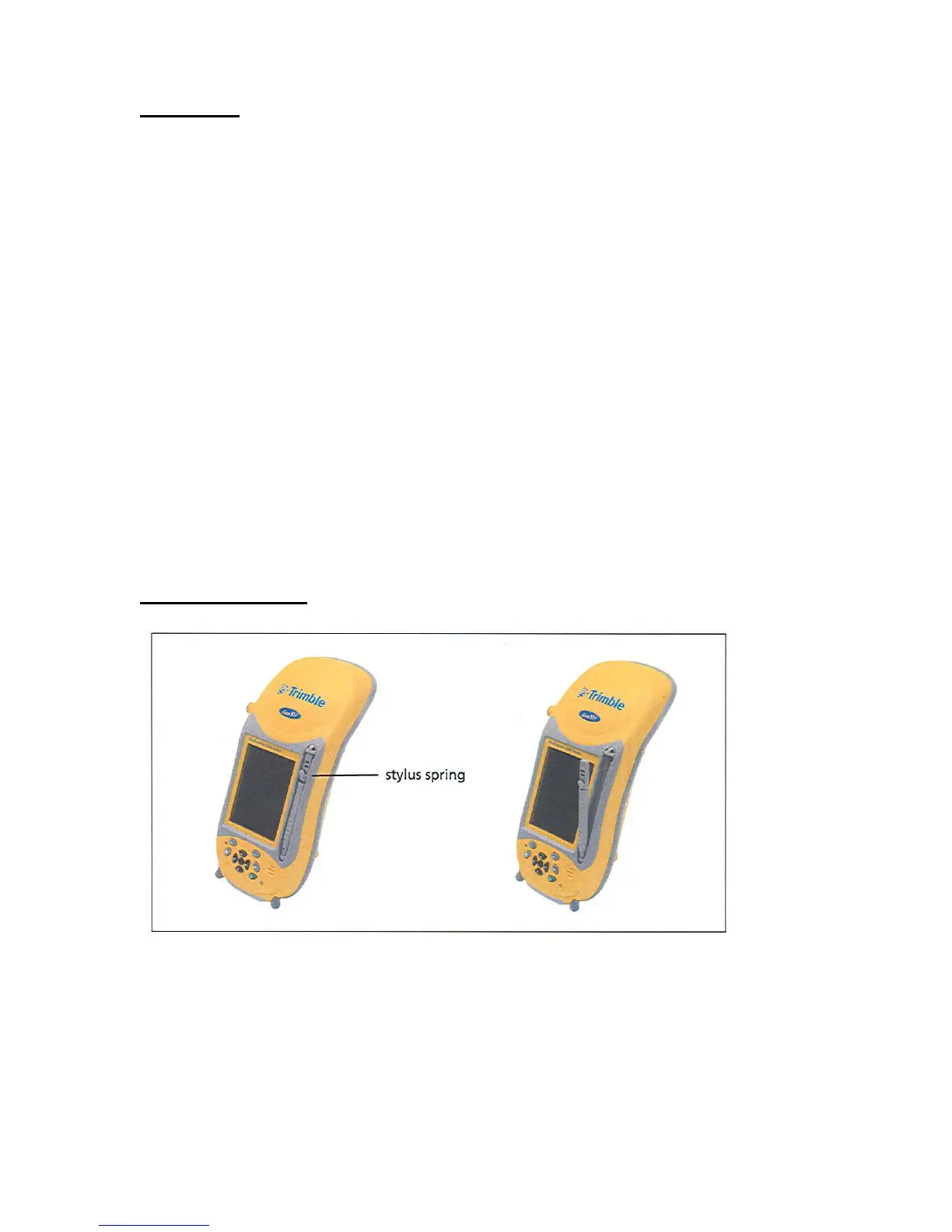
Using the Stylus
To interact with the handheld, use the stylus to tap on the touch screen.
Actions you can perform with the stylus are as follows:
Tap – Touch the screen once with the stylus to open items and select options



 To Next Page