Juno T41
User Manual
49
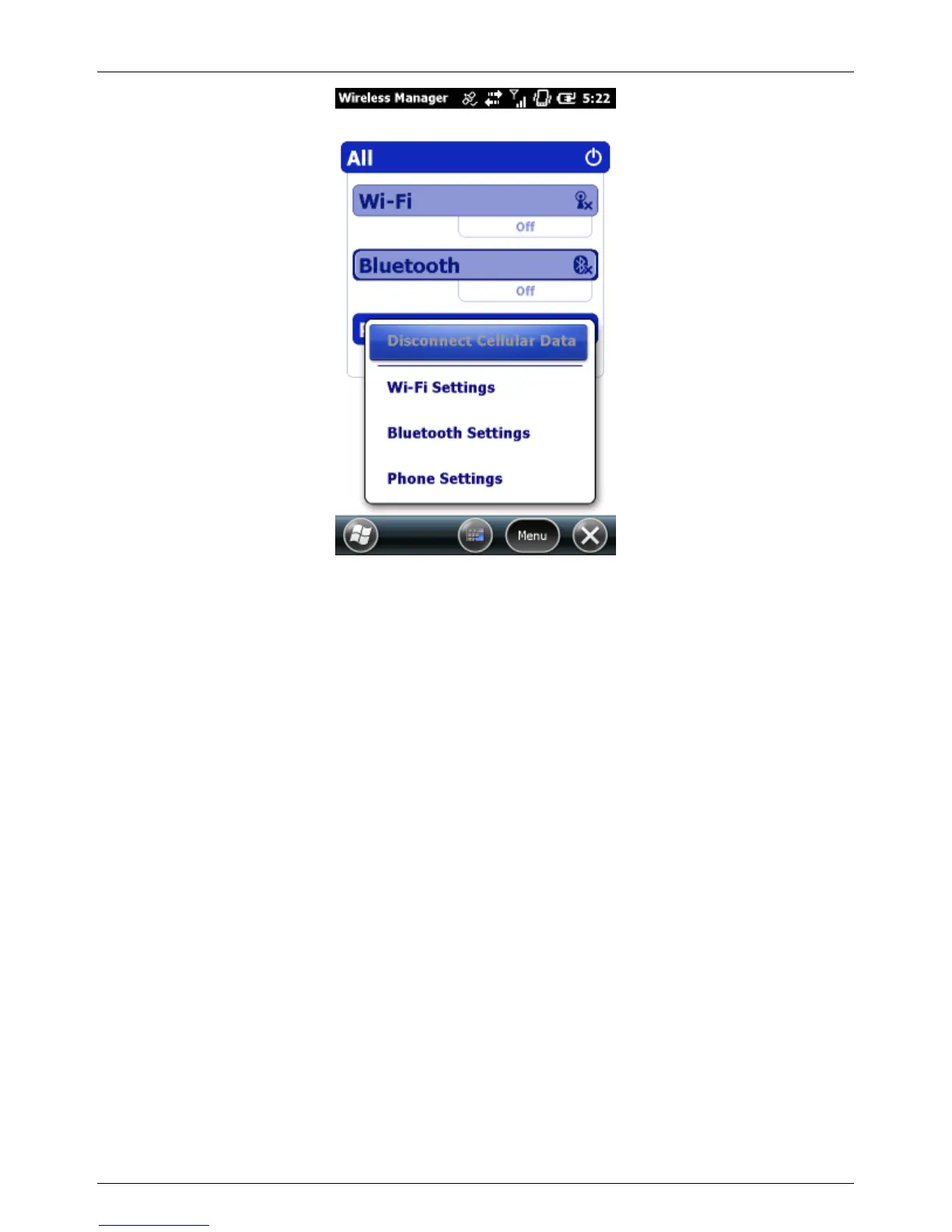
To update Wi-Fi connection settings:
1. On the Wireless Manager screen, tap Menu > Wi-Fi Settings.
2. Tap the name of the network to update the settings for.
3. The Configure Wireless Network wizard appears. Update
settings and tap Next as needed to progress through the wizard.
4. Tap Finish to close the wizard and save the settings.
NOTE: If your device is connected to a PC that is connected to the Internet,
the device will use the PC’s Internet connection and Wi-Fi will not appear
on the Wireless Manager screen. You may allow the simultaneous use of
the PC and the Wi-Fi module by doing one of the following:
In the ActiveSync software on your PC, select File >
Connection Settings and check the Allow wireless
connection on the device when connected to the desktop
checkbox.
In Windows Mobile Device Center software on your PC, click
Mobile Device Settings > Connection Settings and check



 To Next Page