!
/+!
!
)+G<%H3*%/I:/28+2J%:6/%-7::/*K%.+H/C%
See Chapter 3.3 for tips on extending battery life.
1.4 Turning your device on and choosing your
language
;D$A'A&L%M#NB$#%)!$A'A&%)=#%(#O'P#%BAQ%)=#%(#O'P#%E!")%M#%
FR!&&#(%'A%)B%DA%#S)#$ADR%FB;#$%"B!$P#?% % PBEFR#)#%DRR%")#F"%
'A%!"#$%&'()*+)$,&-$.',,-(/?!
1. Once you begin to charge your device, the device turns on
automatically.
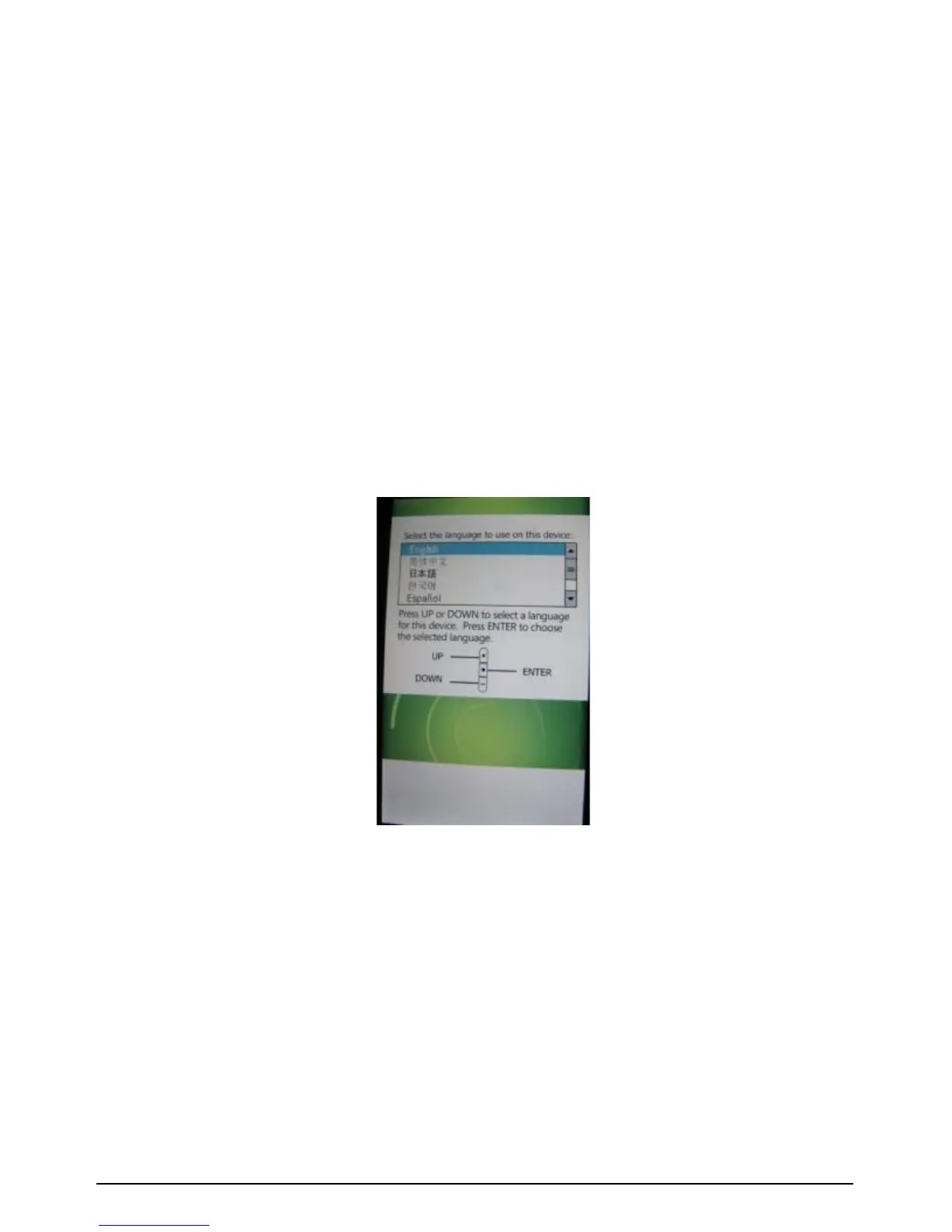
2. The Welcome Wizard will lead you through the setup process.
3. Select your preferred language by using the + or - (shown as UP
or DOWN on the Wizard) buttons on the left side of the device,
then press the ACTION (shown as ENTER on the Wizard) button
to choose the language (the touchscreen is not enabled in the
Wizard).
4. Use the + button to highlight the box next to Yes, I want to use
<language > as the language on the device.
a. Press the ACTION (ENTER) button to check the box.
b. Press the - (DOWN) button 2 times to highlight the Next >
box.
c. Press the ACTION (ENTER) button to select Next >.



 To Next Page