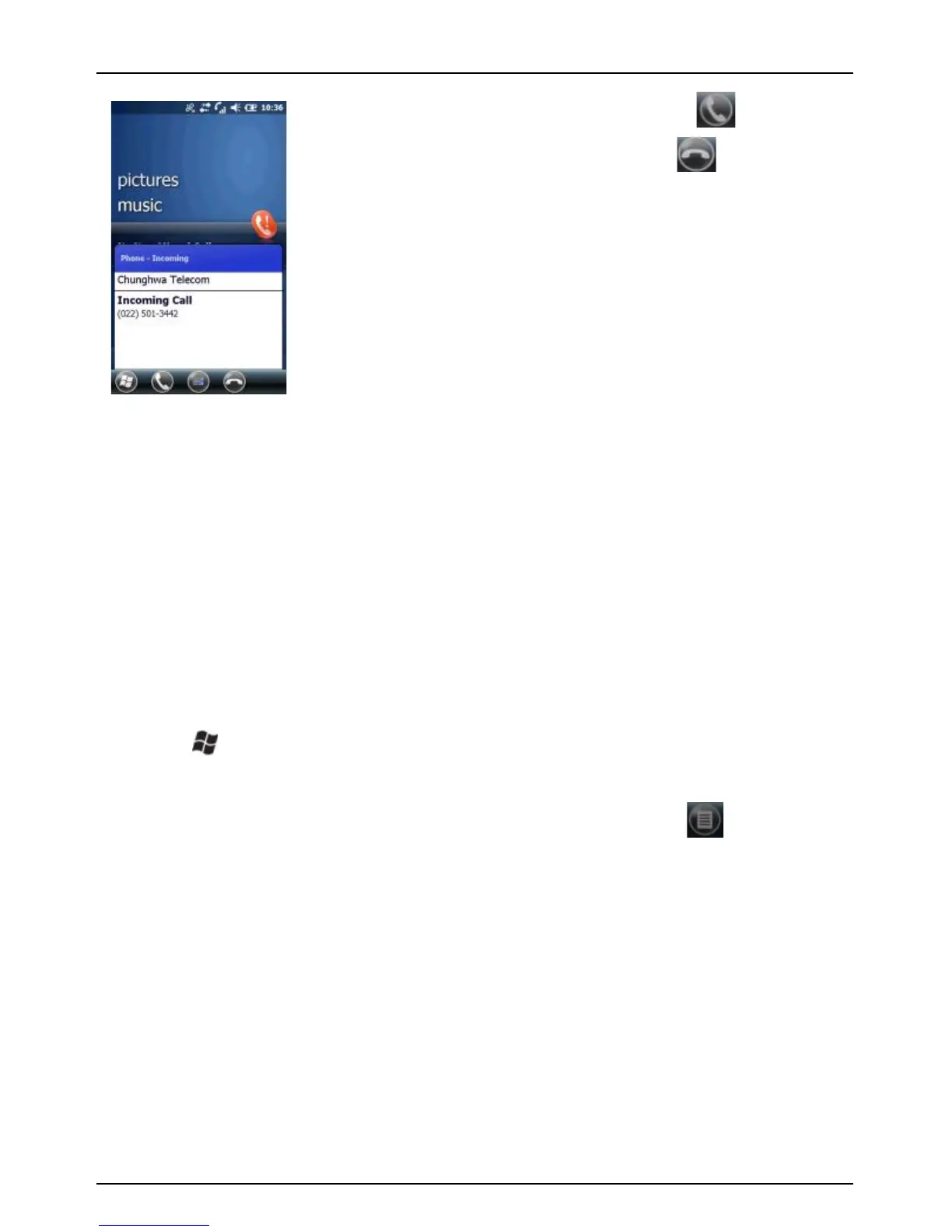
To answer the call, tap
To reject the call, tap
)'FC!7'!3?k2%B!B8#!&(_<3@@!-'@2A#V!;$#%%!B8#!"EGQOJ! +! Z! -! 12BB'(!'(!
B8#!@#:B!%&?#!':!B8#!?#-&<#*!
Ending a call
R8#(!3!<3@@!&%!&(!;$'=$#%%V!B3;!B8#!#28!12BB'(!B'!83(=!2;*! !
!
5.3 Speed dial
H'2!<3(!<$#3B#!%;##?!?&3@!#(B$&#%!:'$!:$#i2#(B@4_<3@@#?!(2A1#$%!%'!4'2!
<3(!?&3@!3!(2A1#$!14!B3;;&(=!3!%&(=@#!9#4*!
Using speed dial
1. Tap > Contacts.
2. Select a contact to view the contact details.
3. Select the desired phone number and tap Menu ( ) > Add to
Speed Dial.
4. Specify the Name, Number, and Location assignment of the
Speed Dial entry.
5. When done, tap OK.
NOTE: The first speed dial location is generally reserved for your
voicemail. Speed Dial uses the next available location by default.
If you want to place a number in a location that is already used,
the new number replaces the existing number.
6. If you have assigned a speed dial (for example, the number 2 key)
to a contact in Speed Dial, you can simply tap and hold the 2 key



 To Next Page