>2('!76/%
!</*%E7217.%
6]!
;'&(B%!'$!8'B!%;'B%*!7'!:&(?!'2B!&:!4'2!83-#!R&_0&!&(%B3@@#?!&(!4'2$!?#-&<#V!
B3;! % b%"/::+2J<!b!"K<:/,!b!"K<:/,%'2H3*,7:+32!b!;+*/./<<*!
78#!R&_0&!&%!'::!14!?#:32@B`!8'D#-#$!B8#!'(Z'::!%B3B#!D&@@!;#$%&%B!3:B#$!3!
$#%#B*!7'!B2$(!B8#!R&_0&!'(!'$!'::V!?'!'(#!':!B8#!:'@@'D&(=!;$'<#?2$#%a!
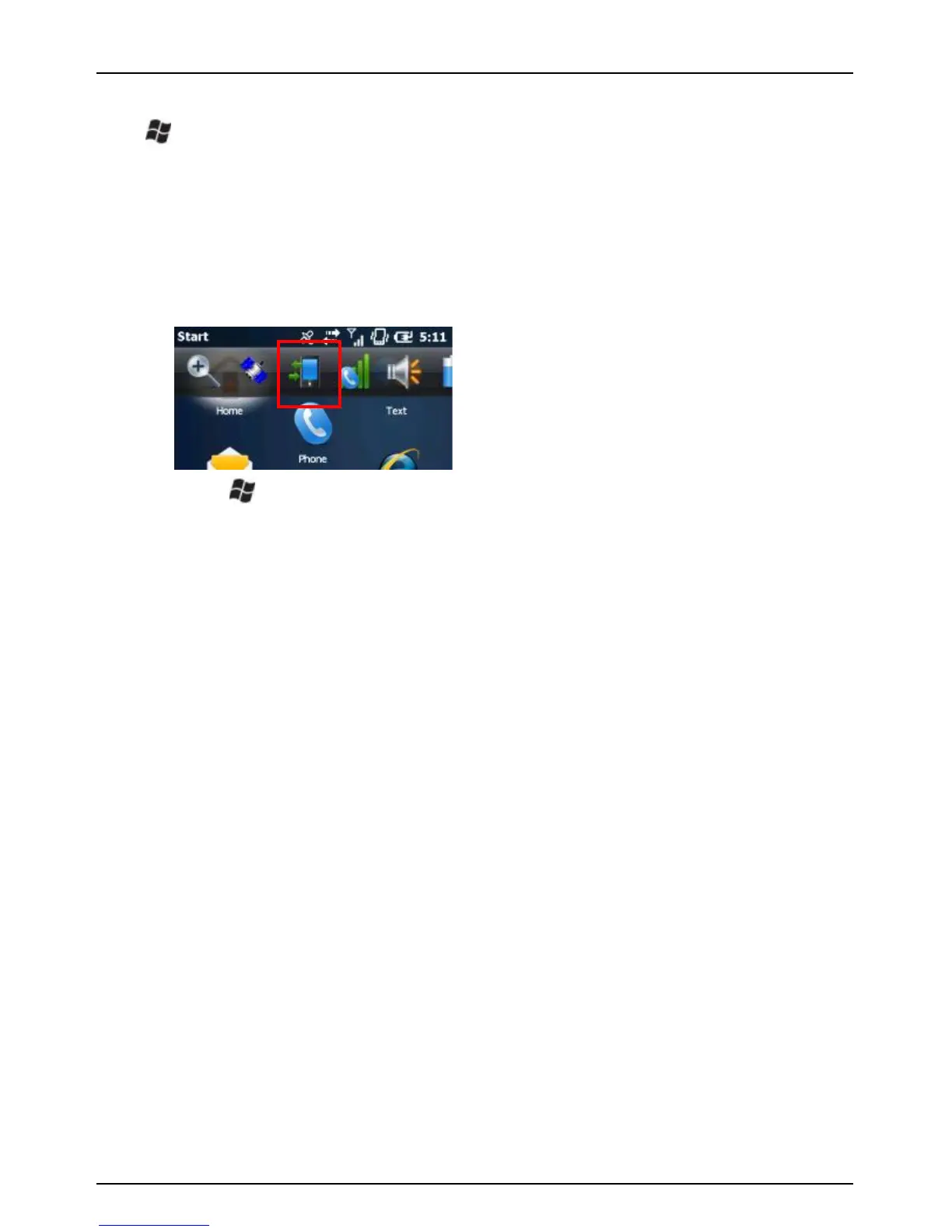
Touch the Title bar, tap the Connectivity icon and tap
Wireless Manager to open the Wireless Manager screen,
and tap Wi-Fi.
Tap > Settings > Connections > Wireless Manager and
tap Wi-Fi.
E(<#!B8#!R&_0&!&%!B2$(#?!'(V!&B!?#B#<B%!B8#!D&$#@#%%!(#BD'$9%!&(!B8#!-&<&(&B4!
3(?!=&-#%!4'2!B8#!';B&'(!B'!<'((#<B!B'!'(#*!72$(!R&_0&!'::!D8#(!('B!&(!2%#!
B'!%3-#!13BB#$4!;'D#$!3(?!;'%%&1@4!%;##?!2;!'B8#$!;$'<#%%#%*!
1. Wi-Fi by default is off. Tap Wi-Fi on the Wireless Manager screen
to enable Wi-Fi as necessary.
2. After a few seconds, a Multiple Networks Detected or Network
Detected pop-up window appears.
3. Tap the network to connect to and tap OK.
4. If the network requires authentication, the Network Log On dialog
will open. For networks that require network keys, enter the
network key into the dialog box and tap Connect to begin using
the network.
5. Under Network Adapters tab, changes can be made to what
your network card connects to and to modify adapter settings.



 To Next Page