2-28
Operating Your Tablet Computer
Using the Camera
Your Tablet Computer has a built-in camera for taking photos and videos.
Photos can be captured with GPS location data.
Opening the Camera
1. Tap Start > All Programs > Trimble > Camera > Camera. The camera
screen appears.
2. Tap the screen to show the camera control buttons.
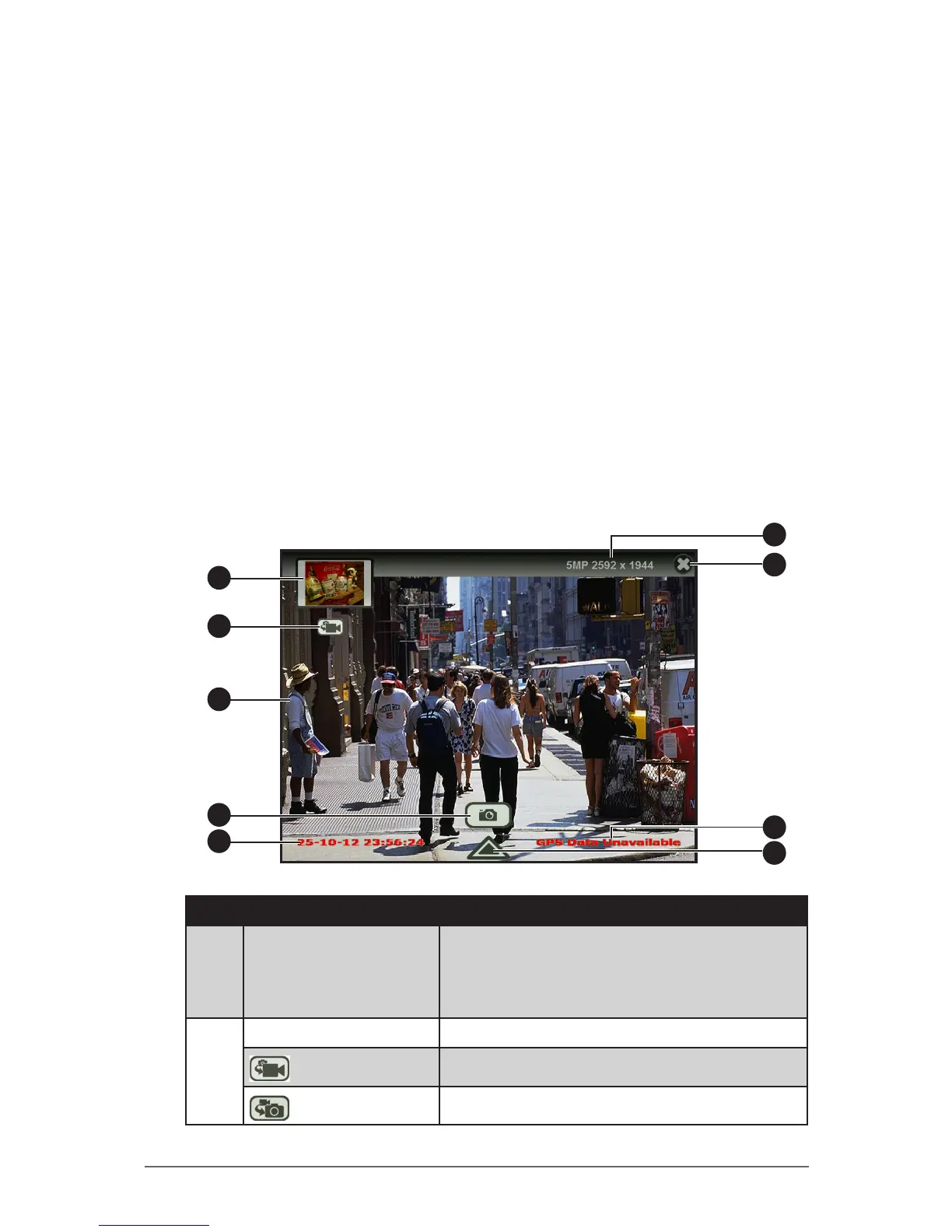
The Camera Screen
The camera has two capture modes: Photo mode and Video mode. By default,
the camera opens to Photo mode. Below is the Photo mode camera screen,
similar screen appears in Video mode.
7
6
9
4
1
2
3
5
8
No. Item Description
1 Preview Thumbnail • Displays the thumbnail of the last captured
photo or video.
• Tap to open the captured photo or video
le for viewing.
2 Change Mode Icon Toggles between video and photo modes.
Video mode
Tap to change to video mode.
Photo mode
Tap to change to photo mode.



 To Next Page