2-33
Operating Your Tablet Computer
No. Item Description
2 Expanded Photo Menu
Aspect Ratio and
Resolution
Sets the aspect ratio and resolution.
See “To set the aspect ratio and resolution”
on page 2-34.
Storage Location
Sets either Internal Memory or External
Memory to save captured photos or videos.
Focus
Enables or disables focus.
Image Review
Congures the image review options. See “To
preview photos” on page 2-35.
Image Tagging
Adds date or GPS tags to captured photos.
See “To add date and time on photos” on
page 2-36 and “To tag photos with GPS” on
page 2-37.
App Settings
Congures the camera orientation, sound
setting, and lename prex. See “Managing
Camera Application Settings” on page 2-42.
3 Submenu Options Displays the options of a tapped menu. Tap
an option to select it.
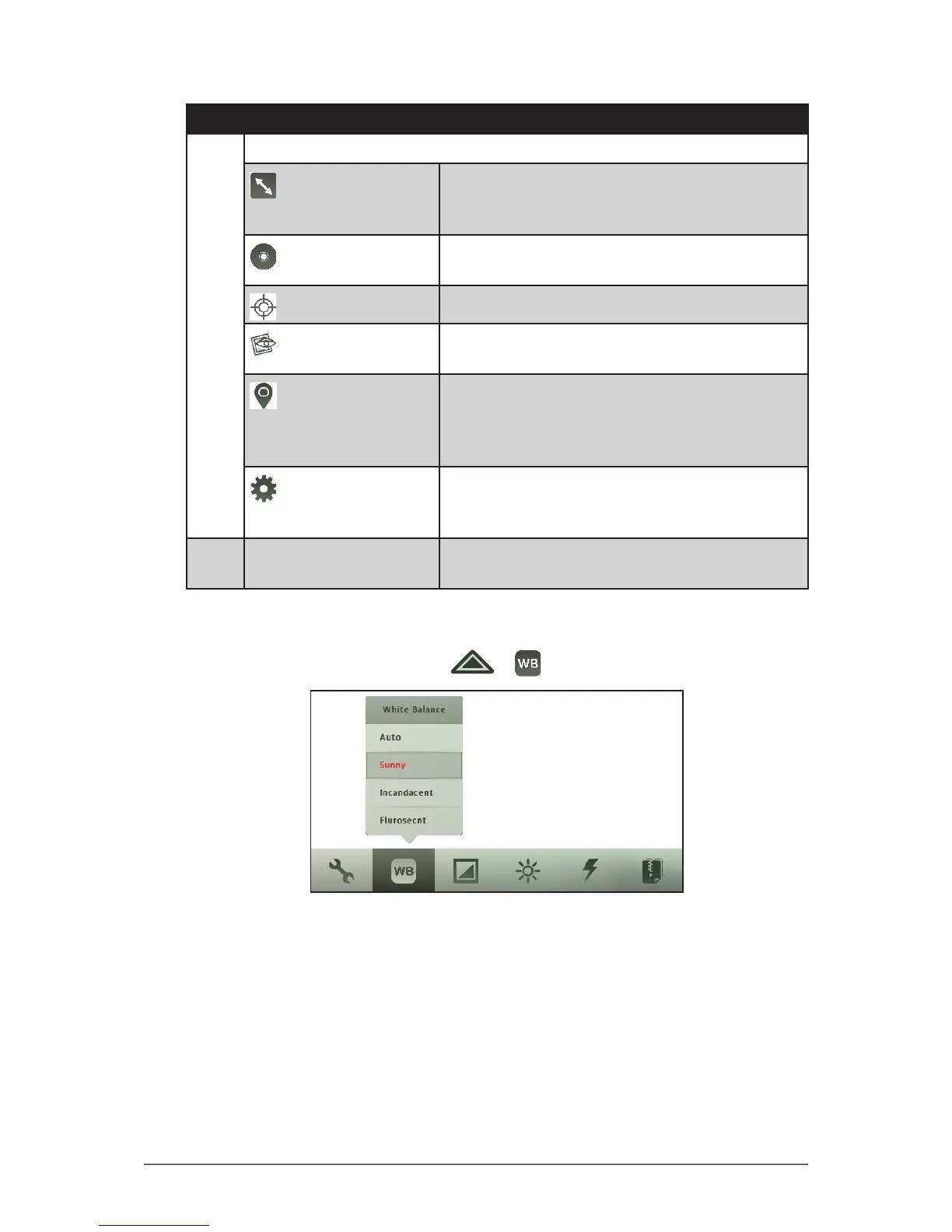
To set the white balance
1. In Photo or Video mode, tap > .
2. Tap the one of the following options:
• Auto: Allows the camera to set the white balance automatically.
• Sunny: Select this option when capturing outdoor photos.
• Incandescent: Select this option when capturing indoor photos.
• Fluorescent: Select this option when capturing photos under
uorescent lighting.


 To Next Page
 Loading...