EasyManua.ls Logo

Tripp Lite B020-008-17-IP - User Manual

Tripp Lite B020-008-17-IP
160 pages
Print Icon
To Next Page IconTo Next Page
Loading...
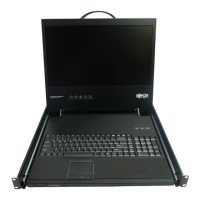
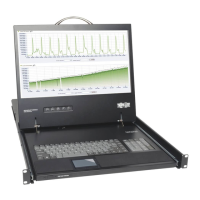
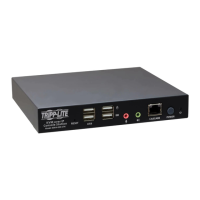
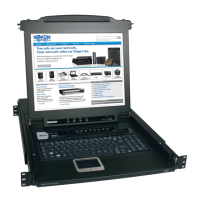
Console KVM Switch with IP Access
B020-008-17-IP
User Manual
www.tripplite.com

Table of Contents

Questions and Answers

  • J
    Jennifer KentAug 19, 2025
    What to do if Tripp Lite B020-008-17-IP LCD Drawer monitor screen goes blank?
    • V
      Vanessa GarnerAug 19, 2025
      To resolve a blank screen when switching to a computer, connect an external KVM console (with a monitor capable of displaying the problem computer’s screen resolution) to the B020-008-17-IP’s external console ports and reduce its resolution to 1280 x 1024.
  • D
    Danielle BrownAug 21, 2025
    Why does Tripp Lite LCD Drawer show 404 Object Not Found error?
    • A
      ashley55Aug 22, 2025
      If you encounter a '404 Object Not Found' message when logging in from a browser, ensure you include the forward slash and correct login string when specifying the B020-008-17-IP's IP address. Consult the 'Default Webpage Name' section on page 62 for the correct login string.
  • M
    mmunozAug 25, 2025
    How to fix erratic operation on Tripp Lite B020-008-17-IP LCD Drawer?
    • E
      ernestburgessAug 25, 2025
      To fix erratic operation of the Tripp Lite LCD Drawer, press and hold the Reset button (see page 21) for at least three seconds. This will reset the system.
  • A
    Amanda HuynhAug 26, 2025
    Why Java Client won't connect to Tripp Lite B020-008-17-IP LCD Drawer?
    • C
      Calvin RobinsonAug 26, 2025
      To resolve the issue of the Java Client not connecting to the B020-008-17-IP, ensure that Java 2 JRE 1.4.2 or higher is installed on your computer. Also, make sure to include the forward slash and login string (see Default Webpage Name, page 62) when you specify the B020-008-17-IP's IP address. If the problem persists, close the Java Client, reopen it, and try again.
  • R
    ronalddeleonAug 28, 2025
    What to do if Tripp Lite B020-008-17-IP LCD Drawer mouse and keyboard not responding?
    • J
      Jacob ColemanAug 28, 2025
      If the mouse and/or keyboard are not responding on your Tripp Lite LCD Drawer, unplug the cable(s) from the console port(s), and then plug it back in again. This will reset the connection.
  • M
    Mark JonesAug 30, 2025
    Why sudden loss of network connection on Tripp Lite LCD Drawer?
    • B
      Bruce JohnsonAug 30, 2025
      To resolve a sudden loss of network connection with your Tripp Lite B020-008-17-IP, close your B020-008-17-IP connection, wait approximately 30 seconds, and then log in again.
  • J
    Jessica GonzalezSep 1, 2025
    Why Tripp Lite B020-008-17-IP still using old firmware version?
    • J
      Jesse WeberSep 1, 2025
      If the Tripp Lite B020-008-17-IP still shows the old firmware version after an upgrade, your Web browser might be displaying cached Webpages. To fix this, delete all temporary Internet files and cookies, close the Web browser, and then open a new instance of the Web browser.
  • M
    Mary LindseySep 3, 2025
    Why Tripp Lite B020-008-17-IP doesn't reset after exit?
    • M
      Monica KnightSep 3, 2025
      If the Tripp Lite LCD Drawer doesn’t reset after you exit, and you have 'Reset on exit' checked, and you are using Windows 2000 Professional and IE 5, upgrade your browser to IE 6.0.2800.1106 or higher.
  • A
    Amy BrownSep 5, 2025
    Why Tripp Lite B020-008-17-IP calendar changes to incorrect date?
    • R
      Rebecca CampbellSep 5, 2025
      If the calendar changes to an incorrect date after making changes and checking 'Reset on exit', log in from a remote console to automatically recover the correct date. If you log in from the local console, go to the Administration page and reset the calendar to the correct date (see page 51 and page 67). This is because the B020-008-17-IP reverts to the firmware’s release date when you Reset on exit.
  • L
    lindaobrienSep 7, 2025
    Why two pointers appear on Tripp Lite B020-008-17-IP LCD Drawer?
    • J
      jacob35Sep 7, 2025
      This is normal. One pointer is from the computer you are accessing, and the other is the remote computer’s pointer. You can shrink the non-functioning pointer so that it is almost invisible. See 'Toggle mouse display', page 83, for details.

Summary

About This Manual

Manual Overview and Content

Provides a summary of the manual's content and chapter breakdown for user guidance.

Manual Conventions and Symbols

Explains the typographical and symbolic conventions used throughout the manual for clarity.

Chapter 1. Introduction

Overview of Console KVM Switch

Introduces the B020-008-17-IP, its purpose, capabilities, and key features.

Product Features and Capabilities

Details the extensive features of the B020-008-17-IP, including remote access and management.

System and Hardware Requirements

Outlines the necessary hardware, software, and console prerequisites for operating the KVM switch.

Cables, Adapters, and OS Support

Explains required cables, adapters, and lists supported operating systems for integration.

Unit Components and Views

Identifies and describes the physical components of the KVM switch: front, LCD, keyboard, and rear.

Chapter 2. Hardware Setup

Before You Begin Installation

Important safety and preparation steps before starting the hardware installation process.

Standard Rack Mounting Procedure

Step-by-step guide for installing the KVM switch into a standard server rack.

Single-Stage and Two-Stage Installation

Instructions for basic single-unit setup and expanding the system by cascading units.

Chapter 3. Basic Operation

Opening and Closing the Console Module

Detailed steps for extending and retracting the KVM console's LCD and keyboard modules.

LCD OSD Configuration and Settings

Explains how to use OSD buttons to configure LCD settings like brightness, contrast, and language.

Port Selection and Hot Plugging

Describes port selection methods and hot-swapping capabilities for connected computers.

Chapter 4. Administration

Local Console Setup and Main Page

Guides initial setup via local console and explains the main OSD page for port access.

User Management and Permissions

Explains how to create, manage, and delete user profiles with specific access permissions.

Security and Network Configuration

Controls access via IP/MAC filtering and configures network settings like IP address and DNS.

Firmware Upgrade Procedure

Instructions on how to download and install new firmware versions for the KVM switch.

Chapter 5. Browser Operation

Logging In via Web Browser

Step-by-step guide to log into the KVM switch using a web browser and handle security alerts.

Webpage Layout and Icons

Explains the layout of the KVM switch's webpage and the function of navigation icons.

Chapter 6. Windows Client Port Operation

Activating the Windows Client OSD

Instructions for launching the On-Screen Display (OSD) using the Windows Client application.

Windows Client Control Panel Functions

Explains the icons and functions in the Windows Client control panel for session management.

Hotkey Setup and Video Adjustment

Allows reconfiguring hotkeys and adjusting video parameters for the remote session.

Mouse Synchronization Procedures

Methods to resolve issues where local and remote mouse pointers become out of sync.

Chapter 7. Java Client Port Operation

Activating the Java Client OSD

Instructions for launching the OSD using the Java Client, including security certificate handling.

Java Client Control Panel and Video Settings

Explains the Java Client control panel and how to adjust video parameters.

Java Client Mouse Sync and Message Board

Details mouse synchronization methods and the message board for user communication.

Chapter 8. The Log File

Viewing the System Log File Main Screen

Explains how to access and view the system's event log file on the KVM switch.

Chapter 9. The Log Server

Log Server Installation and Startup

Step-by-step guide to install and launch the Log Server utility for recording KVM events.

Configuring and Searching Log Events

Details configuring Log Server settings and searching for specific events in the database.

Log Server Main Screen and Panels

Explains the layout of the Log Server's main screen, including unit lists and event logs.

Chapter 10. AP Operation

Windows Client AP Installation and Connection

Guide for installing and connecting using the AP version of the Windows Client.

Java Client AP Installation and Connection

Guide for installing and connecting using the AP version of the Java Client.

Appendix

General Safety Instructions

Provides essential safety precautions for device operation, handling, and electrical safety.

Technical Specifications and Defaults

Lists detailed specifications, including ports, connectors, and OSD factory default settings.

Troubleshooting Common Issues

Provides solutions for common administration, general operation, client, and log server problems.

Administrator Login Failure Resolution

Procedure to reset administrator login information and restore default settings.

Limited Warranty Information

Details the warranty terms, duration, and procedures for obtaining service.

Tripp Lite B020-008-17-IP Specifications

General IconGeneral
Model NumberB020-008-17-IP
Number of Ports8
Resolution1280 x 1024
IP AccessYes
Number of Consoles Supported1
Input Power100 - 240V AC, 50/60 Hz
MaterialMetal
ColorBlack
SecurityPassword protection
Screen Size17 in
Form FactorRack-mountable
Ports - KVM8
Operating Temperature0 to 50 °C
Storage Temperature-20 to 60 °C
Operating Humidity0 to 80% RH
Storage Humidity0 to 90% RH
Mounting TypeRackmount
CompatibilityMac

Related product manuals