GETTING TO KNOW THE CAMERA / CONTROLS
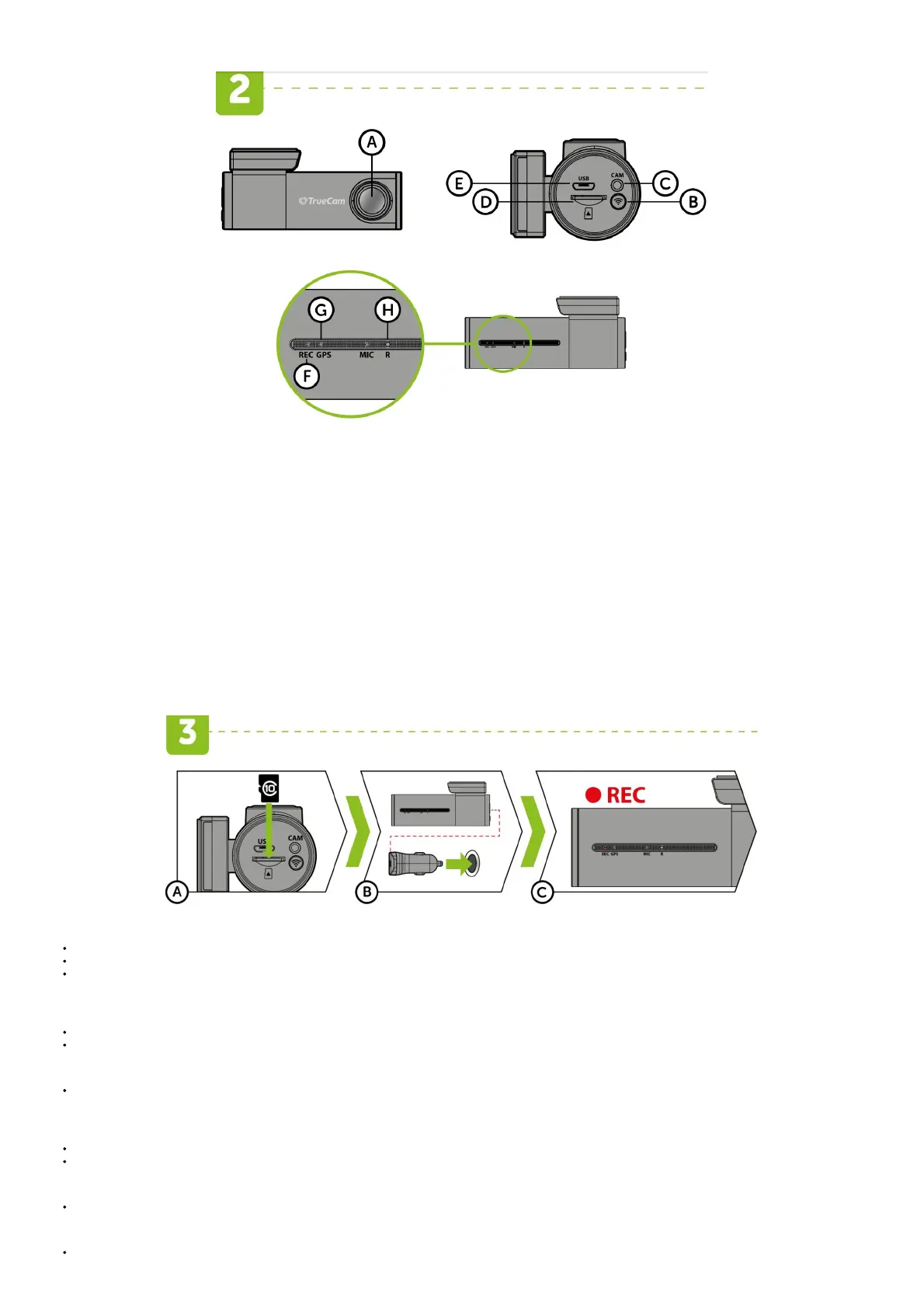
(A) Wide-angle lens
(B) WIFI button
(C) Rear camera input
(D) Memory card slot
(E) Power input
(F) Status LED (lit = camera on, blinking = recording)
(G) GPS LED (green)
(H) RESET button
CONTROLS:
BUTTON FUNCTION INSTRUCTIONS
WIFI
PROTECT VIDEO Press the button to protect the current video
TURN WIFI ON Press and hold the button for 3 seconds to turn wifi on / off
FORMAT TF CARD Press and hold the button for 10 seconds to format the card
2.4 GHz OR 5 GHz WIFI SETTINGS Double-tap to switch between 2.4 GHz and 5 GHz wifi
RESET RESET CAMERA Press with staple for 5 seconds to reset the camera
BASIC SETTINGS AND FUNCTIONS
(A) Insert the microSD card as shown into the camera.
Use Class 10 and higher branded cards up to 128 GB.
Only remove the card, when the camera is turned off.
Format the card when using it for the first time directly in the camera by holding down the WiFi button (10s) or using the mobile app.
Repeat the formatting at least once a month to ensure the camera works properly.
(B) Insert the adapter into the car cigarette lighter and connect it to the camera using the USB cable.
The camera is designed to operate only when connected to a power supply.
Instead of a battery, the camera contains a supercapacitor that provides power which has several times the lifespan of a conventional battery.
(C) The camera turns on automatically and begins recording.
For some vehicles, the ignition key must be turned first.
BASIC FUNCTIONS:
Loop Recording
The camera automatically splits the video into shorter files and overwrites the oldest unprotected files when the SD card is full.
This means you don‘t have to worry about free space on the card.
File Protection
To protect the file from being overwritten, press WiFi while recording or select Protect from the playback mode menu.
G-sensor
If the G-Sensor detects an impact, it automatically protects the video currently being captured against being overwritten.


 To Next Page
 Loading...