www.tury.com.br
4
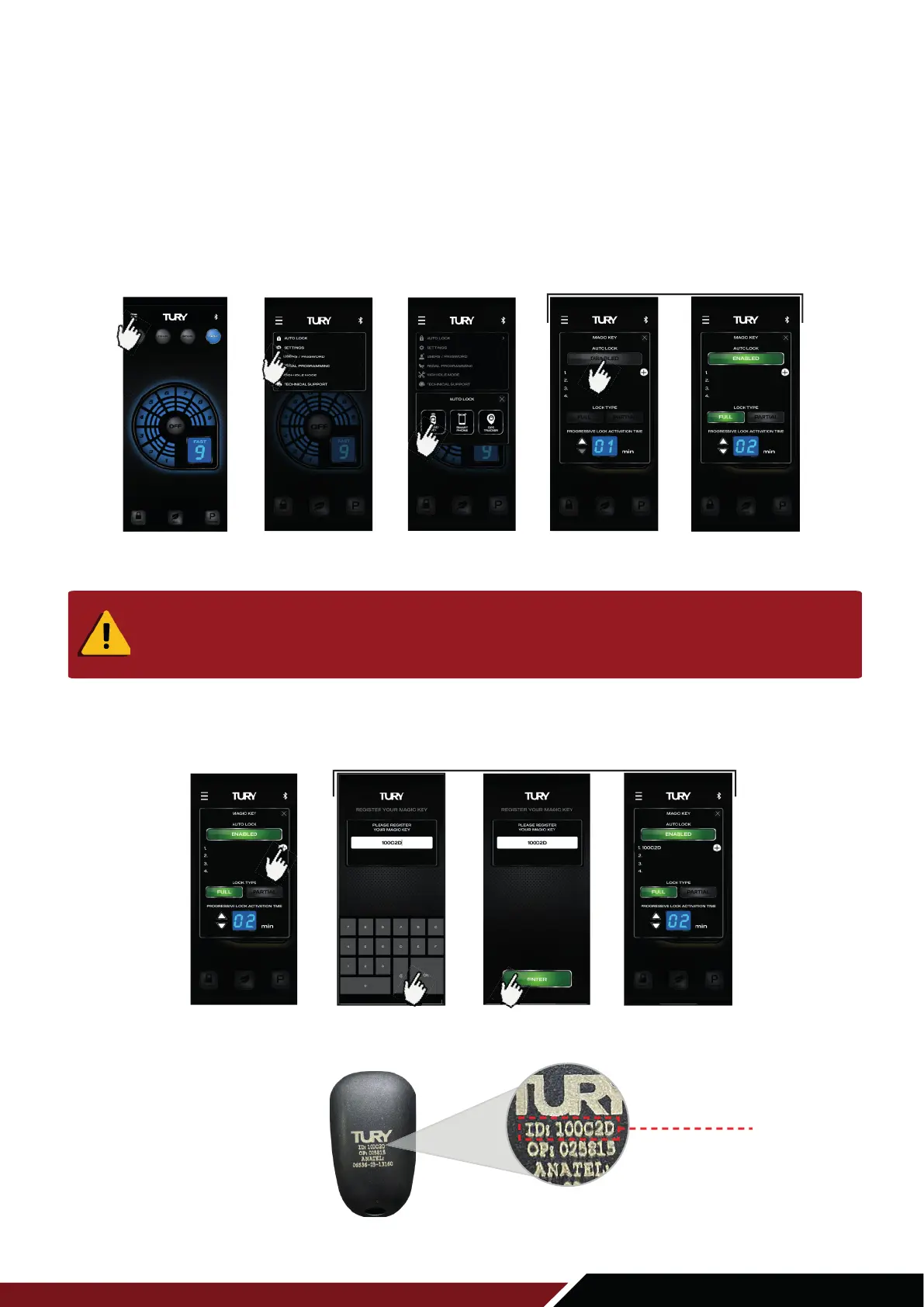
Click on MENU
1ST STEP 2ND STEP 3RD STEP 4TH STEP
Click on
AUTO LOCK
Click on
MAGIC KEY
Click to activate
the function
Function
activated
also inside the Electronic Board. This way, before its use, you must register this identifier code in the
FAST MAX application, according to the illustrative examples below:
Note: In the FAST MAX App it is possible to register up to a maximum number of 4 MagicKey per FAST MAX module.
1º Open the FAST MAX App and on the main screen press the MENU key on the upper left side;
2º Choose the AUTO LOCK option to expand the 3 functions of this category (Magic Key, Smart Phone and GPS Tracker);
3º Select the MAGIC KEY option;
4º
Click on the DISABLED switch to activate the AUTO LOCK function.
5º Click the "+" switch to register a new Magic Key control;
6º Enter the 6-digit code located on the back of the control as shown below.
The detection of the presence of the Magic Key controller by the FAST MAX is only possible with the FAST
MAX App in the background or closed (disconnected from the module), with the paired product in the
foreground and the Magic Key will not be identified. Whenever the AUTO LOCK function of the MAGIC KEY is
enabled and the FAST MAX App is placed in the background, the module will automatically disconnect from the
App to be able to identify the presence of the Magic Key control and secure the safety functions.
5TH STEP 6TH STEP
Click on +
switch
Enter the 6-digit ID
and click OK
Click on
ENTER switch
Magic Key
registered
Magic Key
Magic Key
back side
ID Code



 To Next Page