EasyManua.ls Logo

TUYA eyevision INTELLI HD Series - User Manual

TUYA eyevision INTELLI HD Series
20 pages
Print Icon
To Next Page IconTo Next Page
Loading...
Third Generation 4 Wire Intercom System
KP 23-HD
WF 8-HD-BK
V01.02 03/11/23
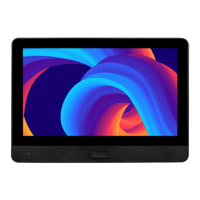
8'' TOUCH SCREEN
SMART MONITOR
INTELLI HD SERIES
4 Wire Indoor Monitor
With Built-In WiFi For Smart Phone
Question and Answer IconNeed help?

Do you have a question about the TUYA eyevision INTELLI HD Series and is the answer not in the manual?

Summary

Precautions

General Safety Guidelines

Essential safety guidelines for operating and maintaining the intercom system.

Quick Reference Diagram for Simple Installations

Indoor Monitor Overview, Installation and Specifications

Indoor Monitor Installation

Guidance on installing the indoor monitor unit, including placement advice.

Indoor Monitor Specifications

Detailed technical specifications for the indoor monitor unit.

Outdoor Unit Overview, Installation and Specifications

Outdoor Unit Installation

Guidance on installing the outdoor unit, including placement advice.

Outdoor Unit Specifications

Detailed technical specifications for the outdoor unit.

Cabling and Power Adapter Details

Cable Types and Length Limits

Details on different cable types and their maximum supported lengths.

Power Adapter Specifications

Information on power adapter specifications and limitations.

Cabling Topology Explained

Wiring Overview Diagram

KP 23-HD Outdoor Station Wiring

Outdoor Station LED Indicators

Explanation of LED indicators on the outdoor station for status indication.

Electric Striker & Gate Connections

Wiring diagrams for electric strikers (fail-safe/secure) and automatic gates.

Exit Button Wiring

Wiring diagram for connecting the exit button to the outdoor station.

Keypad Programming: PINs and Tags

Admin & User PIN Management

Instructions for changing admin PIN, common unlock PIN, and adding user tags.

Buzzer Alerts and Command Feedback

Explanation of system buzzer alerts and command confirmation feedback.

Keypad Programming: Access and Deletion

Access Control & Security Settings

Configuration of unlock time, access control methods, and security settings.

User Deletion Procedures

Procedures for deleting users by ID number, tag, or all tags.

System Reset and Button Functions

System Reset Methods

Instructions for resetting the system with or without an admin PIN.

Indoor Monitor Button Operations

Description of buttons on the indoor monitor interface and their operations.

Indoor Monitor Settings and Features

Device ID & Second Station Setup

Configuring indoor monitor ID and enabling a second outdoor station.

Unlock Time & Recording Modes

Setting unlock times for doors and configuring recording modes.

Motion Detection & Messaging

Enabling motion detection and setting up message features.

Monitor Operation Modes and Features

Visitor Calls & Intercom

Handling visitor calls, transfers, and intercom communication.

Monitoring & Standby Options

Using monitoring features and selecting standby modes.

Digital Photo Frame & Settings

Configuring digital photo frame and adjusting monitor settings like brightness.

System Configuration and Information

Language, Time, and Date Settings

Setting system language, date, and time for the monitor.

Ringtone and Volume Customization

Customizing ringtones, volume levels, and ringback options.

System Information Display

Viewing firmware, MCU version, MAC address, and SD card details.

Media Playback and File Management

Music Playback from SD Card

Playing MP3 music files stored on the SD card.

Photo Viewing from SD Card

Viewing JPG photos stored in the 'Digital Frame' folder on the SD card.

SD Card File Management

Managing files on the SD card, including ringtones and message files.

Event Log and Door Lock Control

Event Log Details and Types

Viewing call records, message records, and motion detection events.

Home Modes and Door Lock Output

Understanding home modes and controlling door locks/gates from the monitor.

Smart Phone App Connectivity

Tuya App Interface Overview

Description of the Tuya Smart app interface elements and functions.

App Installation and Home Setup

Steps for installing the Tuya app and preparing home settings.

Wi-Fi Connection: AP Mode Setup

AP Mode Preparation Steps

Preparing the monitor for AP mode Wi-Fi connection.

Connecting Monitor to Tuya App (AP)

Step-by-step guide to connect the monitor to the Tuya app via AP mode.

Cable Mode Connection Guide

Cable Mode Setup Procedure

Instructions for connecting the monitor to a router via cable mode.

User Sharing and Device Management

Sharing Access (Low Privileges)

Sharing device access with users who cannot unlock.

Sharing Access (High Privileges)

Sharing device access with users who can unlock and manage.

Device Re-setup and Removal

Instructions for re-setting up devices and removing users.

Overview

The Eyevision Intelli HD Series 8" Touch Screen Smart Monitor is a third-generation 4-wire intercom system designed for residential and commercial use. It functions as an indoor monitor with built-in Wi-Fi, enabling seamless integration with smartphones via the Tuya Smart App. This allows users to manage and interact with their intercom system remotely, providing enhanced convenience and security.

Function Description

The primary function of the Intelli HD Series monitor is to facilitate communication between indoor residents and visitors at the outdoor station. When a visitor presses the doorbell, the indoor monitor(s) will ring, and users can answer the call to establish two-way, hands-free audio communication. The monitor also supports video monitoring, allowing users to view live footage from the outdoor station(s) and connected cameras.

Key functions include:

  • Visitor Calls: Receive calls from the outdoor station, answer, and engage in hands-free communication.
  • Unlock Control: Operate electric strikers, automatic gates, or magnetic locks connected to the outdoor station or common release point directly from the monitor.
  • Intercom Calls: Initiate internal calls between multiple indoor monitors within the same system, facilitating communication between different rooms or units.
  • Call Transfer: Transfer an ongoing visitor call from one indoor monitor to another within the system.
  • Monitoring: View live video feeds from Door 1, Door 2, Camera 1, and Camera 2.
  • Snapshot and Recording: Capture still images (snapshots) or record video footage during visitor calls, monitoring sessions, or triggered by motion detection.
  • Message Function: If enabled, visitors can leave a voice message when a call is unanswered, which is then recorded and stored on the SD card.
  • Motion Detection: Automatically trigger video recording or snapshots when motion is detected by the outdoor station camera.
  • Access Control Method: Configure how access is granted from the outdoor station, choosing between tag-only, PIN or tag, or tag followed by PIN.
  • Security Settings: Implement security features such as a shutdown of the unlocking system or an alarm output after multiple incorrect PIN entries or unregistered card swipes.
  • Multimedia Playback: Play music (MP3) and view photos (JPG) stored on the micro SD card, allowing the monitor to double as a digital photo frame or music player.
  • System Settings: Adjust various system parameters including language, time and date, ring volume, ringtone selection, and network settings (AP mode or Cable mode for Wi-Fi connection).
  • Tuya Smart App Integration: Connect the monitor to the Tuya Smart App on a smartphone for remote monitoring, unlocking, call answering, and call transfer. The app also allows for device sharing with other users, with options for low or high privileges (including unlock feature).

Usage Features

The monitor features an 8" touch screen with an intuitive UI menu, making it easy to navigate and operate.

  • Touch Screen Interface: All functions are accessible via the touch screen, with clear icons for monitoring, snapshot, recording, unlock, gate unlock, settings, transfer call, answer, and hang up.
  • Customizable Settings: Users can adjust call volume, screen brightness, contrast, and color saturation to their preference. Ring tones can be customized by selecting music from an SD card, and different ring volumes can be scheduled for morning, afternoon, and evening.
  • Standby Modes: Three standby modes are available: a blank screen (displaying the main menu upon touch), time and date display, or digital photo frame mode, which loops through stored photos.
  • Keypad Programming (for KP 23-HD models): Outdoor stations with keypads allow for programming of Admin PINs, Common Unlock PINs, and user tags. Users can add, delete, or modify tags and PINs directly from the keypad.
  • Remote Access via Tuya App: The Tuya Smart App provides comprehensive remote control, allowing users to answer calls, unlock doors, monitor video, and manage settings from their smartphone. This is particularly useful for managing visitors when away from home.
  • Call History and Event Log: The monitor records call history, messages, motion detection events, and alarms, which can be reviewed in the "Events" interface.
  • Multi-Monitor Support: The system supports up to 6 indoor monitors, allowing for comprehensive coverage within a large home or multi-unit dwelling. Each monitor can be assigned a unique ID for intercom and call transfer functions.
  • Dual Outdoor Station Support: The system can connect to two outdoor stations and two additional cameras, providing multiple entry point monitoring.

Maintenance Features

Proper maintenance ensures the longevity and optimal performance of the device.

  • Cleaning: The lens and screen should be cleaned with a soft cotton cloth. Avoid organic or chemical impregnate cloths. A damp soft cloth can be used for dust.
  • SD Card Management: The monitor supports micro SD cards (2GB-128GB Class 10) for storing recordings, snapshots, messages, music, and photos. It's crucial to disconnect power before inserting or removing the SD card. The system provides options to view SD card capacity, used space, and to format the card.
  • Firmware Updates: The system information screen displays firmware and MCU versions, and potentially allows for firmware upgrades, although the manual does not detail the process.
  • Reset Options: The monitor can be reset to default parameters with or without the admin PIN. This is useful for troubleshooting or reconfiguring the system.
  • Environmental Precautions: Avoid installing the monitor near magnetic fields (e.g., microwaves, TVs), in wet areas, high temperatures, dust, or caustic/oxidation gas. Ensure proper ventilation and avoid blocking openings.
  • Cabling Guidelines: Adhere to recommended cabling types and maximum lengths to ensure stable signal transmission and power delivery.
  • Power Adapter Limitations: Use the specified power adapters and observe distance limitations for extension cables to prevent power issues.
  • Troubleshooting: The manual provides guidance on common issues, such as failed commands (indicated by buzzer alerts) and steps for connecting to the Tuya App.

The Intelli HD Series monitor is designed to be a robust and user-friendly intercom solution, offering a blend of security, communication, and smart home integration.

TUYA eyevision INTELLI HD Series Specifications

General IconGeneral
CategoryIntercom System
SeriesINTELLI HD Series
ConnectivityWi-Fi
App SupportYes
Night VisionYes
Two-Way AudioYes
Motion DetectionYes
Weather ResistanceYes
Resolution1080p

Related product manuals