en tr oubl eshooting / it risoluzio ne de i pro blem i / fr dépa nnag es / de feh lerbehebung
/ es solu ción de pr oble ma / nl pro blem en op loss en / da fej lfin ding / sv felsö knin g /
no fe ilsøking / is úr ræðaleit / sl odpravlja nje te žav / sk rieše nie pr oblé mov / cs r ešen í
problémů / hu hibaelh árít ás / ro depanare / pl rozwiązyw anie pr oblemów / ua bиявлення
та усуне ння несправно стей / ru bыя влен ие и устр анен ие неиспр авно стей
Q THE LIGHTS DO NOT SWITCH ON
• Check that the power adapter is plugged in and that the
controller is correctly connected to the device
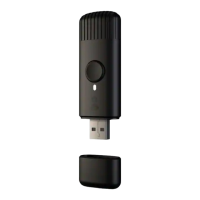
• Check that the LED status indicator on the controller
is lit
• Briey press the button on the controller
• If this doesn’t work, unplug the power adapter, wait 30
seconds and plug in again
Q THE LED INDICATOR IS LIGHT BLUE, BUT MY SMART-
PHONE CANNOT FIND TWINKLY
• Unplug the power adapter, wait 30 seconds, plug it in
again and repeat Conguration procedure
• If this does not work, try to Reset (see Reset procedure
below)
• If this won’t work, see online reference manual
help.twinkly.com
Q THE LIGHTS TURNED ON BUT ARE BLOCKED
• Briey press the button on the controller
• If this does not work, unplug the power adapter, wait 30
seconds and plug it in again
Q TWINKLY SETUP WAS SUCCESSFUL, BUT THE LIGHTS
DON’T RESPOND TO COMMANDS
• Within the Twinkly application, open “Devices” and
check that the Twinkly device is selected
• If this does not work, stop the Twinkly application and
launch it again
• If this does not work, try to Reset (see Reset procedure
below)
• If this does not work, delete the Twinkly application
from your smartphone, then download the latest
version from AppStore or Google Play Store
Per qualsiasi problema scrivici a support@twinkly.com
If you have any problems, please write to
support@twinkly.com
Q HOW CAN I CONNECT TWINKLY WITHOUT HOME WI-FI
NETWORK?
• Open Wi-Fi settings on your smartphone
• Find and select “Twinkly_XXXXXX” network
• Enter the Wi-Fi password “ Twinkly2019 ” and ensure
that the “Twinkly_XXXXXX” network is connected
Q LE LUCI NON SI ACCENDONO
• Vericare che l’alimentatore sia collegato e che il con-
troller sia connesso correttamente al dispositivo
• Controllare che l’indicatore di stato a LED sul controller
sia acceso
• Premere brevemente il pulsante sul controller
• Se ciò non funziona, scollegare l’alimentazione, atten-
dere 30 secondi e collegarlo di nuovo
Q L’INDICATORE LED È AZZURRO, MA IL MIO SMARTPHONE
NON PUÒ TROVARE TWINKLY
• Scollegare l’alimentatore, attendere 30 secondi, ricolle-
garlo e ripetere la procedura di congurazione
• Se questo non funziona, esegui la procedura di Reset
(vedi indicazioni Reset)
• Se questo non funziona, consultare il manuale di riferi-
mento online help.twinkly.com
Q LE LUCI SONO ACCESE MA SONO BLOCCATE
• Premere brevemente il pulsante sul controller
• Se questo non funziona, scollegare l’alimentazione,
attendere 30 secondi e collegarlo di nuovo
Q COME POSSO COLLEGARE TWINKLY SENZA RETE WI-FI
DOMESTICA?
• Vai alle impostazioni Wi-Fi del tuo smartphone
• Cerca e seleziona la rete “Twinkly_xxxxxx”
• Inserisci la password Wi-Fi “ Twinkly2019 ”, assicurarti
che la rete “twinkly_xxxxx” sia connessa
Q IL SETUP TWINKLY HA AVUTO SUCCESSO, MA LE LUCI
NON RISPONDONO AI COMANDI
• Nell’applicazione Twinkly, aprire “Dispositivi” e vericare
che il dispositivo Twinkly sia selezionato
• Se questo non funziona, arresta l’applicazione Twinkly
e riavviala
• Se questo non funziona, esegui la procedura di Reset
(vedere la procedura di ripristino di seguito)
• Se questo non funziona, elimina l’applicazione Twinkly
dallo smartphone, quindi scarica la versione più recente
da AppStore o Google Play
Q COMMENT PUIS-JE CONNEXION TWINKLY SANS RÉSEAU
HOME WI-FI?
• Ouvrez les paramètres Wi-Fi de votre smartphone.
• Recherchez et sélectionnez le réseau «Twinkly_
XXXXXX».
• nsérez le mot de passe Wi-Fi «Twinkly2019»,
assurez-vous que le réseau «Twinkly_XXXXXX» est
connecté.
Q LES LUMIÈRES NE S’ALLUMERONT PAS
• Vériez que l’alimentation est connectée et que le
contrôleur est correctement connecté à l’appareil
• Vériez que le voyant d’état sur le contrôleur est allumé
• Appuyez brièvement sur le bouton du contrôleur
• Si cela ne fonctionne pas, débranchez l’alimentation,
attendez 30 secondes et rebranchez-le.
Q LE VOYANT EST BLEU CLAIR, MAIS MON SMARTPHONE
NE TROUVE PAS TWINKLY
• Débranchez l’alimentation, attendez 30 secondes,
rebranchez-le et répétez la procédure de conguration.
• Si cela ne fonctionne pas, essayez de réinitialiser (voir la
procédure de réinitialisation ci-dessous).
• Si cela ne fonctionne pas, consultez le manuel de
référence en ligne help.twinkly.com
Q LES LUMIÈRES ALLUMÉES MAIS SONT BLOQUÉES
• Appuyez brièvement sur le bouton du contrôleur
• Si cela ne fonctionne pas, débranchez l’alimentation,
attendez 30 secondes et rebranchez-la.
Q L’INSTALLATION TWINKLY S’EST CONCLUE CORRECTE-
MENT MAIS LES LUMIÈRES NE RÉPONDENT PAS AUX
COMMANDES
• Dans l’application Twinkly, ouvrez «Périphériques» et
vériez que le périphérique Twinkly est sélectionné.
• Si cela ne fonctionne pas, arrêtez l’application Twinkly
et relancez-la
• Si cela ne fonctionne pas, essayez de réinitialiser (voir la
procédure de réinitialisation ci-dessous).
• Si cela ne fonctionne pas, supprimez l’application Twin-
kly de votre smartphone, puis téléchargez la dernière
version à partir de l’AppStore ou de Google Play.
troubleshooting
trou bleshooting / riso luzio ne dei probl emi / dépann ages / fehl erbehe bung /
solu ción de pr o blema / pr oblem e n o ploss en / o ngelm ien kart oitus / fe j lfind ing
/ f elsök ning / feil søkin g / úrr æðale it / od pravl janje teža v / rie šenie
prob lémov / r ešení pr oblémů / hiba elhárítás / d epana re / rozwiązy wanie
prob lemów / bи явлен ня та усун ення несправност ей / bыявл ение и уст ранен ие
неис правностей
EN
IT
FR
D
D
D
D
D
En cas de problème, veuillez écrire à
support@twinkly.com


 To Next Page
 Loading...