TROUBLESHOOTING
If the keyboard is not working correctly, please check the following:
1. The Bluetooth function on the iPad (or other Bluetooth devices) is enabled;
2. The Bluetooth keyboard is within 33 feet;
3. The Bluetooth keyboard is charged;
4. Make sure the keyboard is turned on (the battery indicator is illuminated);
5. Press the check the Bluetooth status;
6. Make sure a keyboard has already paired via Bluetooth.
If you are encountering unwanted cursor move when typing, or some keys like
7,8,9,U,O,J,K,L cannot be entered, please Turn OFF AssistiveTouch> Mouse
Keys as follows:
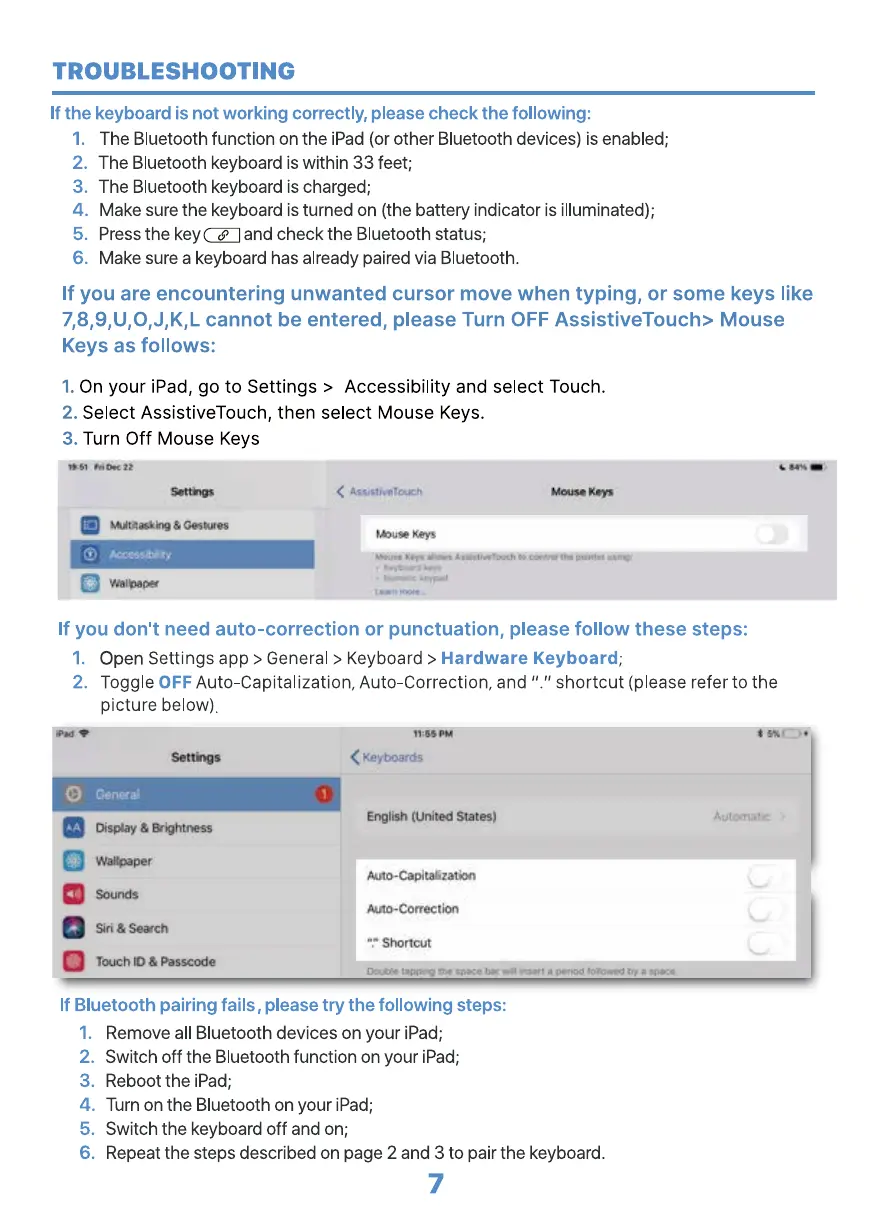
On your iPad, go to Settings > Accessibility and select Touch.
1.
2.
Select AssistiveTouch, then select Mouse Keys.
Turn Off Mouse Keys
3.
Gestor'S
vouse
If you don't need auto-correction or punctuation, please follow these steps:
Open Settings app > General > Keyboard > Hardware Keyboard;
2. Toggle OFF Auto-Capitalization, Auto-Correction, and
shortcut (please refer to the
picture below).
Settngs
Genera;
Disgaav *ightness
Wä%paper
Sounds
Siri & Search
rauchlO & Passcode
'i'•.gspu
english (United States)
Aoto-Capita6zatLn
puto-Correction
"If' Shortcut
If Bluetooth pairing fails , please try the following steps:
2.
3.
4.
5.
6.
Remove all Bluetooth devices on your iPad;
Switch off the Bluetooth function on your iPad;
Reboot the iPad;
Turn on the Bluetooth on your iPad;
Switch the keyboard off and on;
Repeat the steps described on page 2 and 3 to pair the keyboard.
7


 To Next Page
 Loading...